Molecule Edit/Draw
1. Introduction
The Hermite platform provides 2D and 3D editing functions for molecules. 3D editing and drawing of molecules can be completed through the 3D Editing tool, and 2D editing and drawing of molecules can be completed through the 2D Workspce window.
2. Molecular introduction
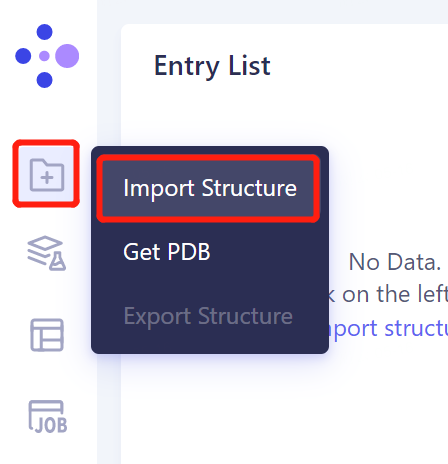
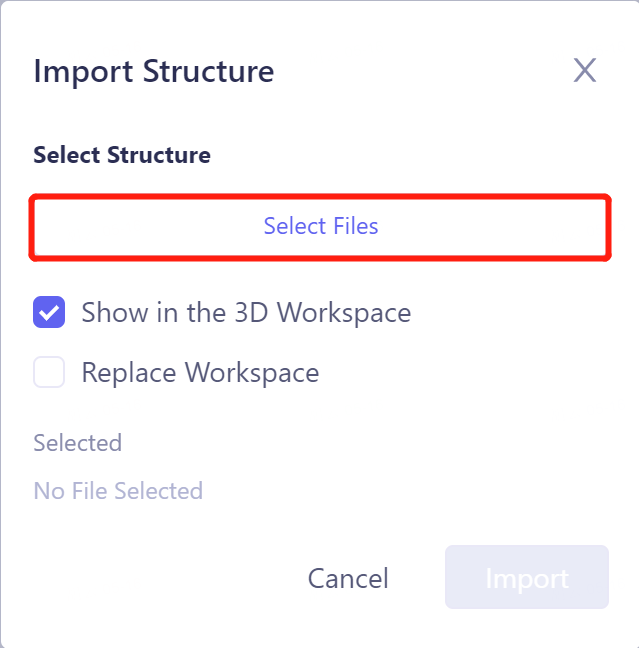
- On the left general menu bar, Menu → File → Import Structure → Import Structuure operation interface pops up, click Select Files to upload the local molecular file → Import.
-
Support the import of.mol.sdf and.pdb format files;
-
Show in the 3D Works pace: molecules are displayed in the 3D Works pace window;
-
Replace Works pace: Replace the display file of the current 3D Workspace window with the uploaded molecule file;
-
3. 3D Editing
3.1 Molecular File New
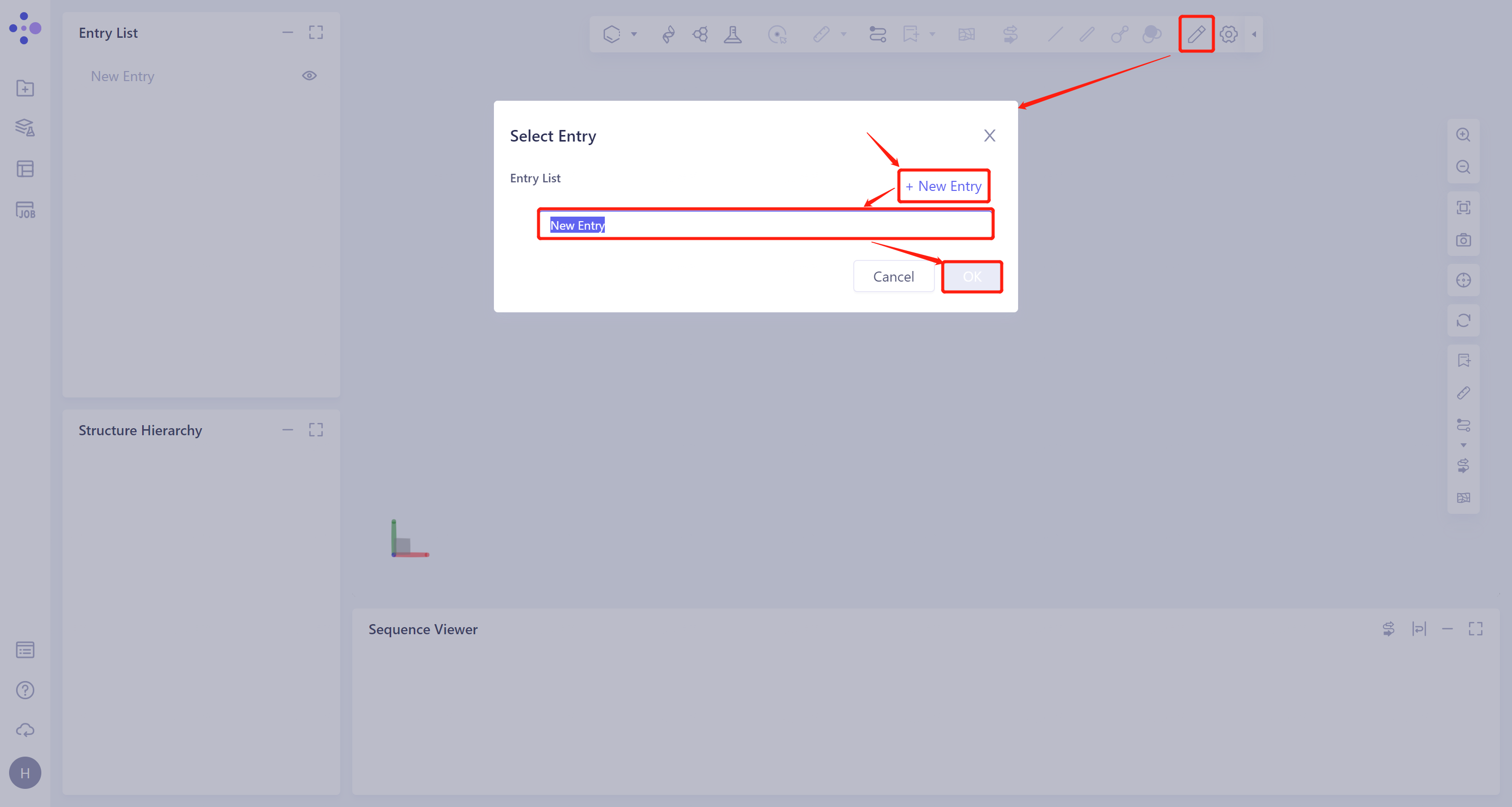
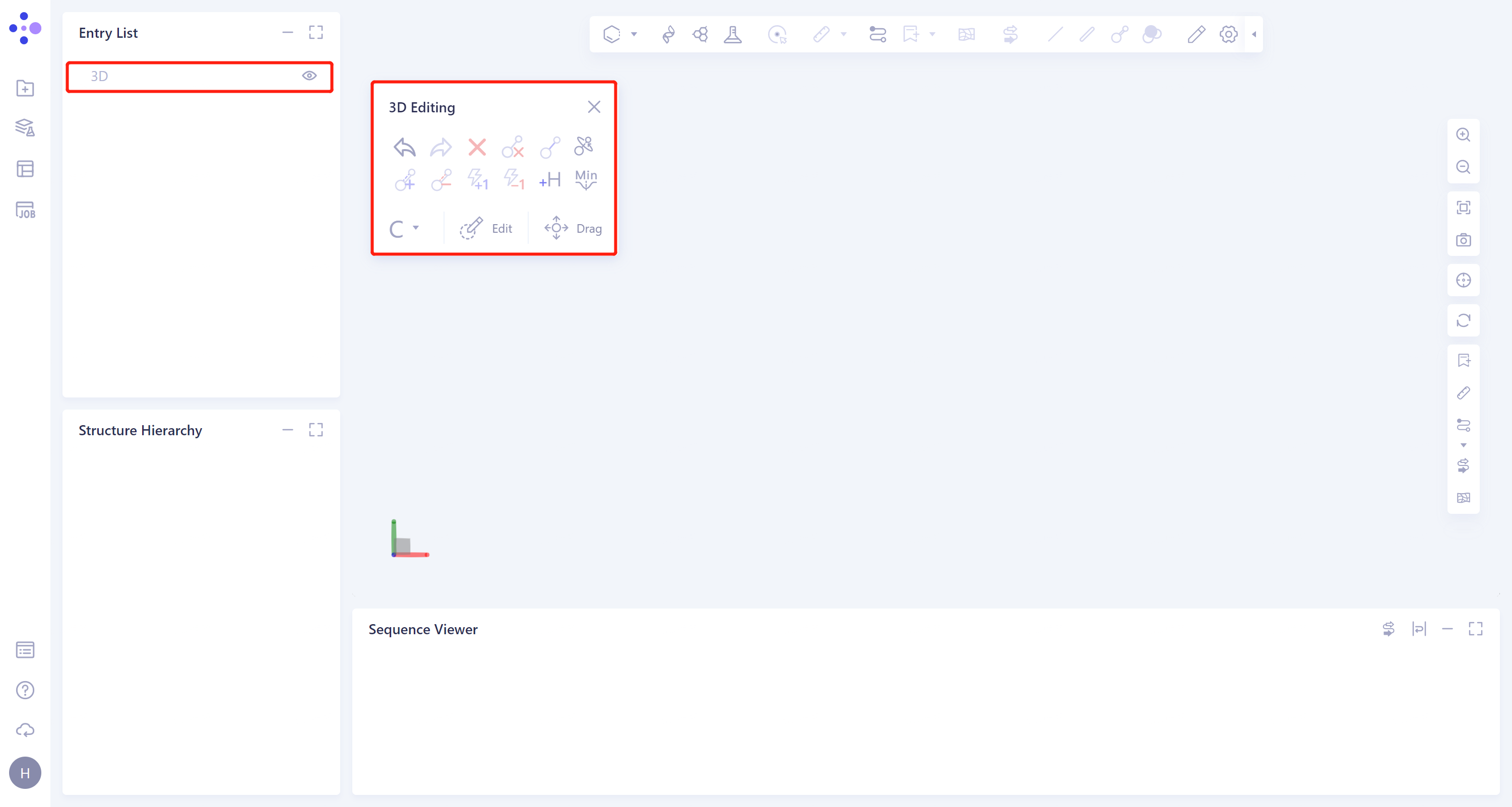
- When there is no molecule in the interface, click 3D Editing in the toolbar of 3D Workspace window → Select Entry operation interface pops up → Click + New Entry → Rename → Click OK → The created molecule file is displayed in the Entry List window. The 3D Editing operation interface appears in the upper left corner of the 3D Workspace window.
 |  |
3.2 3D Editing operation
- Before the 3D Editing operation, it is recommended to first adjust to Atom through the toolbar Pick Element above the 3D Workspace, so as to facilitate the later molecular editing.
| Name of the operation | Icon | Before | After | Remarks |
| Undo |  | —— | —— | Undo operation |
| Redo |  | —— | —— | Resume previous operation |
| Delete Atoms |  | 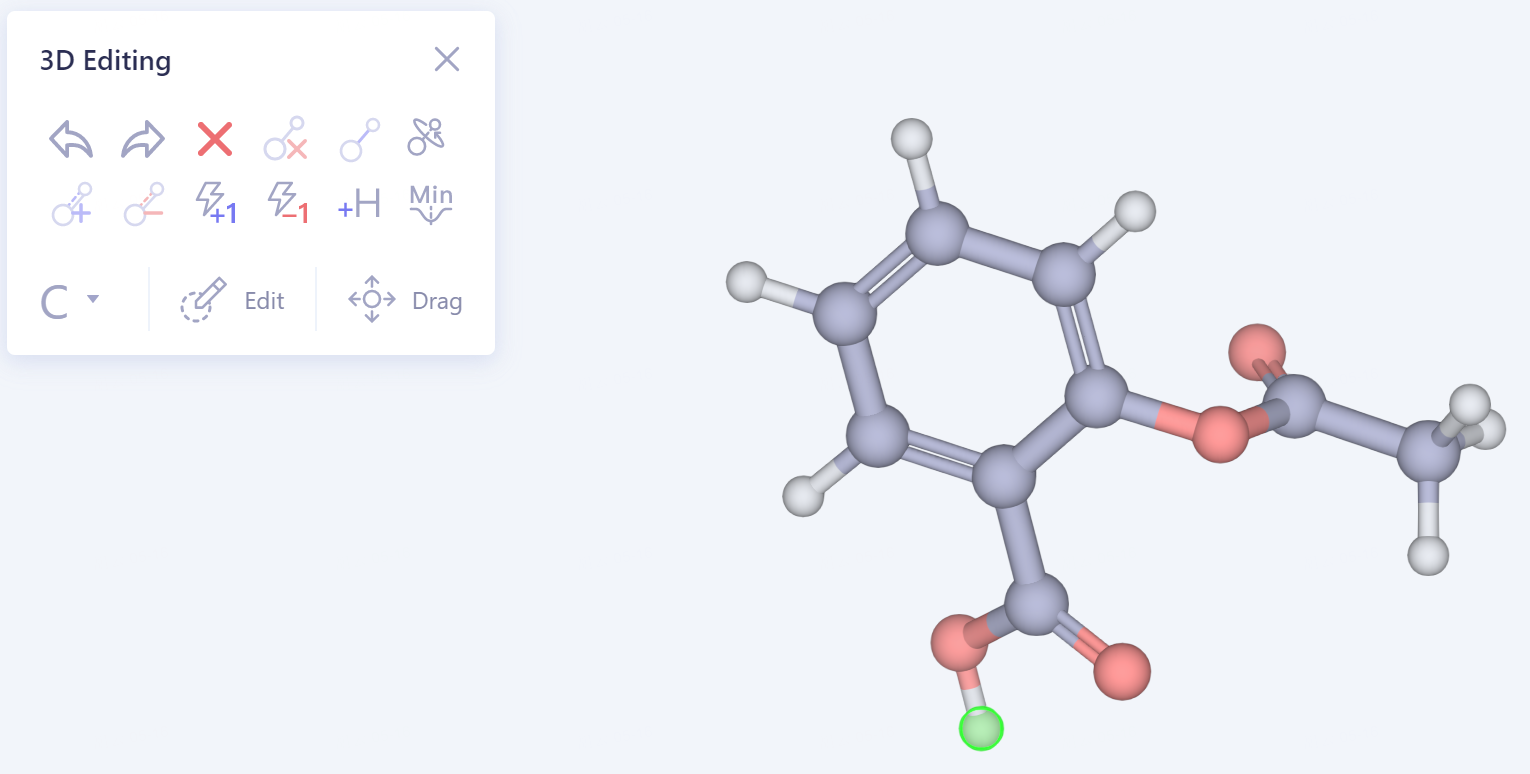 | 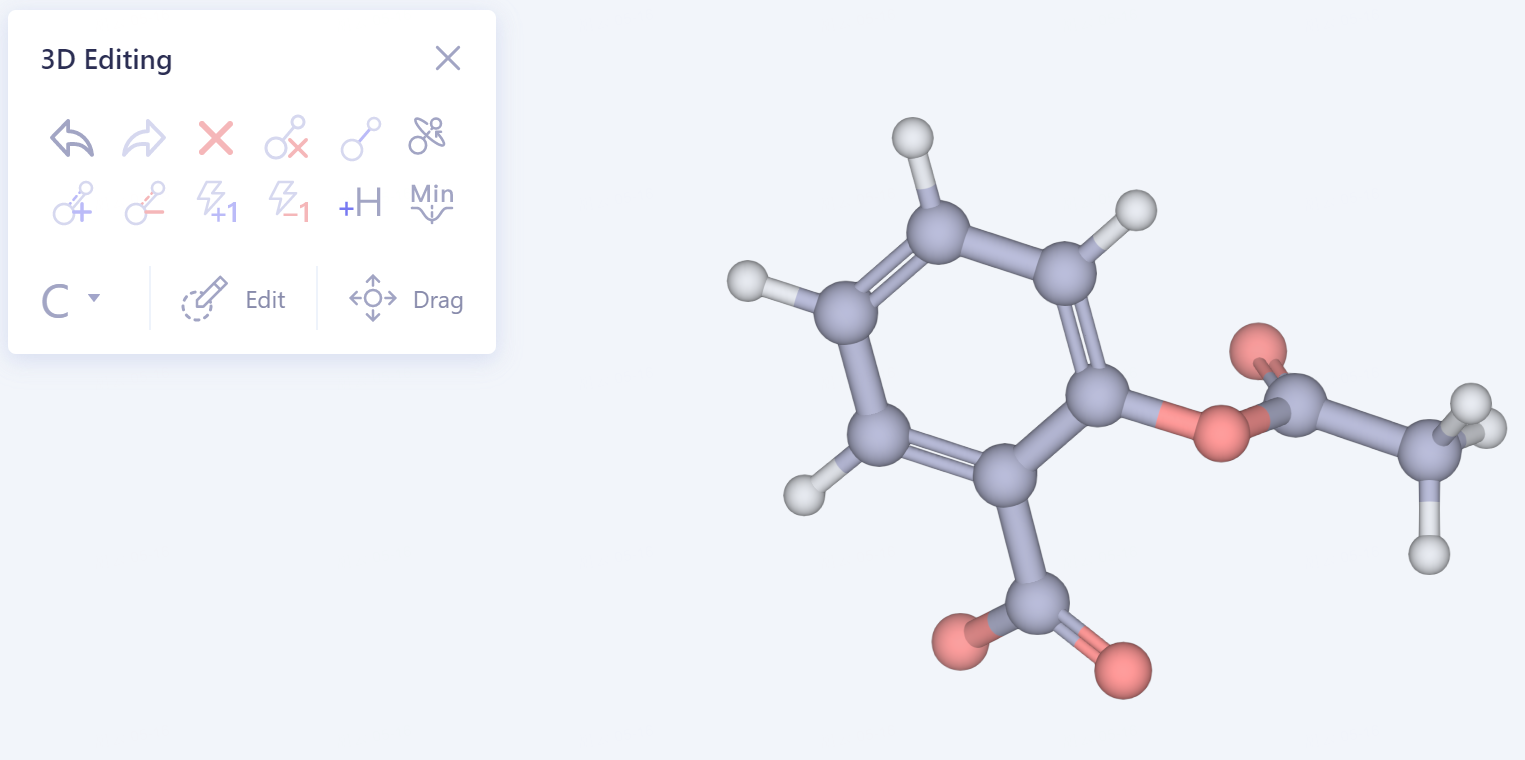 | |
| Delete Bond |  | 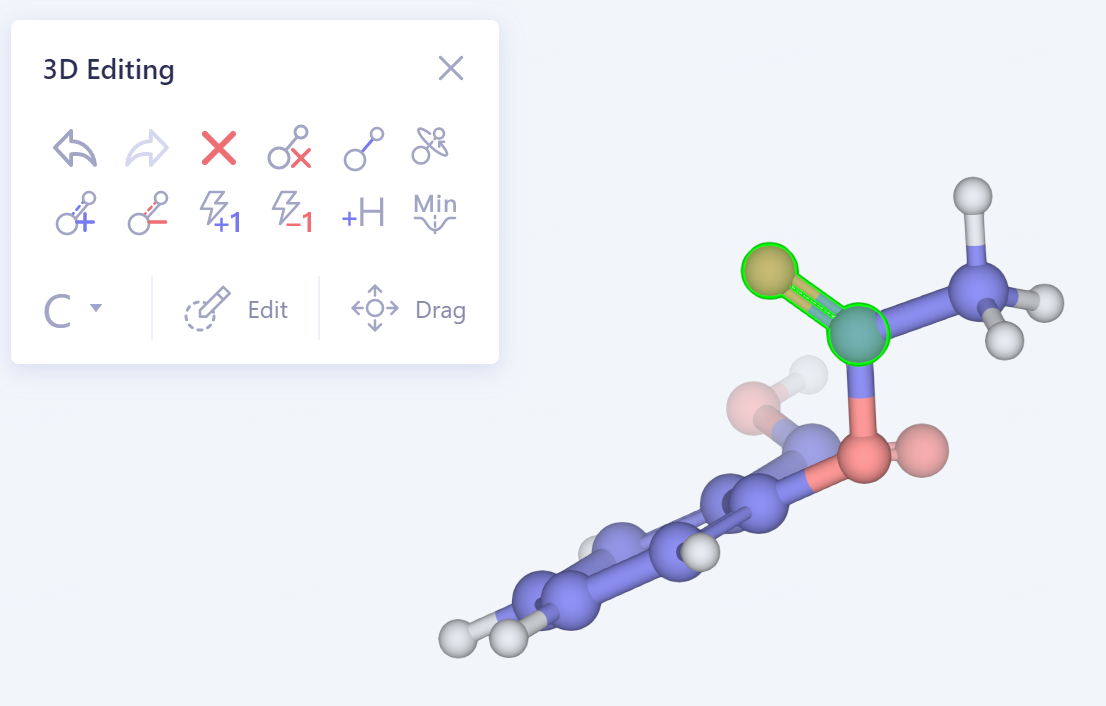 | 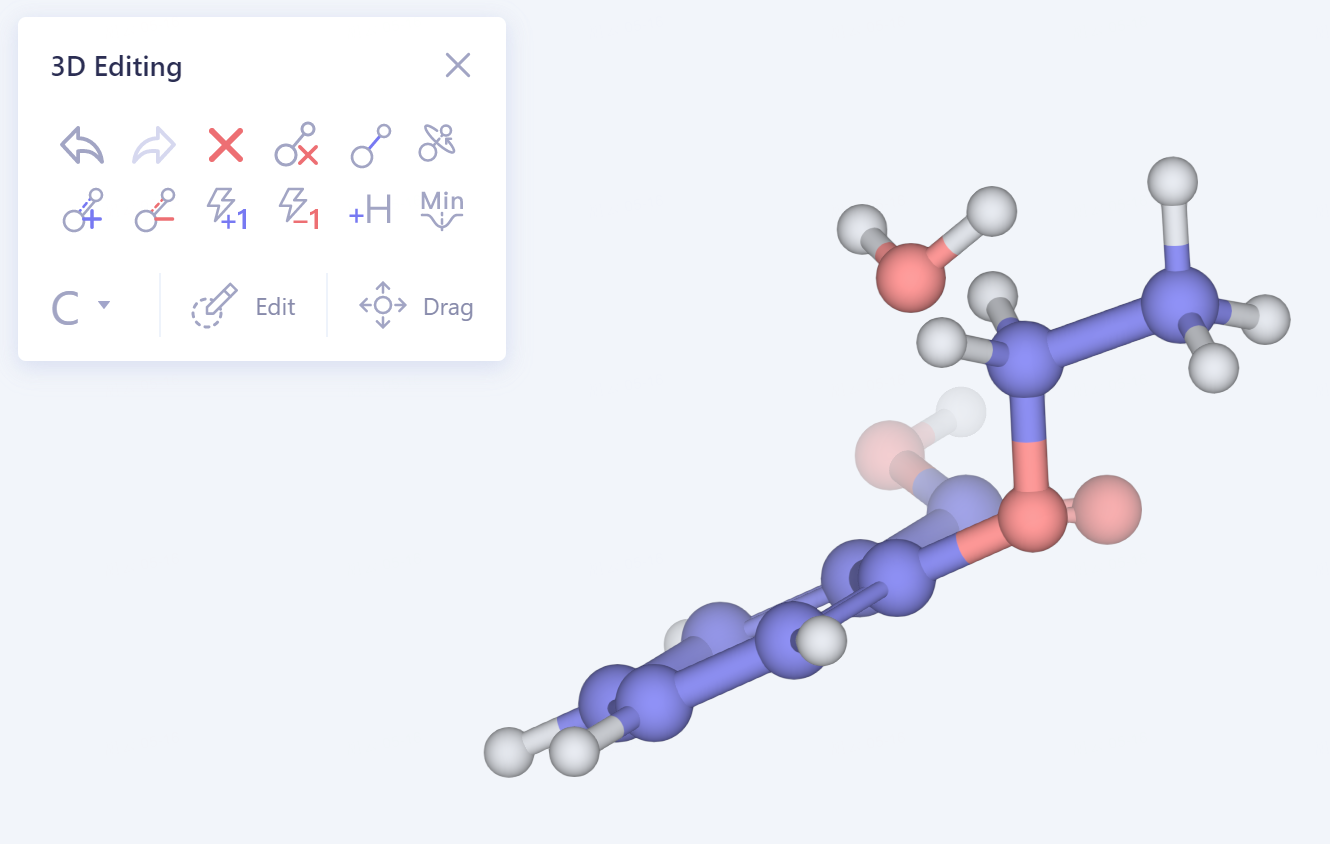 | |
| Add Bond |  | 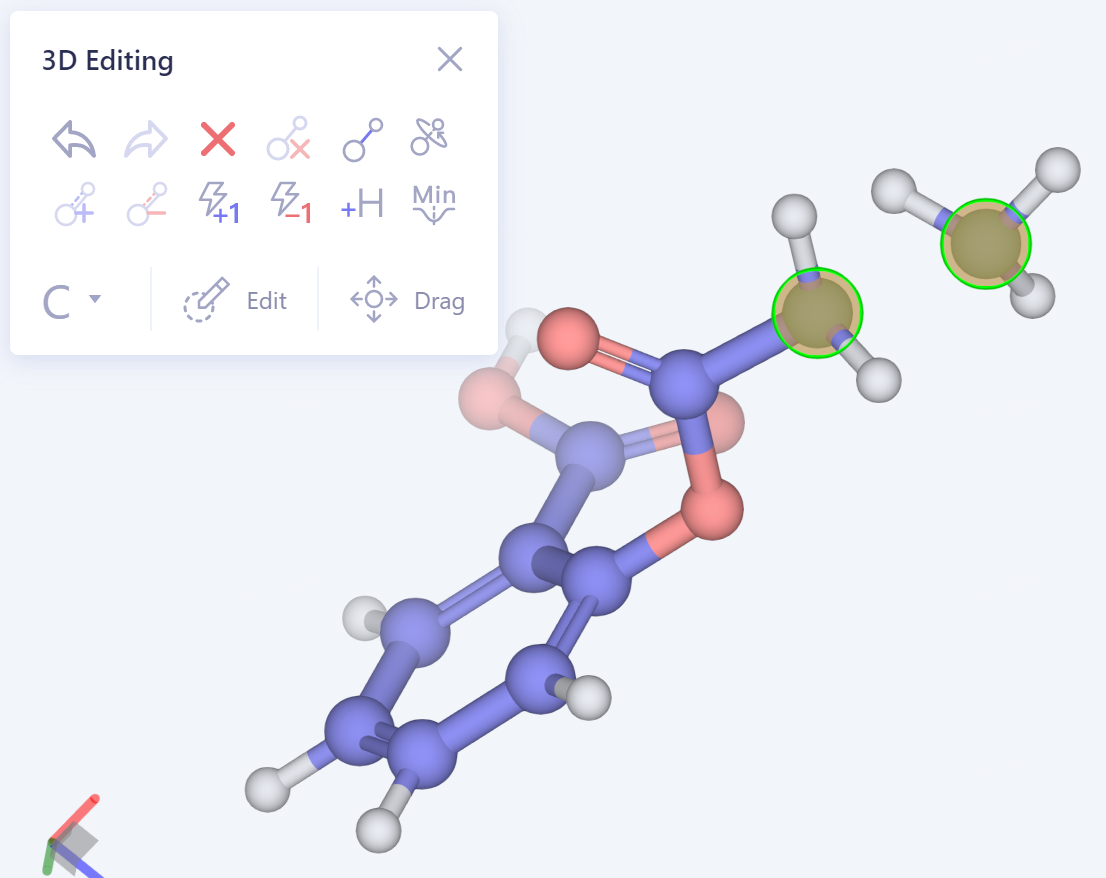 | 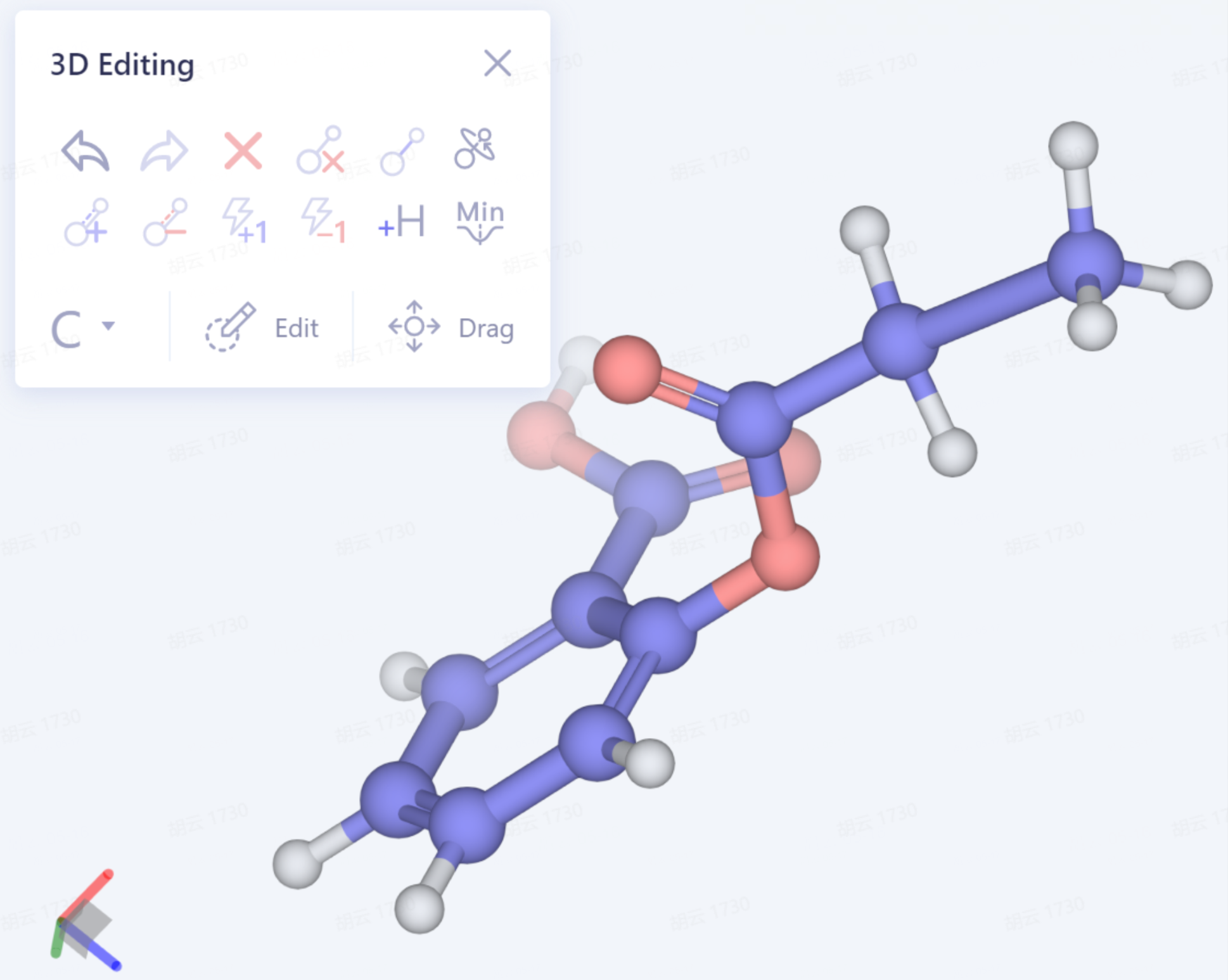 | |
| Rotate |  | 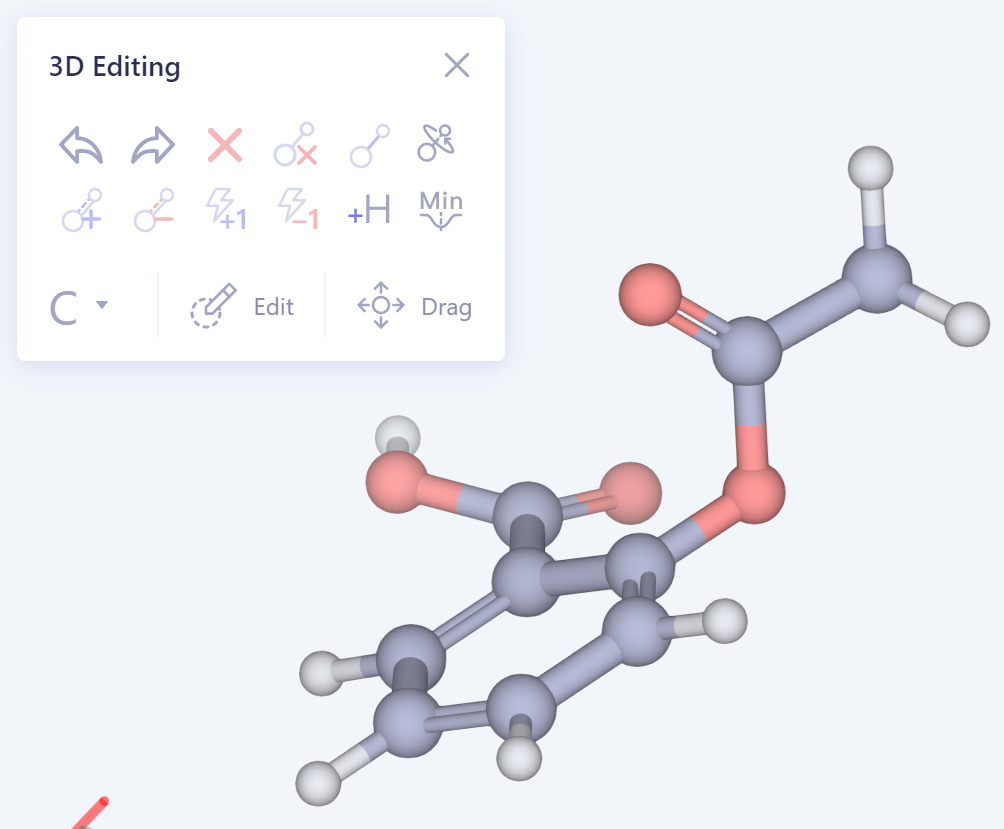 | 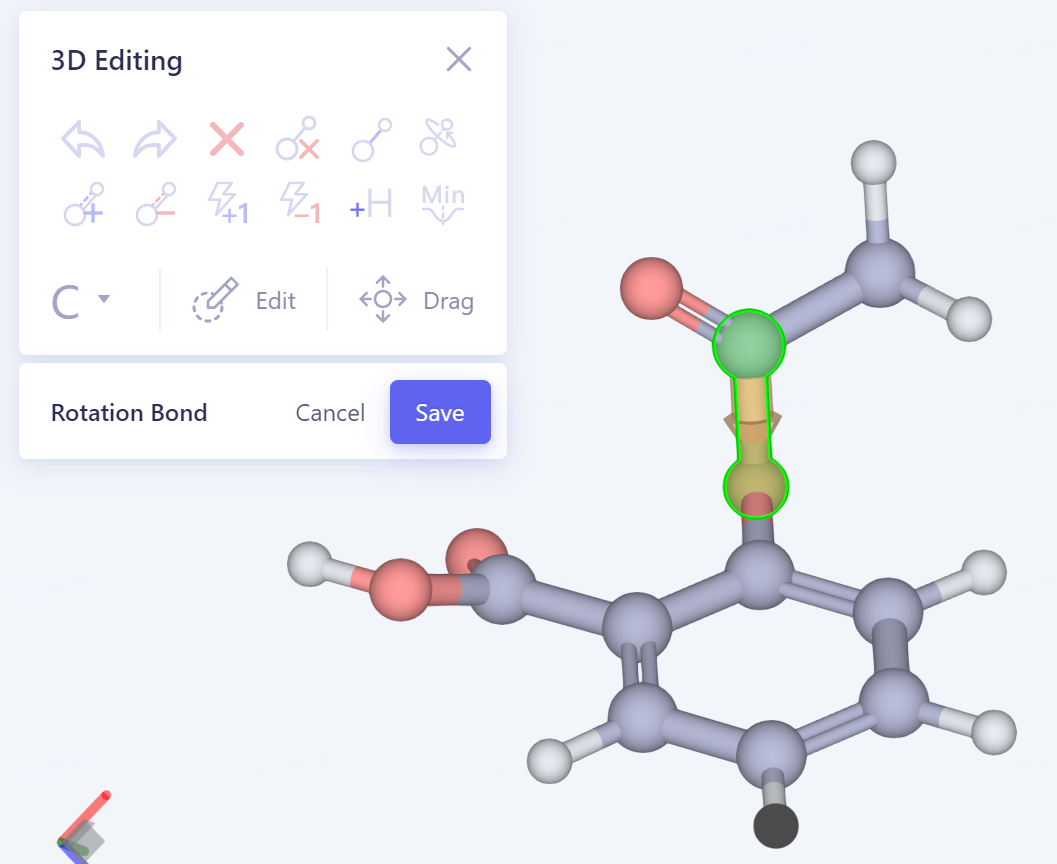 | |
| Increase Bond Order |  | 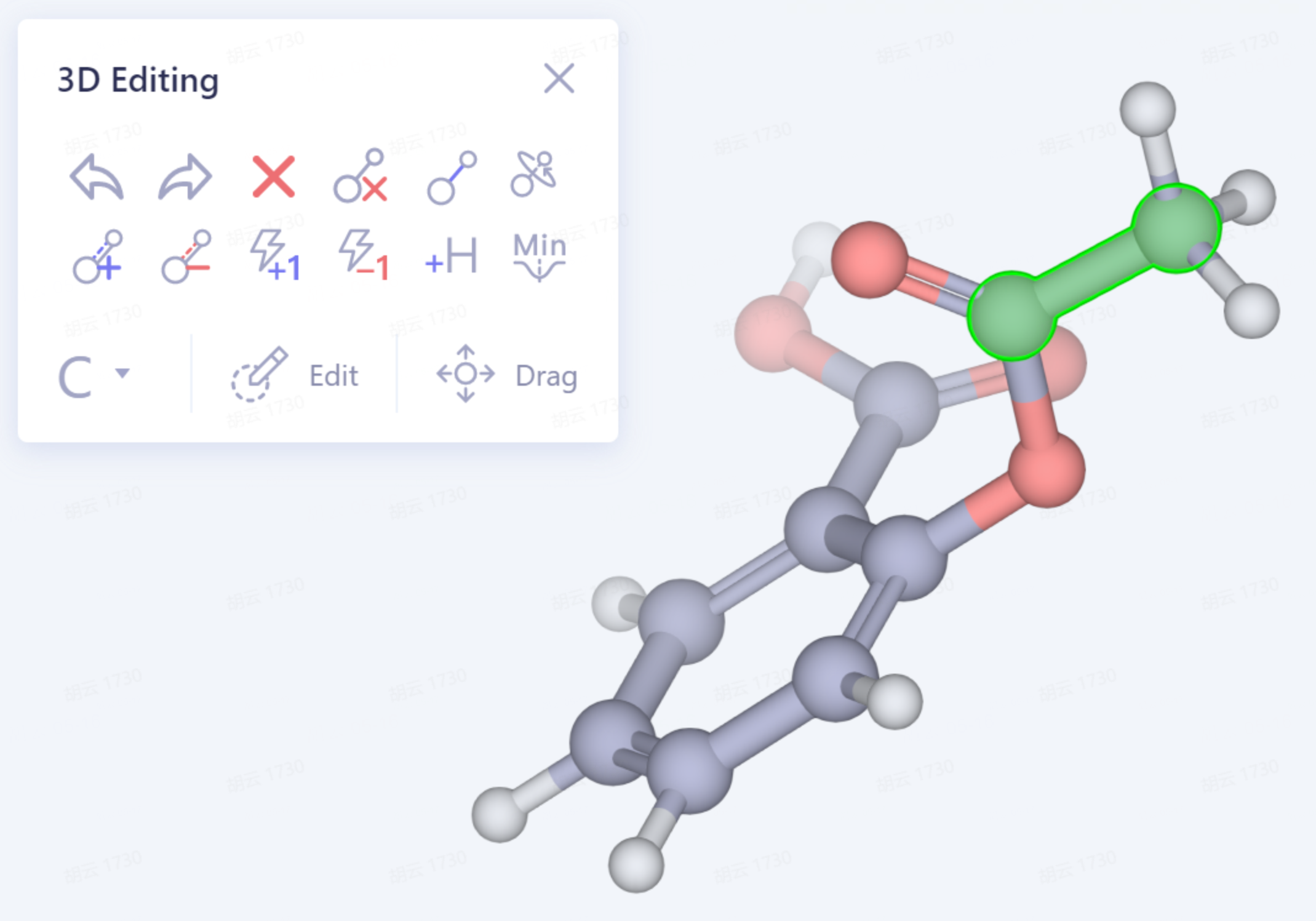 | 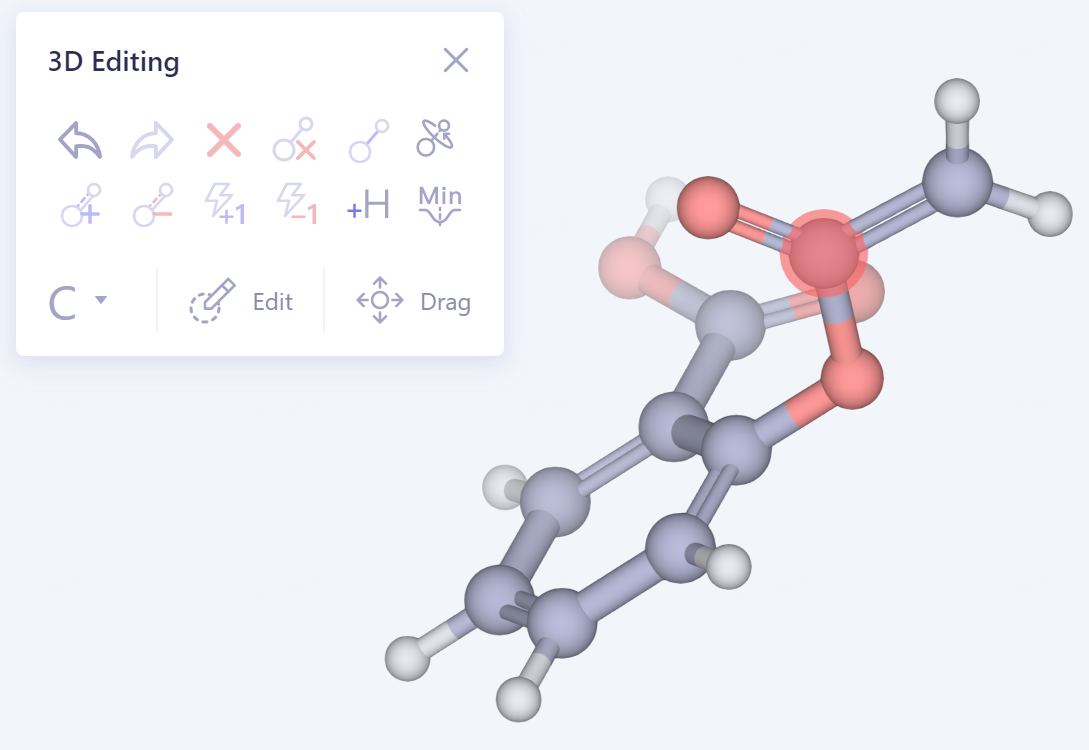 | |
| Decrease Bond Order |  | 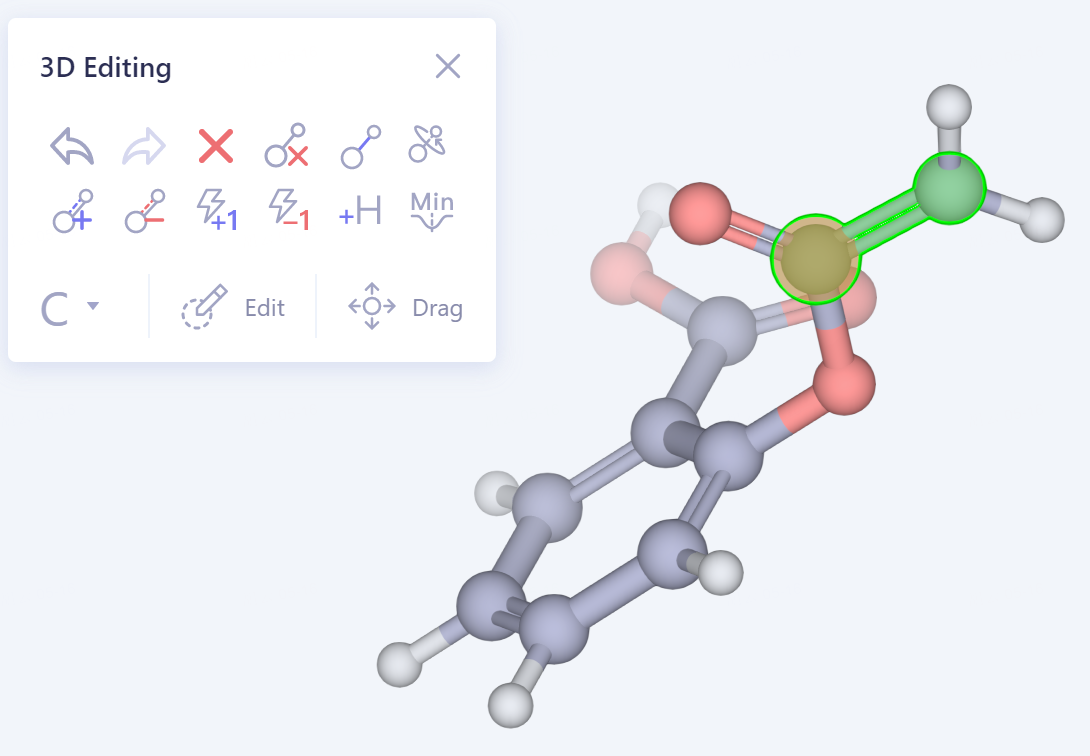 | 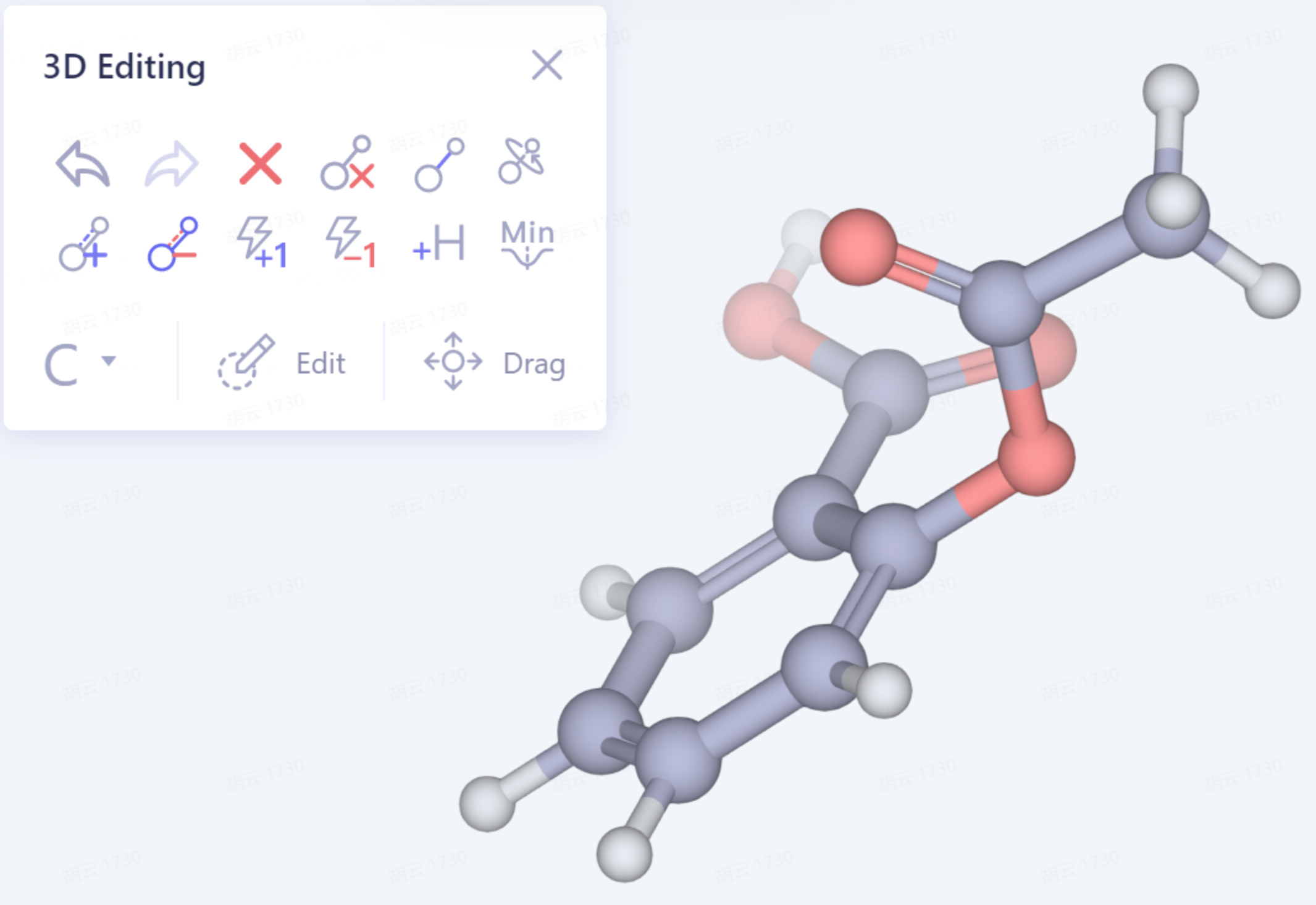 | |
| Increase Charge |  | 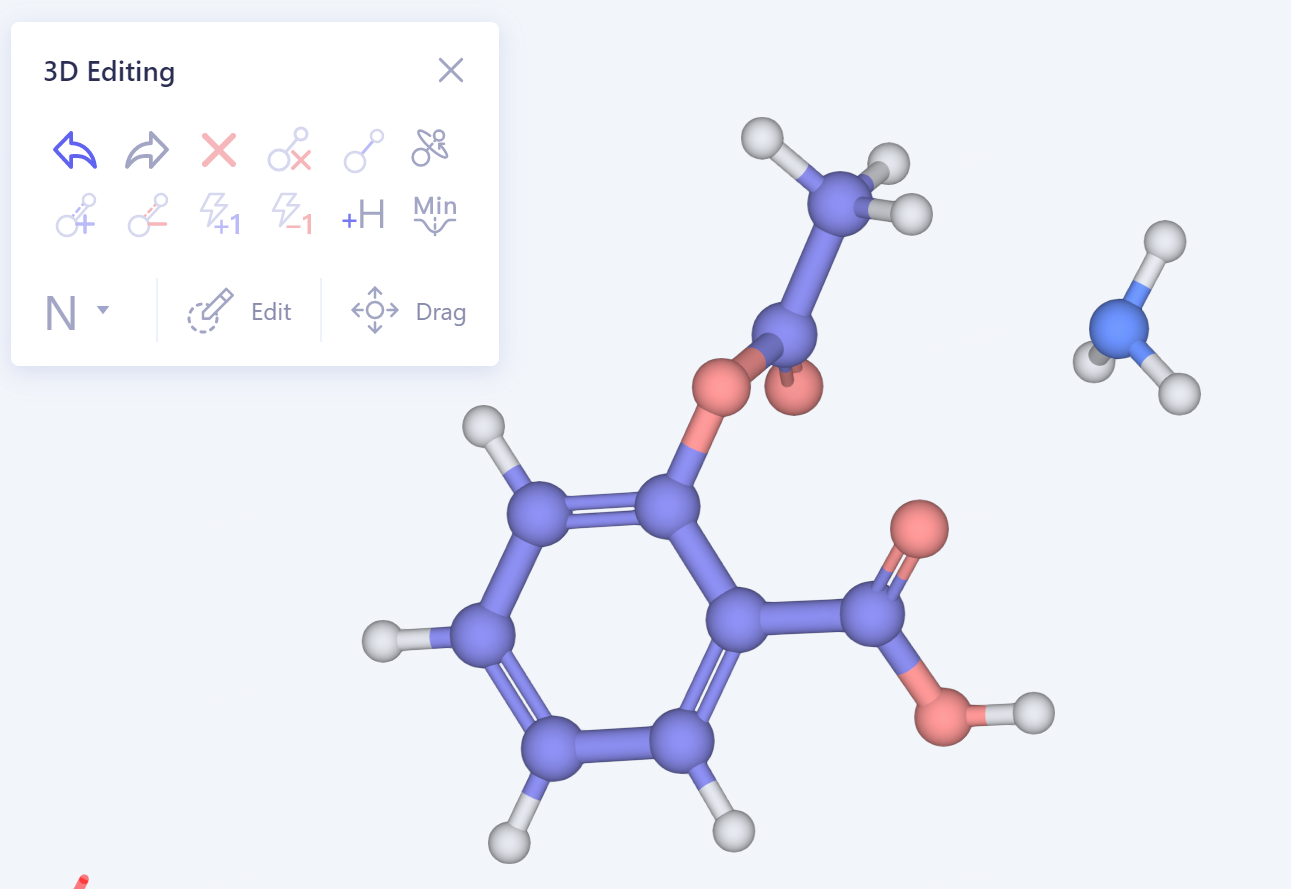 | 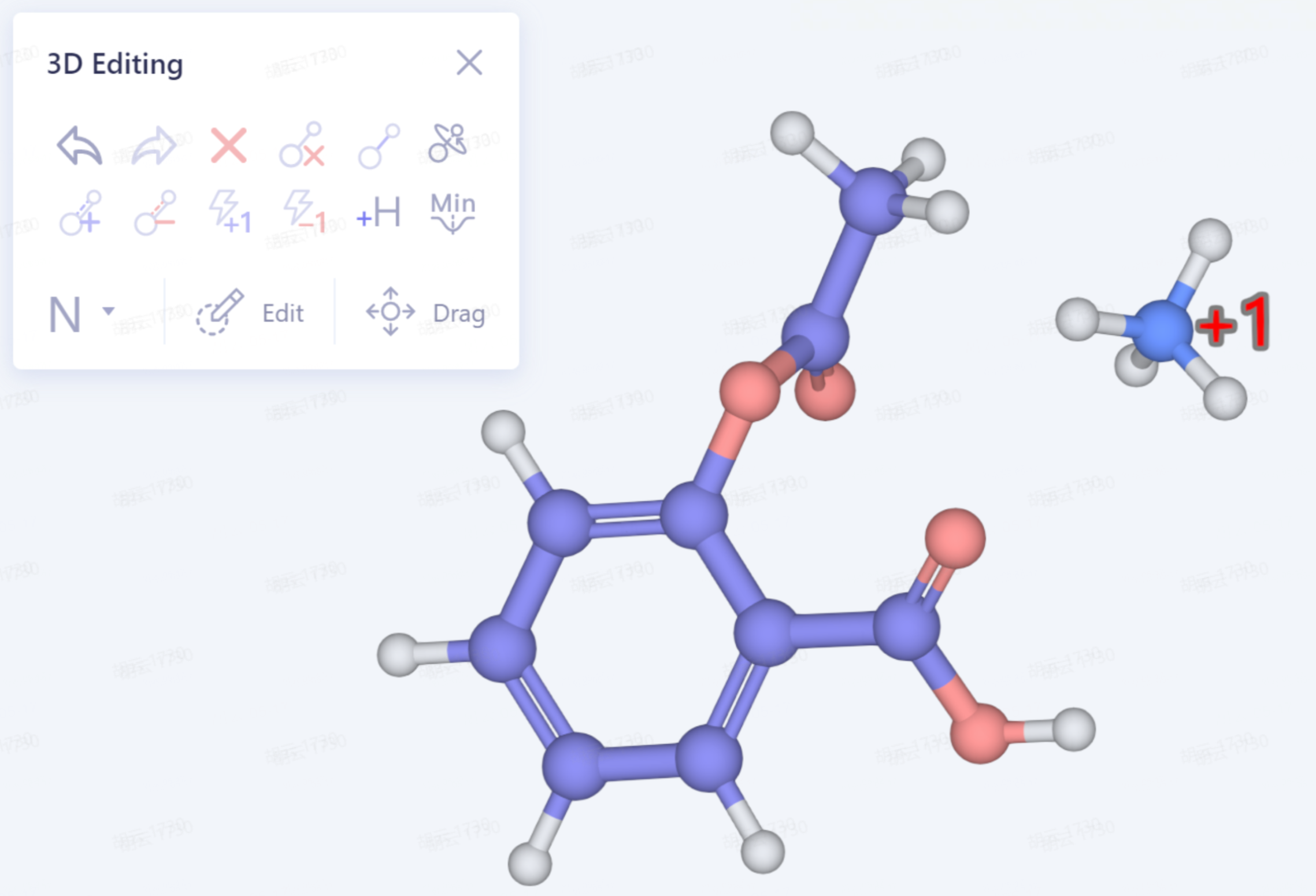 | |
| Decrease Charge |  | 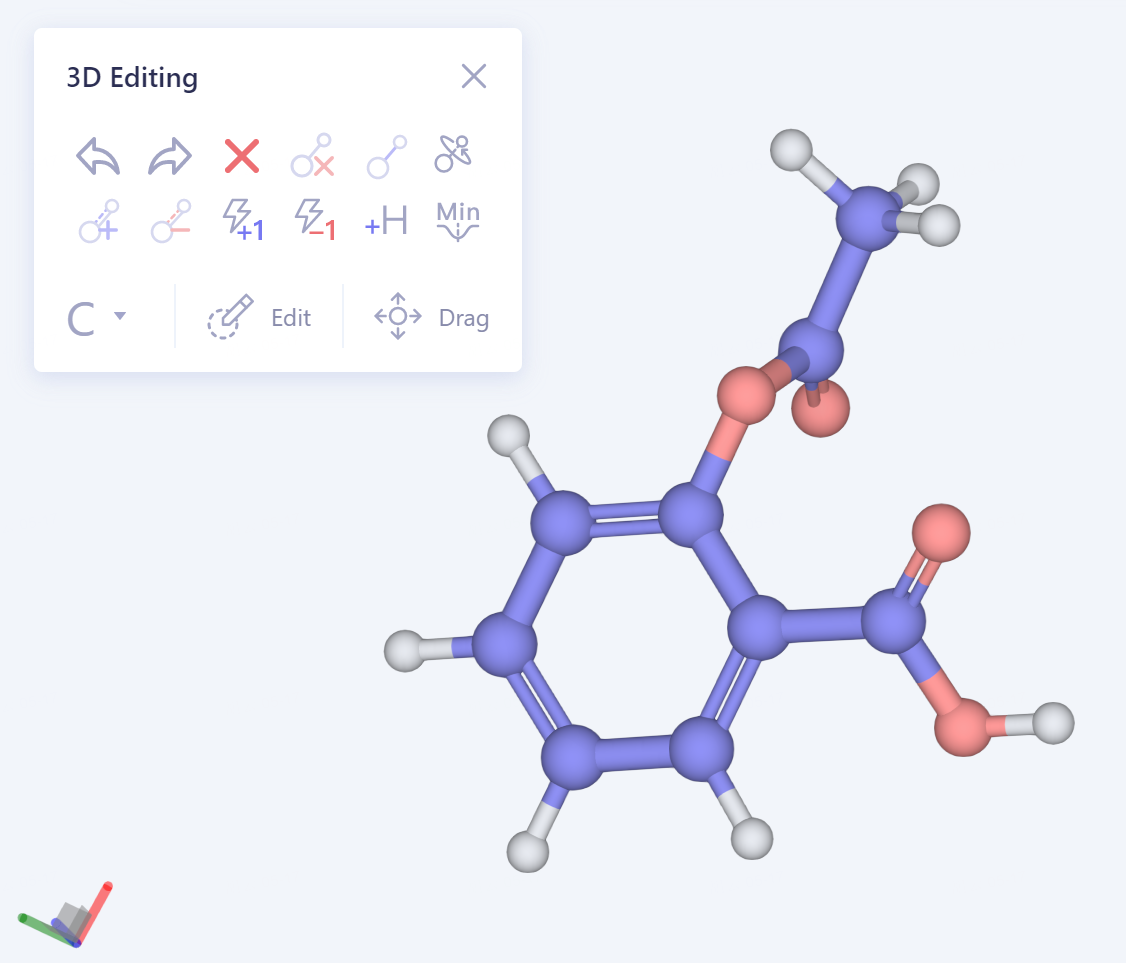 | 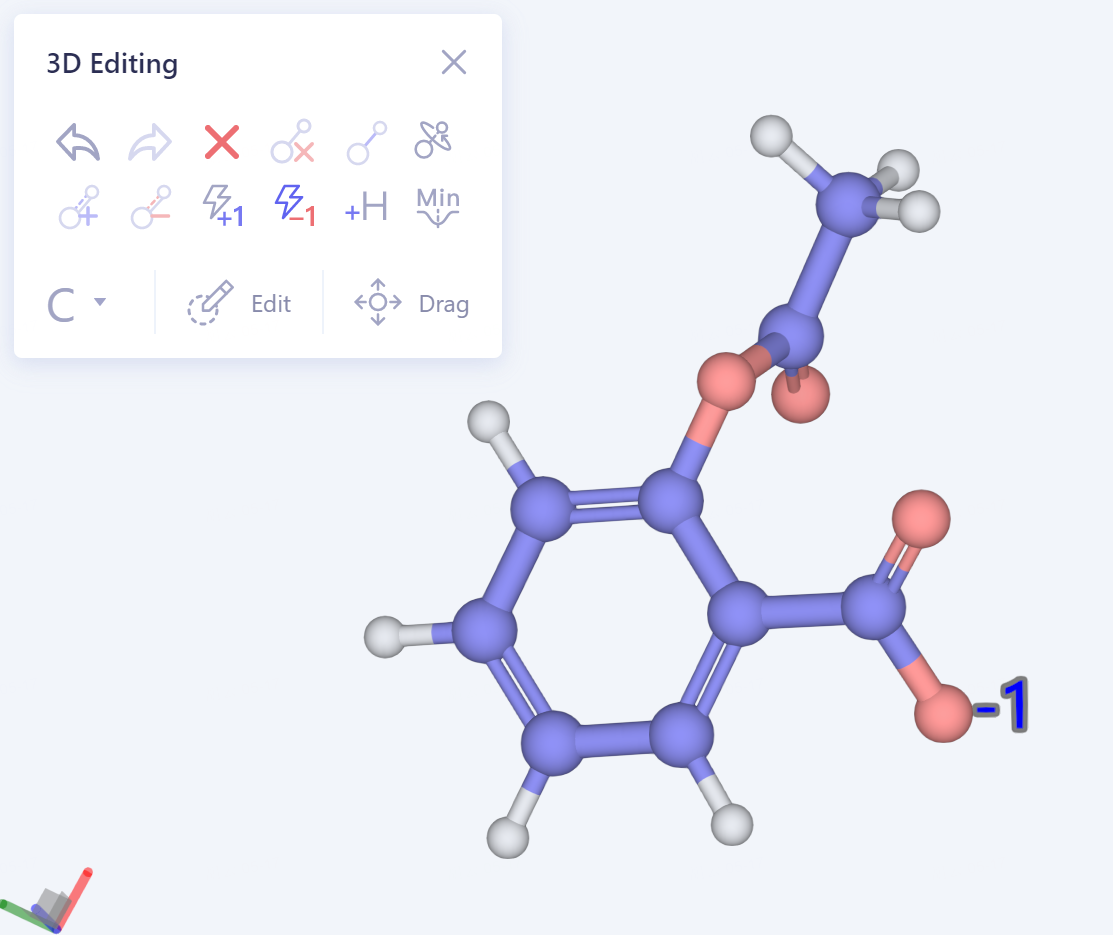 | |
| AddHs |  | 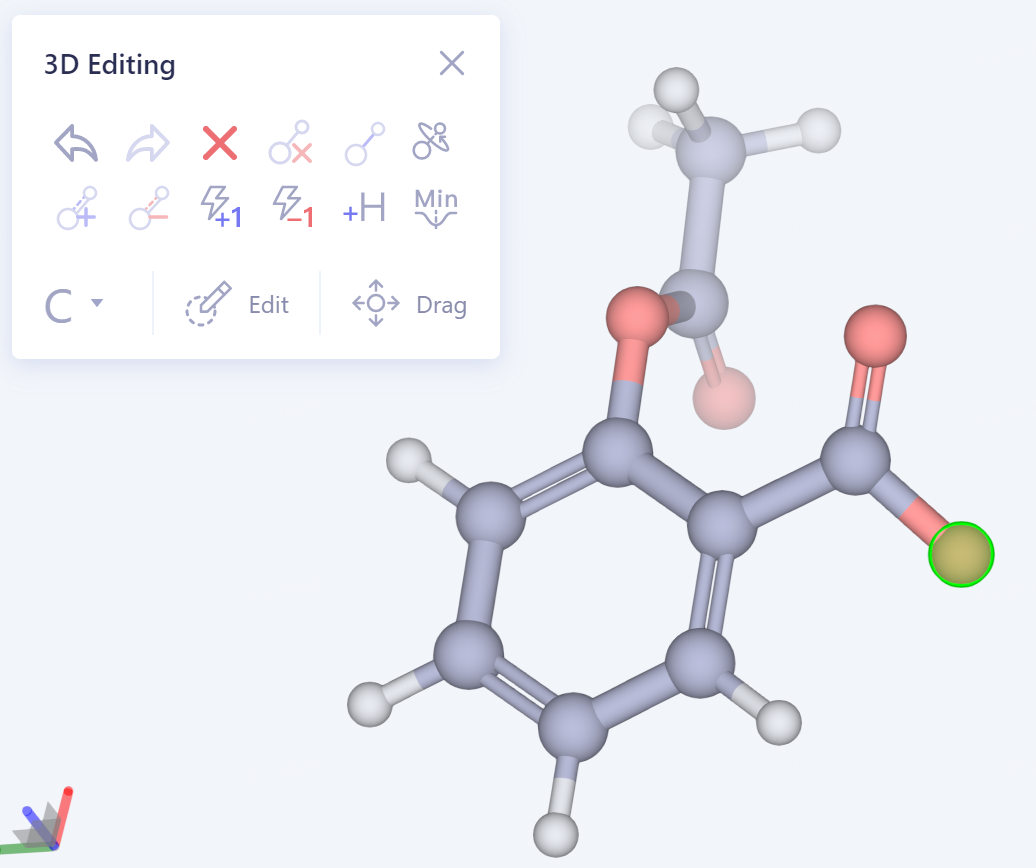 | 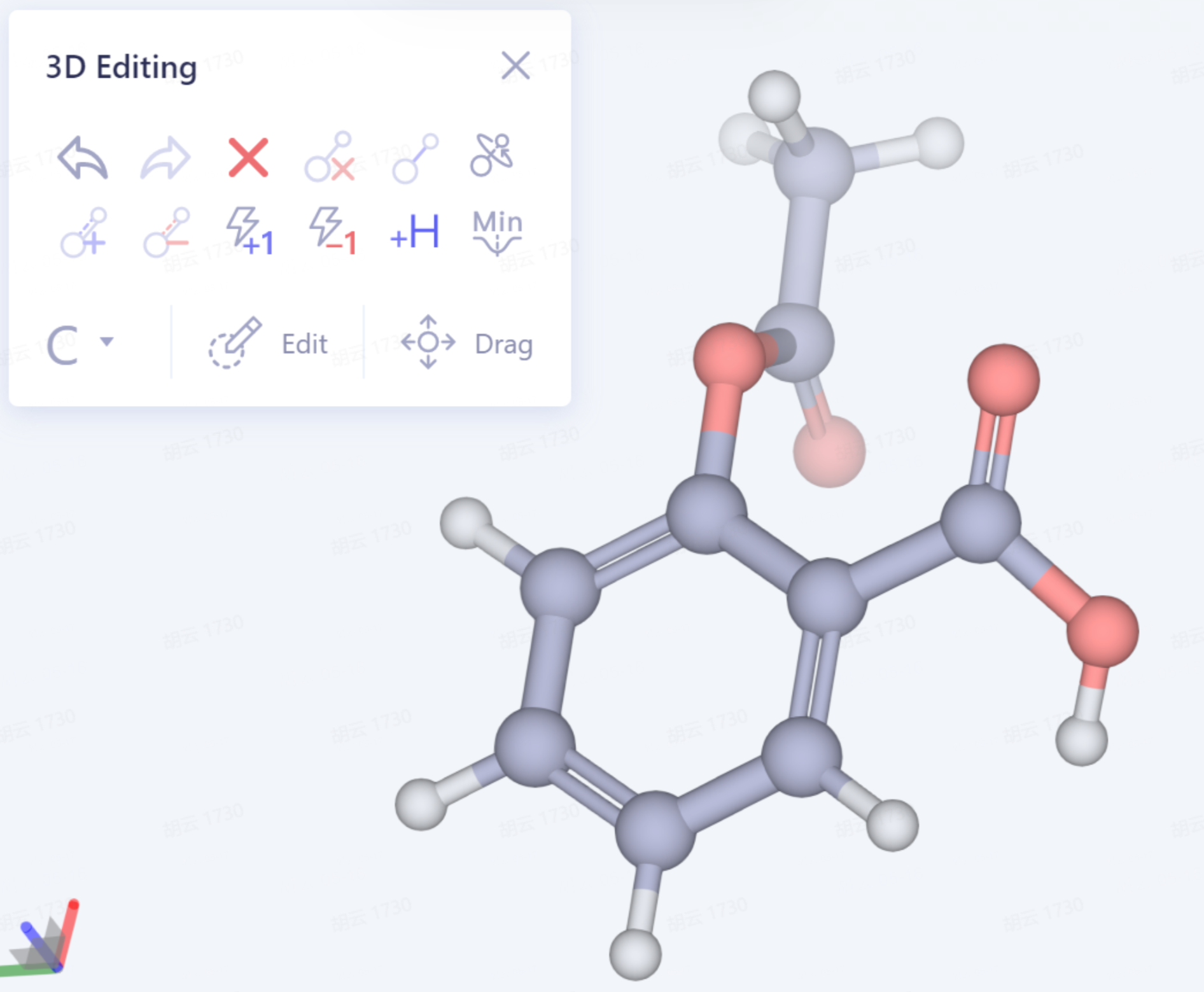 | |
| Energy Minimized |  | 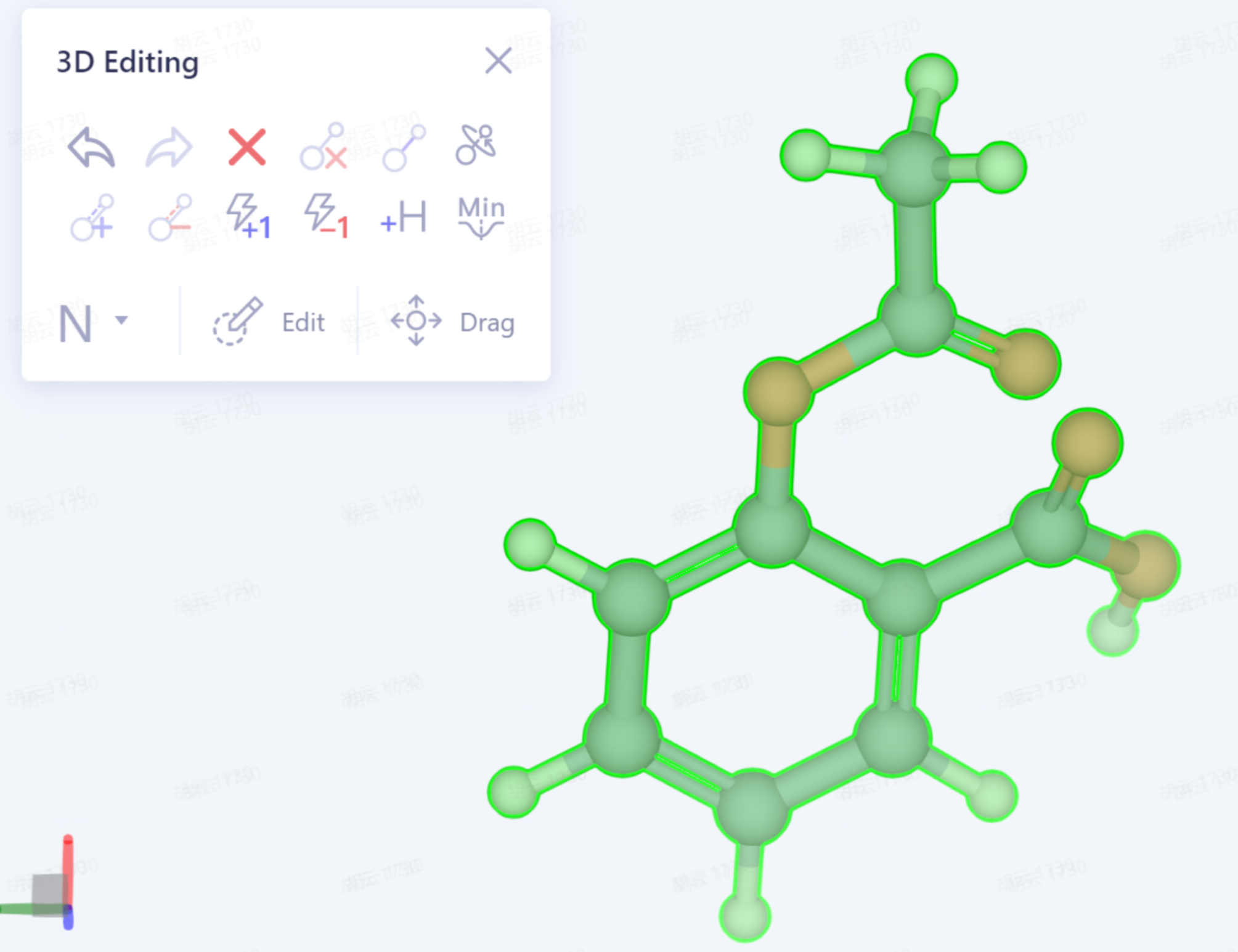 | 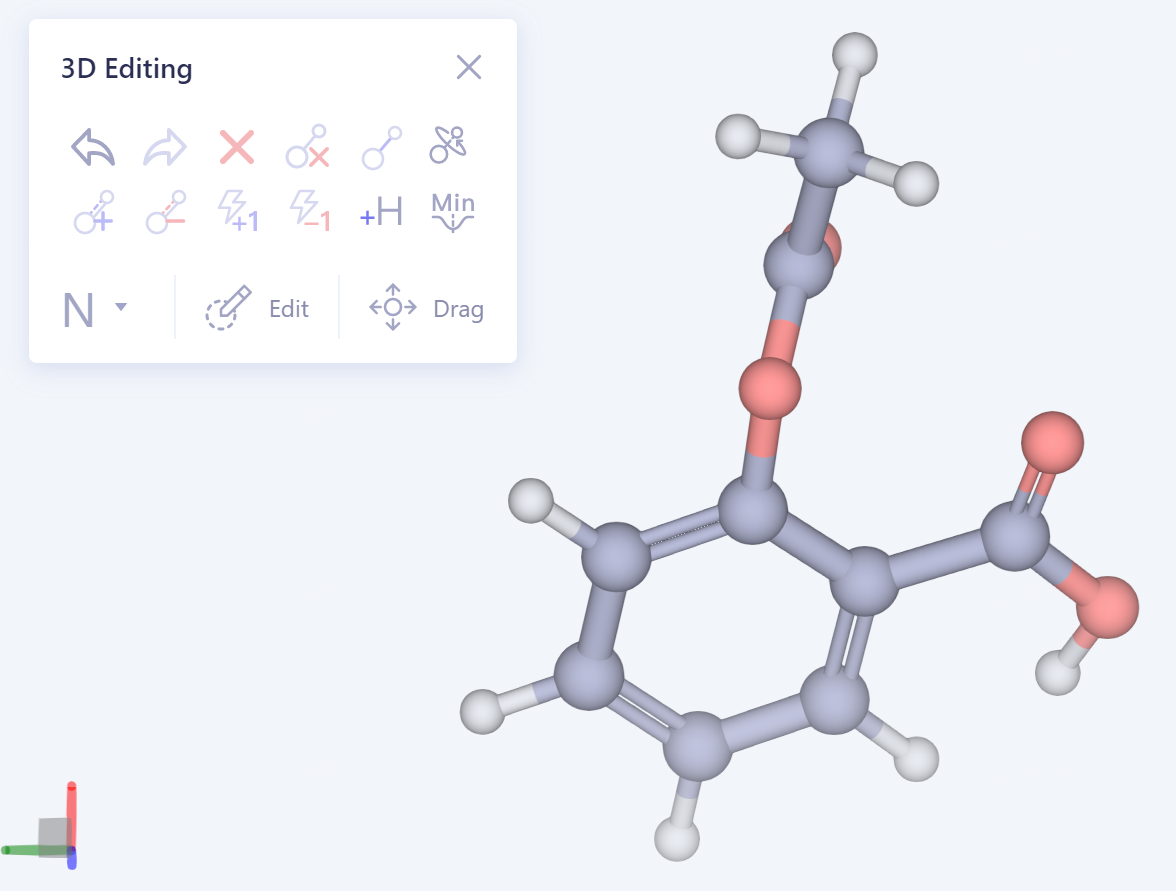 | |
| Edit |  | 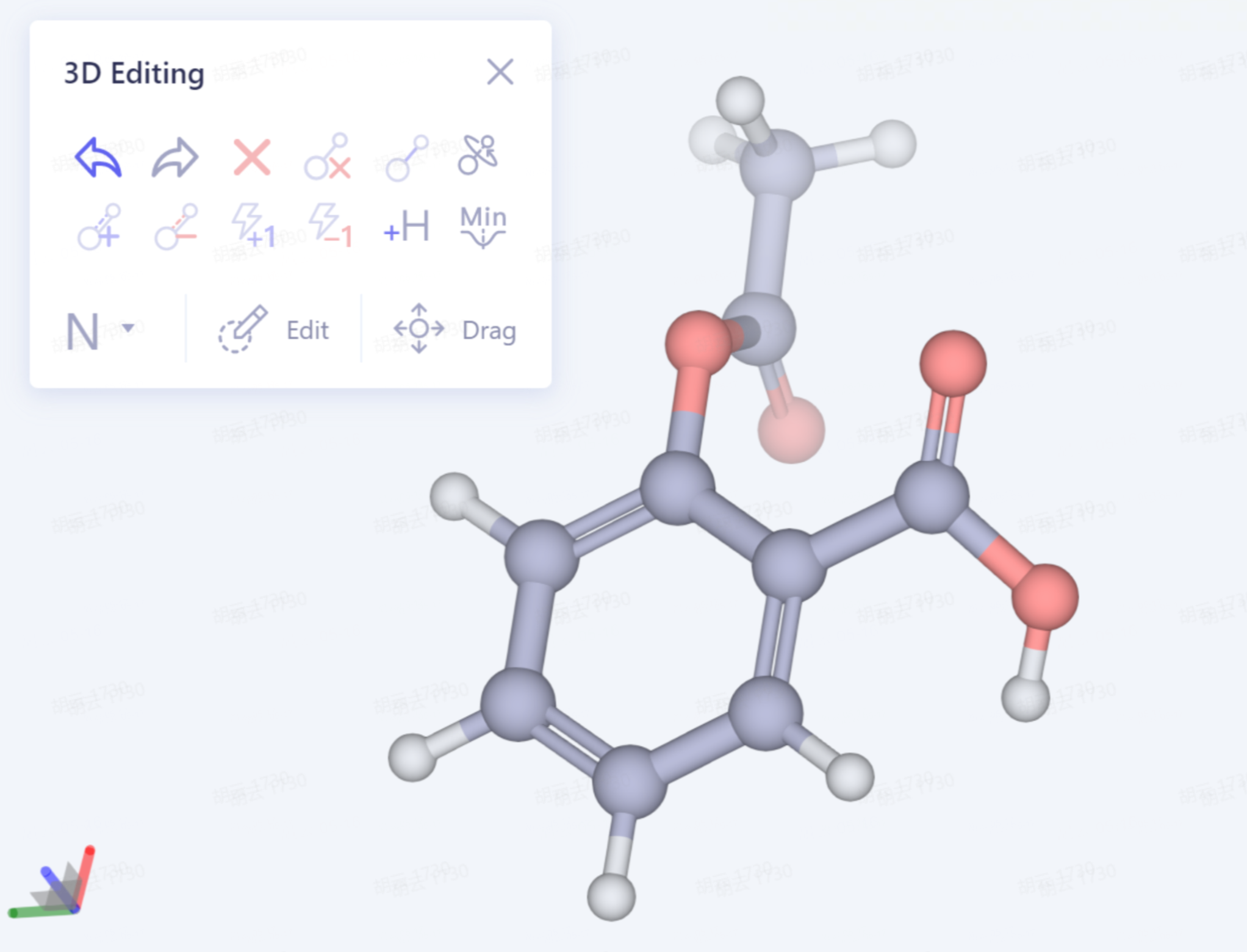 | 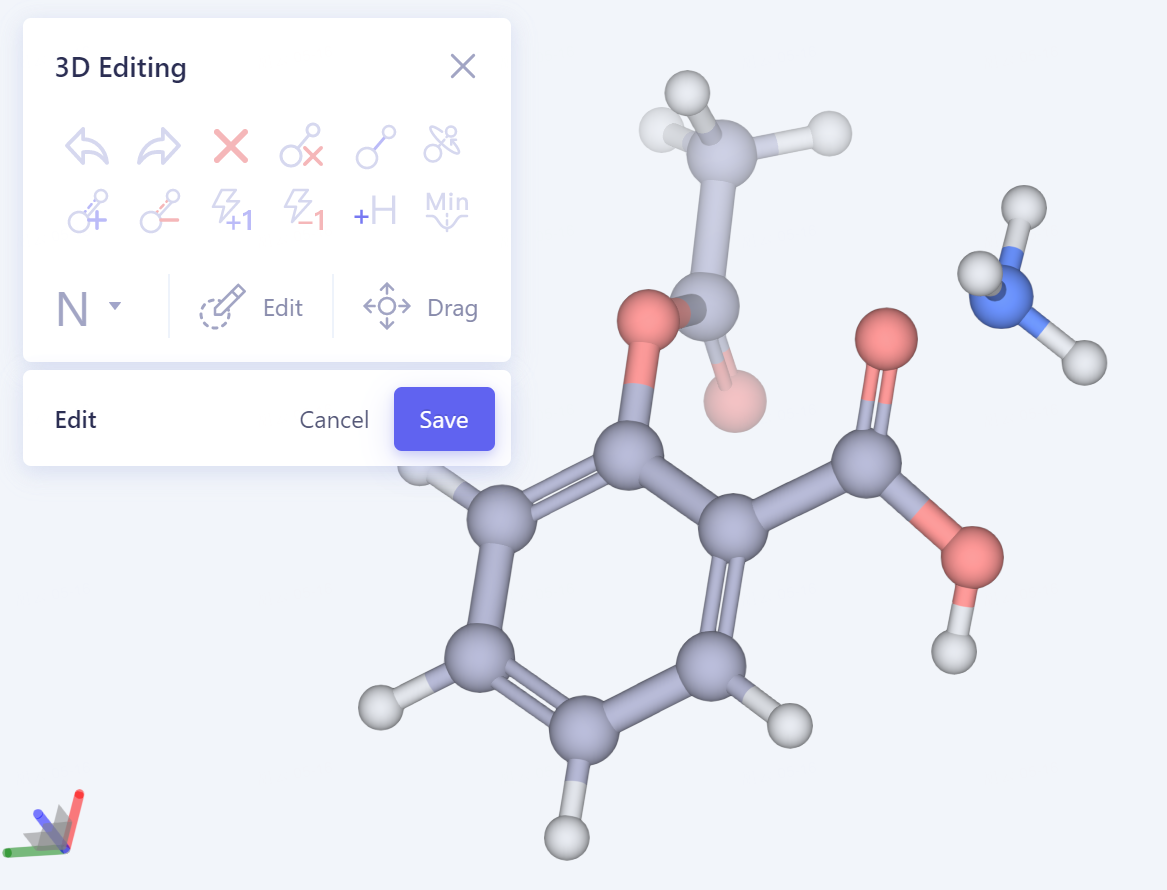 | |
| Drag |  | 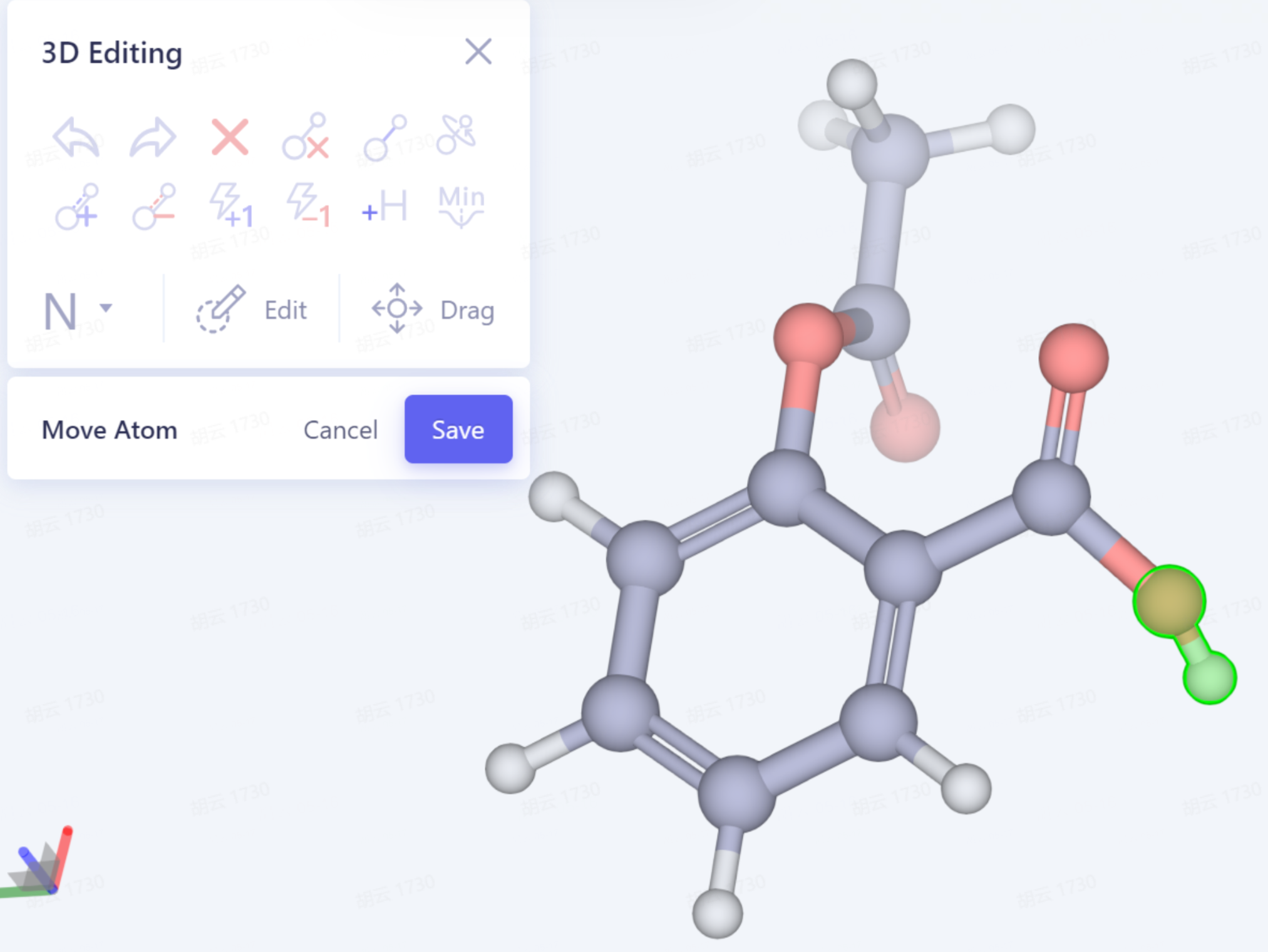 | 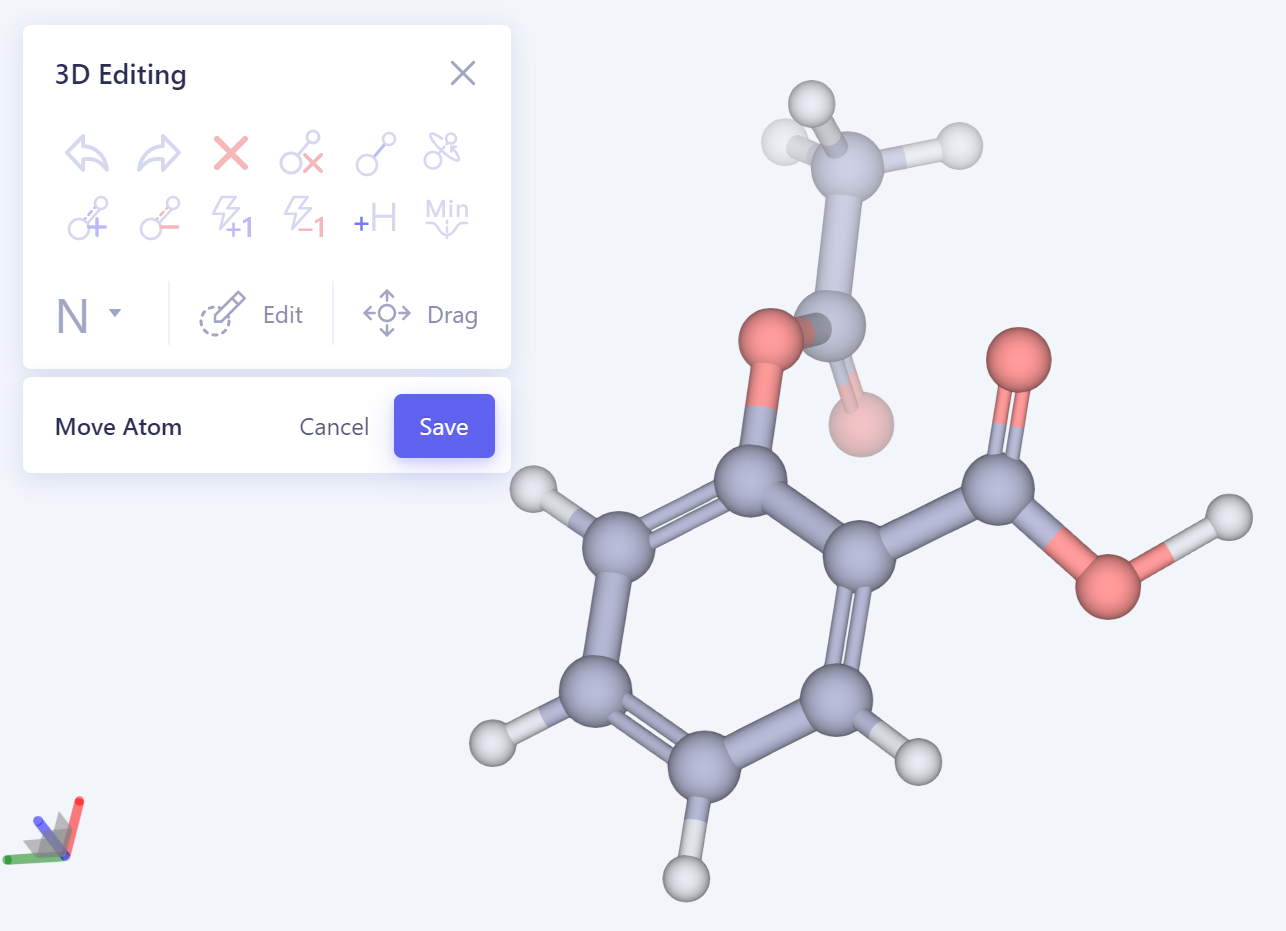 |
- Atomic type change: Click the drop-down arrow in the lower left corner of the 3D Editing operation interface, and the following information will appear:

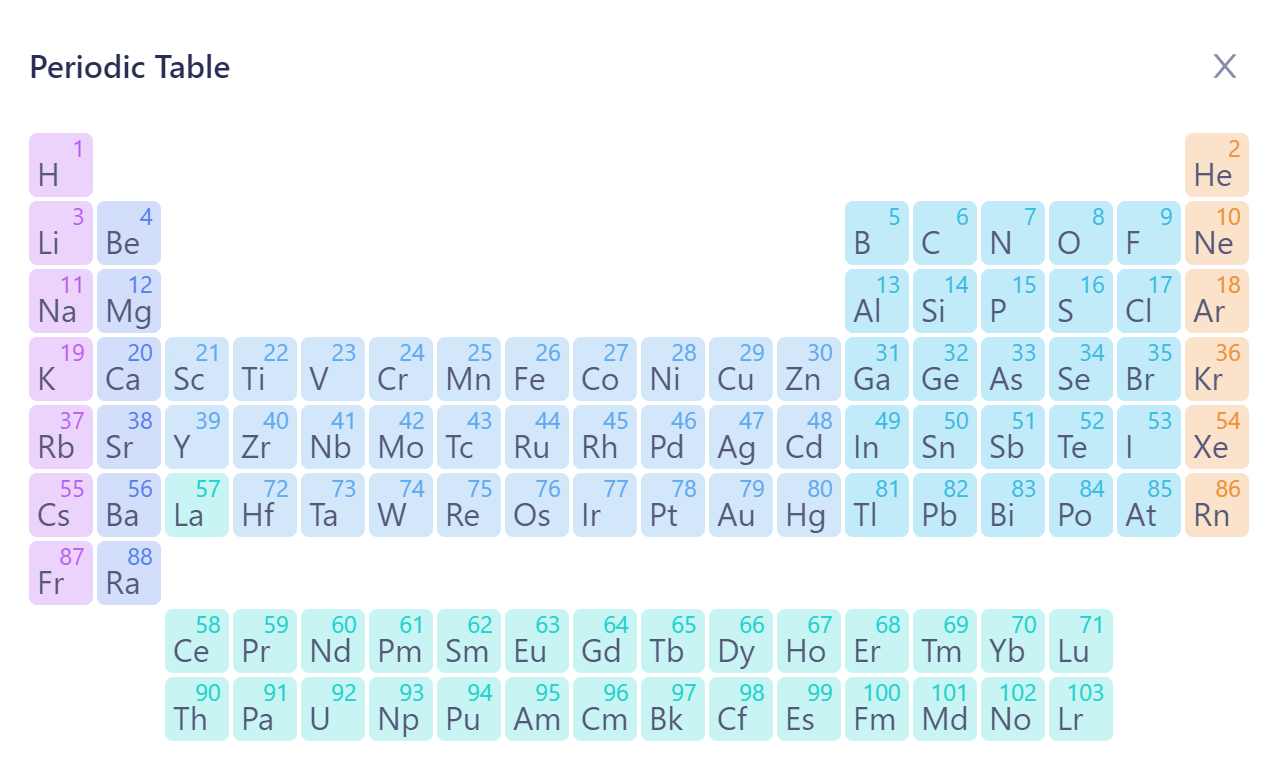
- Click the lower right corner to expand the periodic table of elements, and you can select the required atoms for operation.
4. 2D Workspace
4.1 Entrance
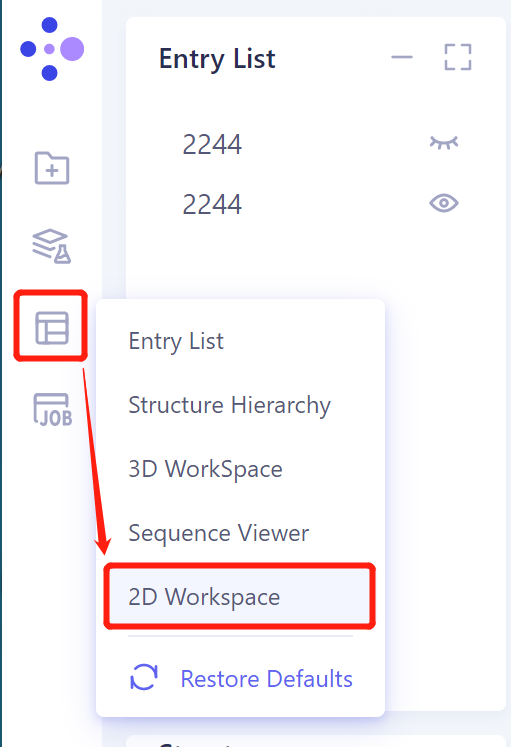
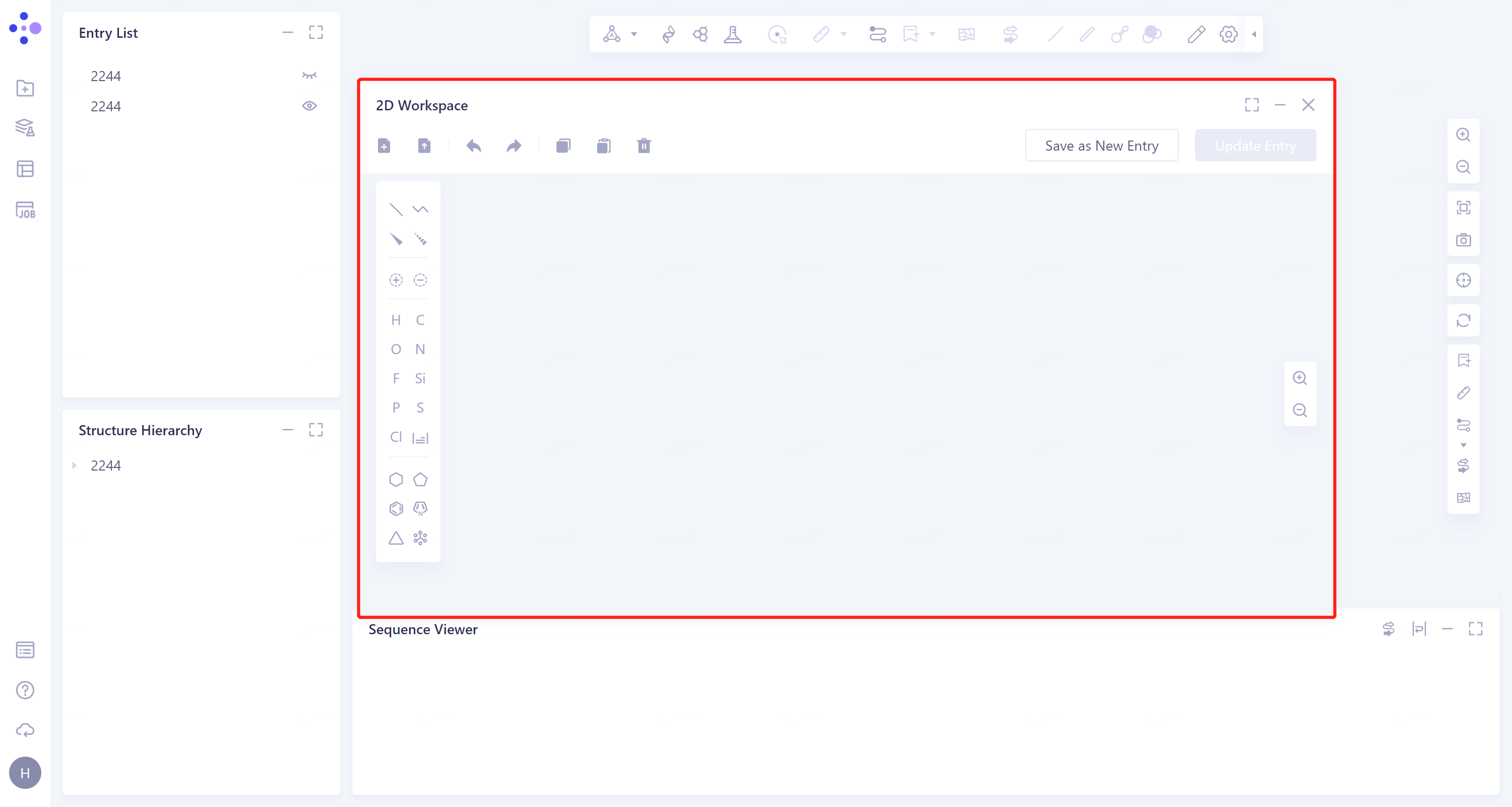
- Left general menu bar Menu → Window → 2D Works pace. Open the interface as shown in the figure.
4.2 General Toolbar
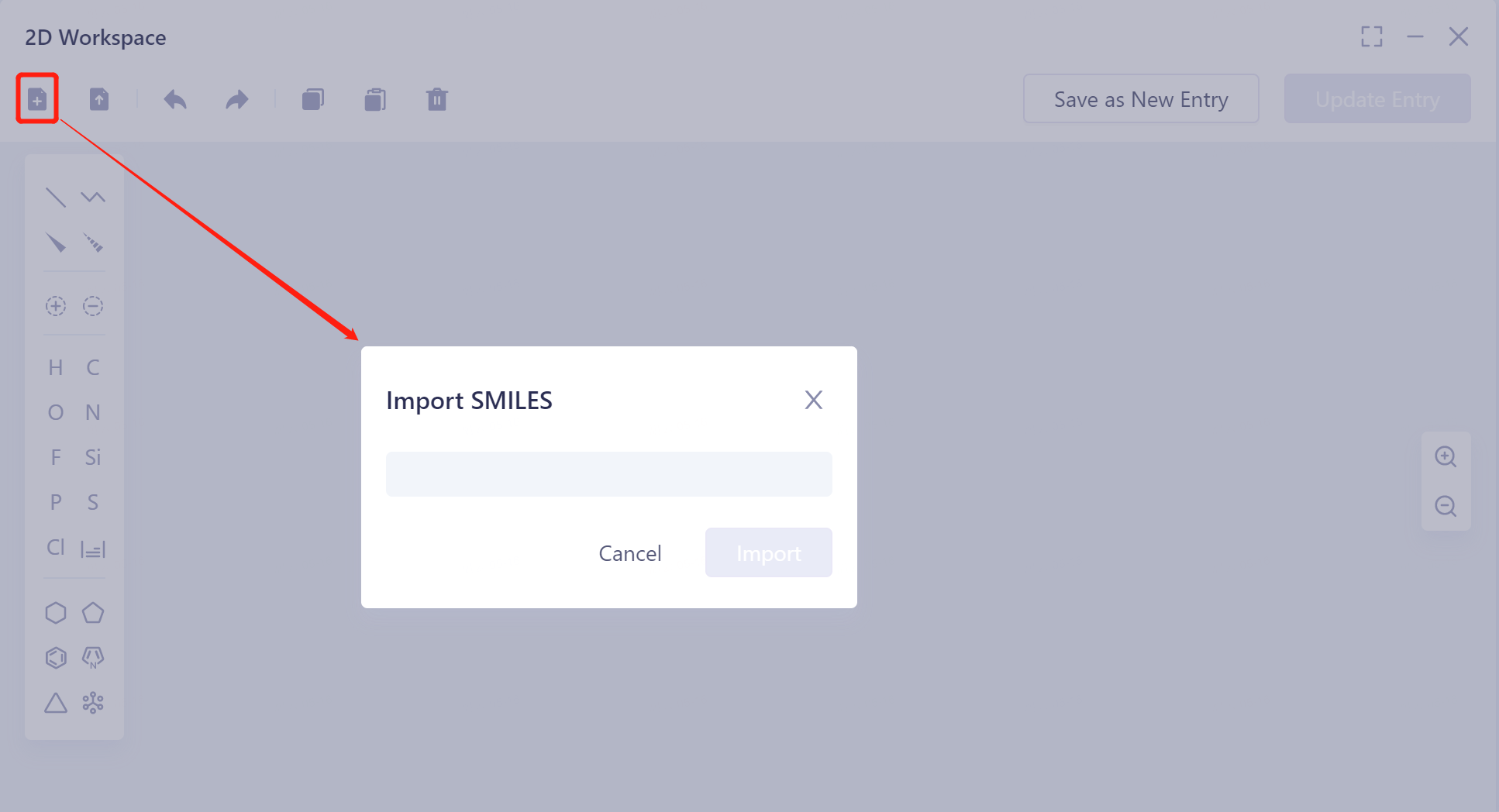
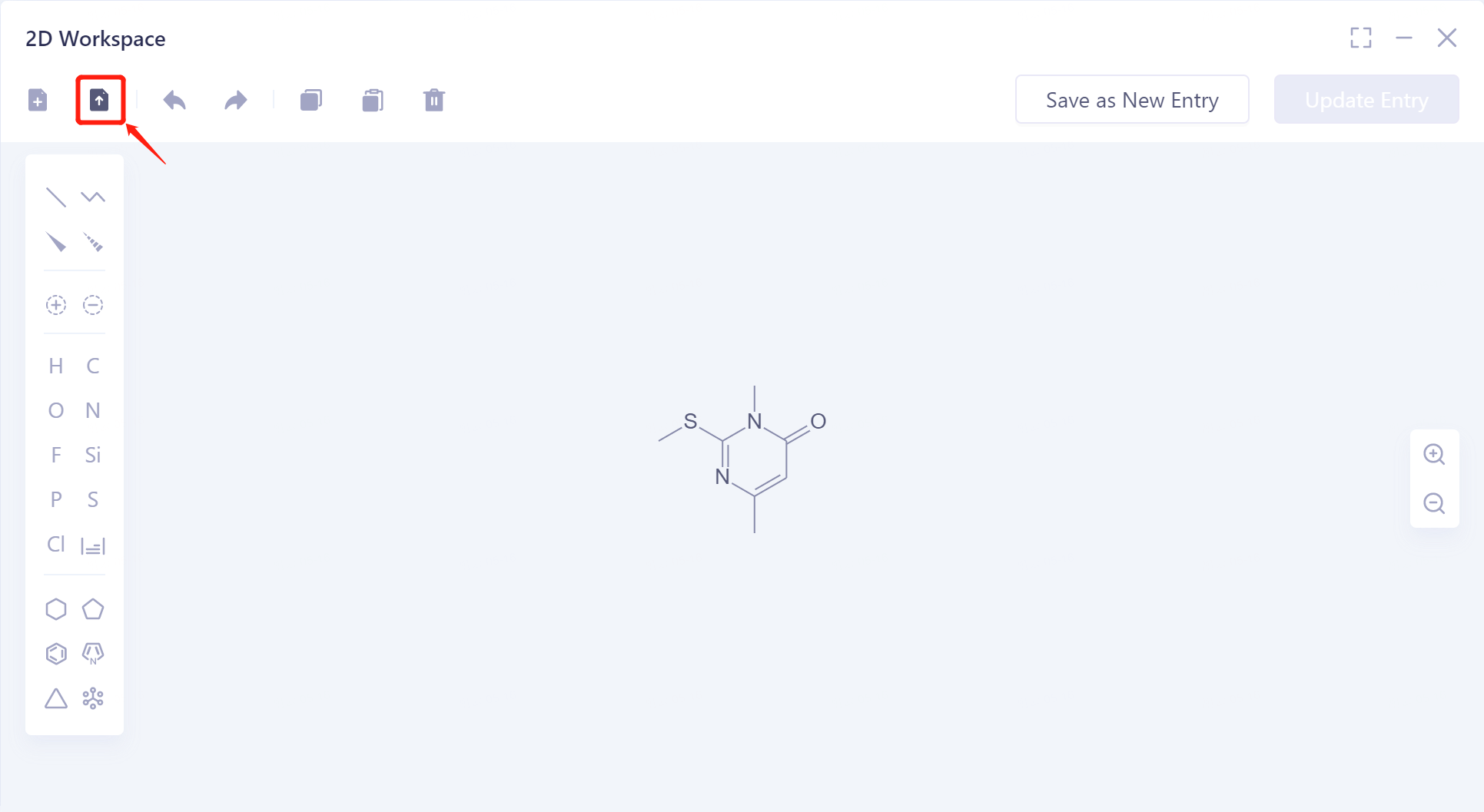
- Import SMILES: Click Import SMILES → the operation interface of import SMILES pops up → input the SMILES expression of the molecule → Import.
-
Export SMILES: Click Export SMILES to export the SMILES expression for the molecule.
- Note: The export result is output on the clipboard. Use the shortcut key Ctrl + V in any interface (such as text file, dialog box, etc.) that can be input.
-
Undo: Undo the operation.
-
Redo: Redo the last action.
-
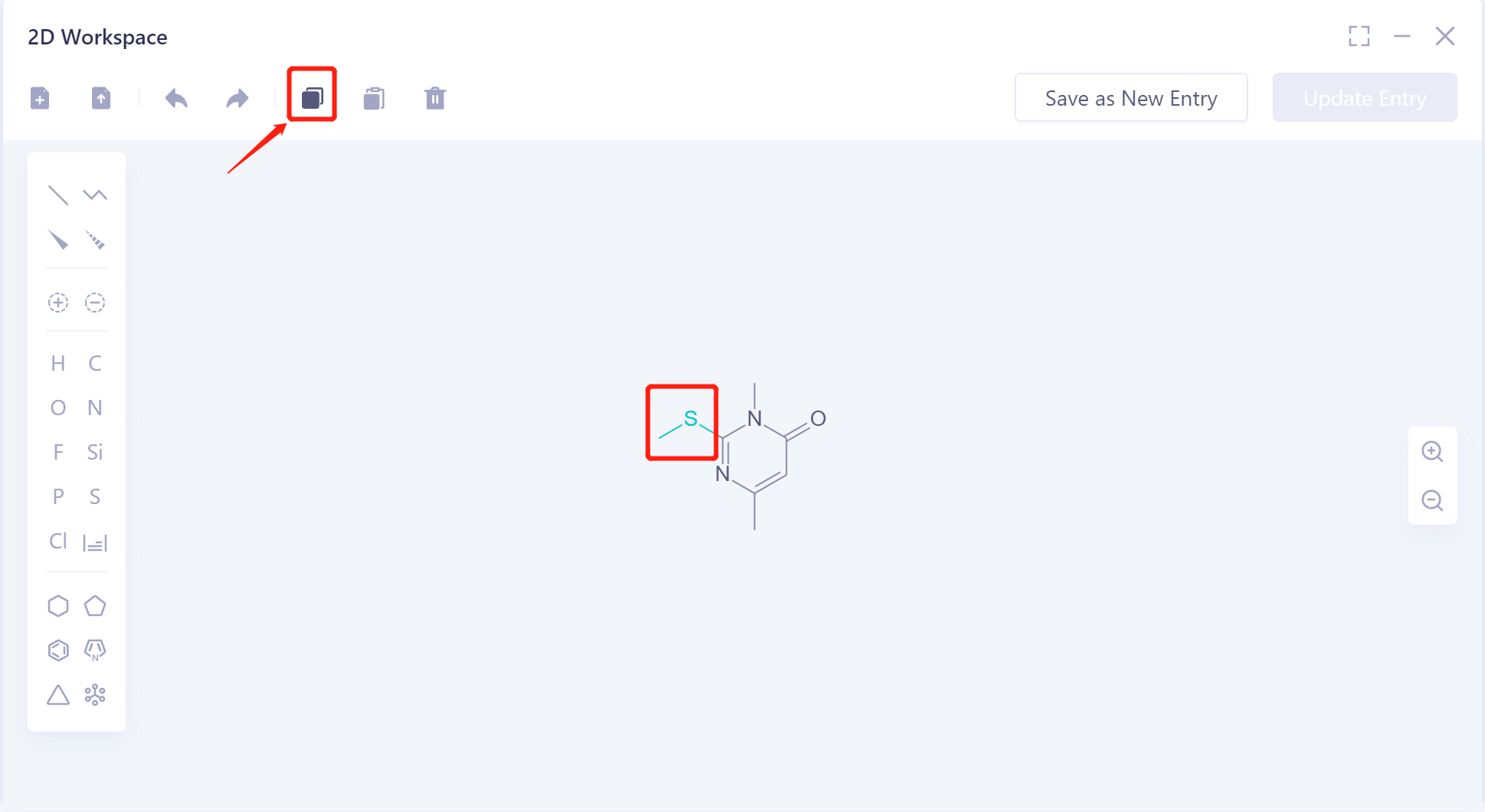
Copy: copy the structure;
-
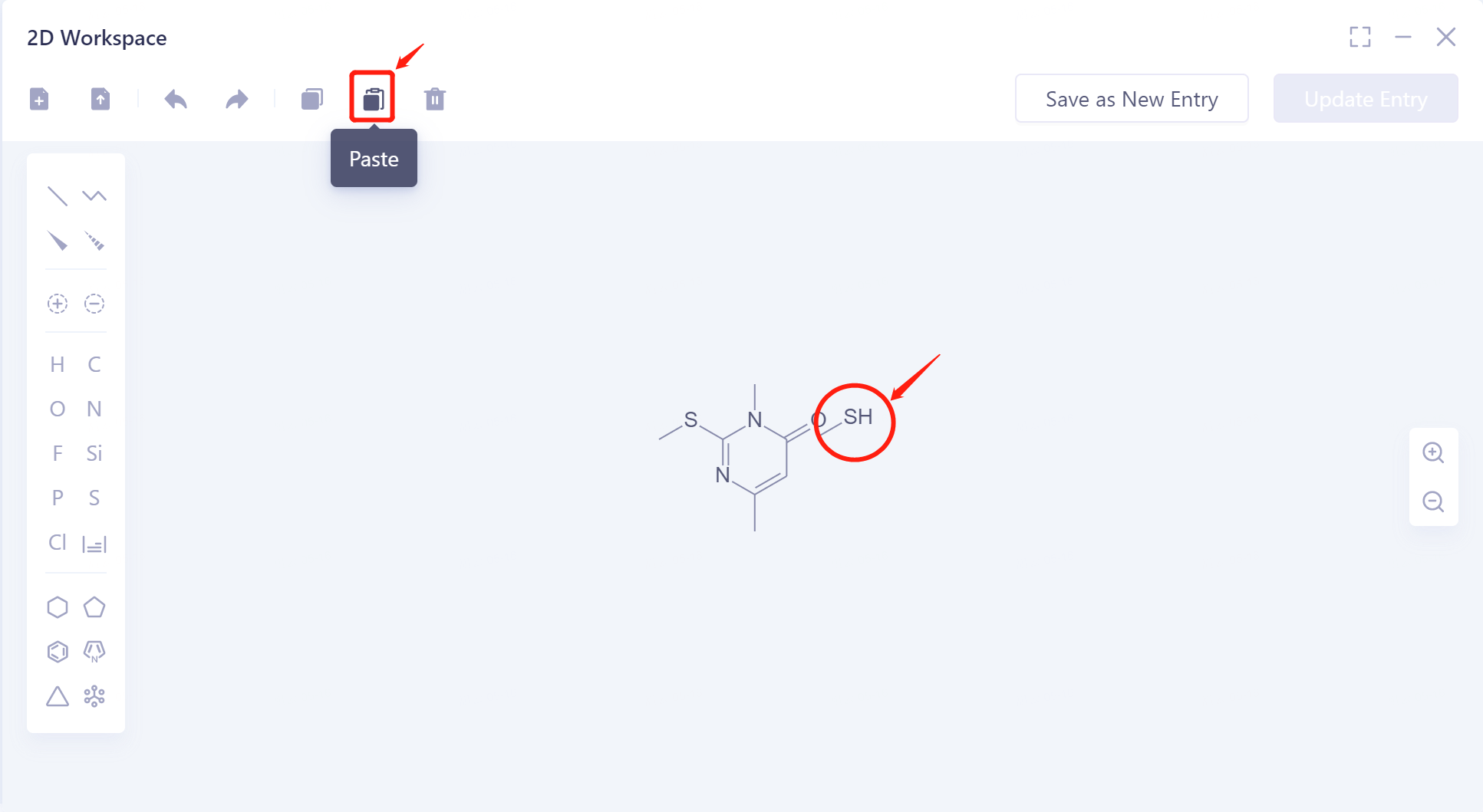
Paste: Paste structure.
 |  |
- Delete: when no molecule is selected in the interface, click Delete to clear all molecules in the interface; when individual fragment/molecule is selected in the interface, click Delete to delete the selected fragment/molecule.
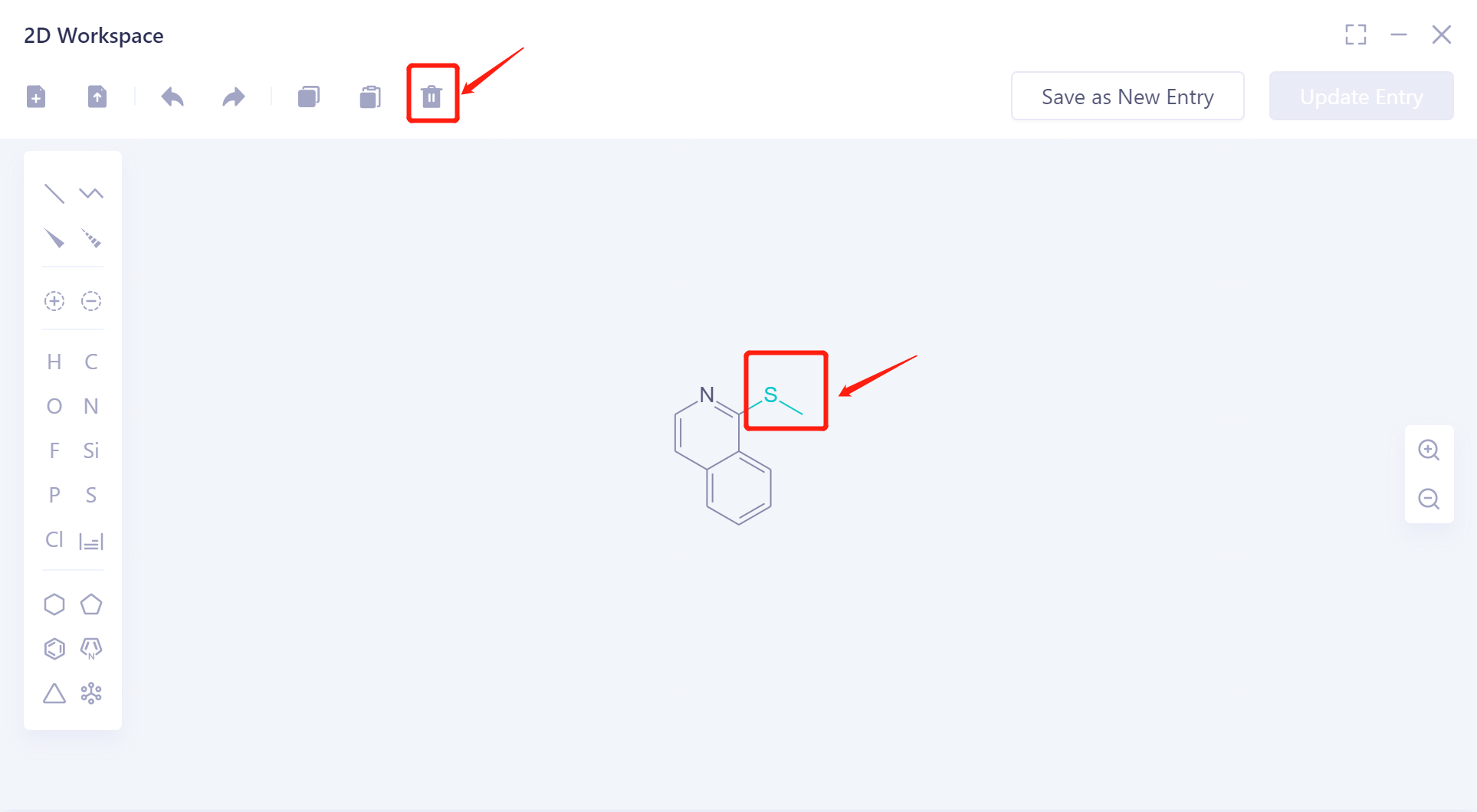 Before deleting | 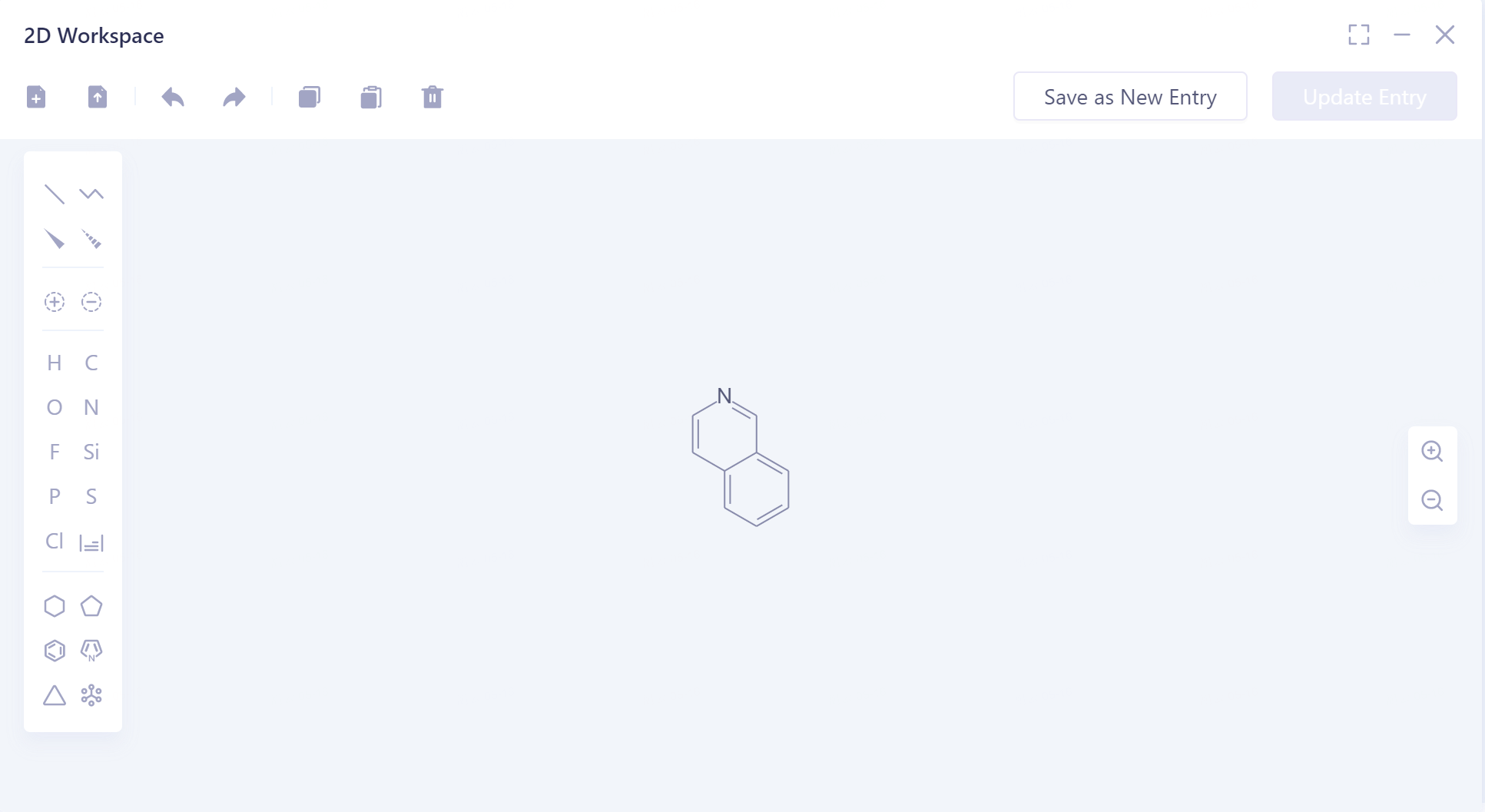 After deleting |
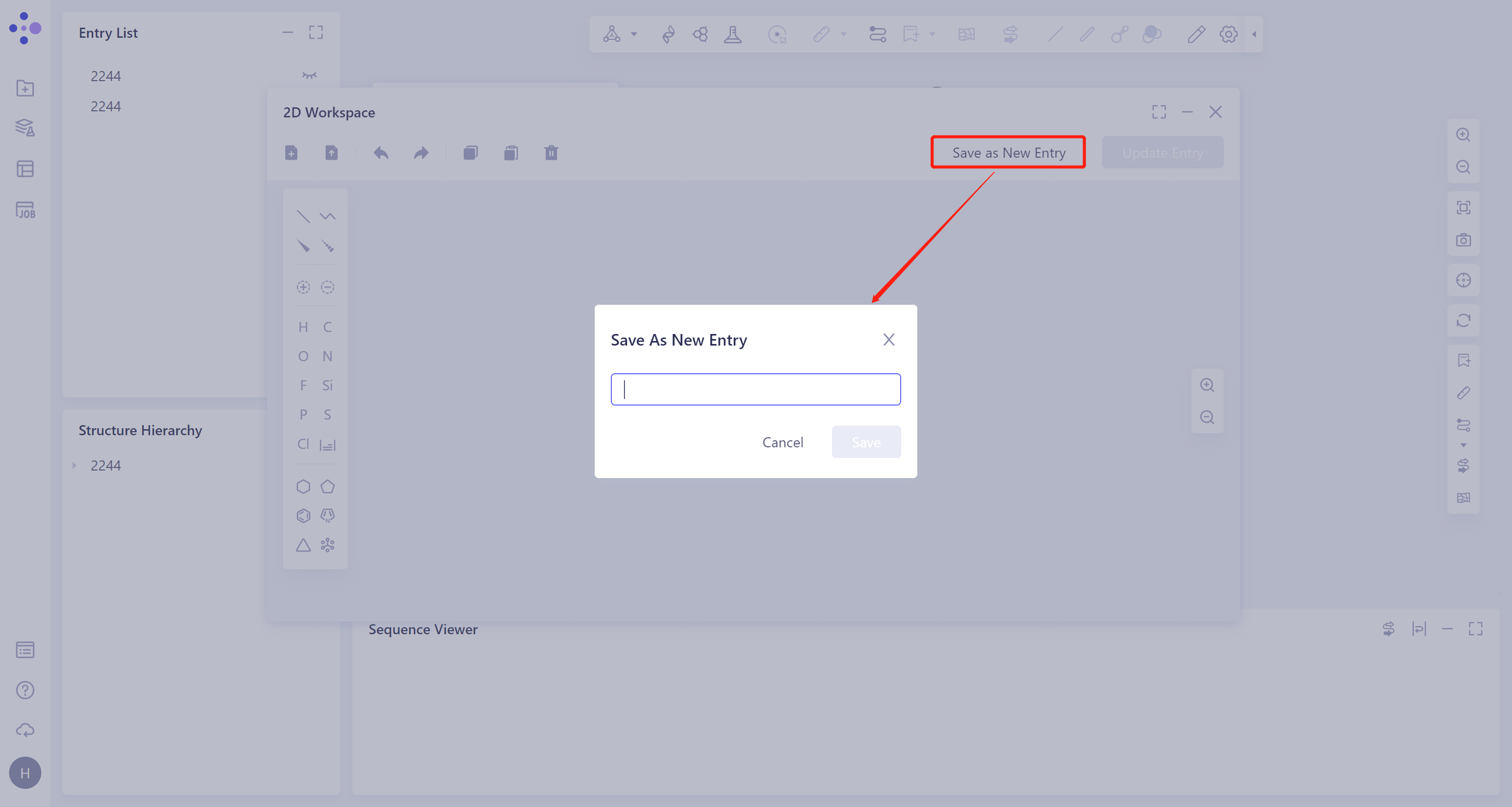
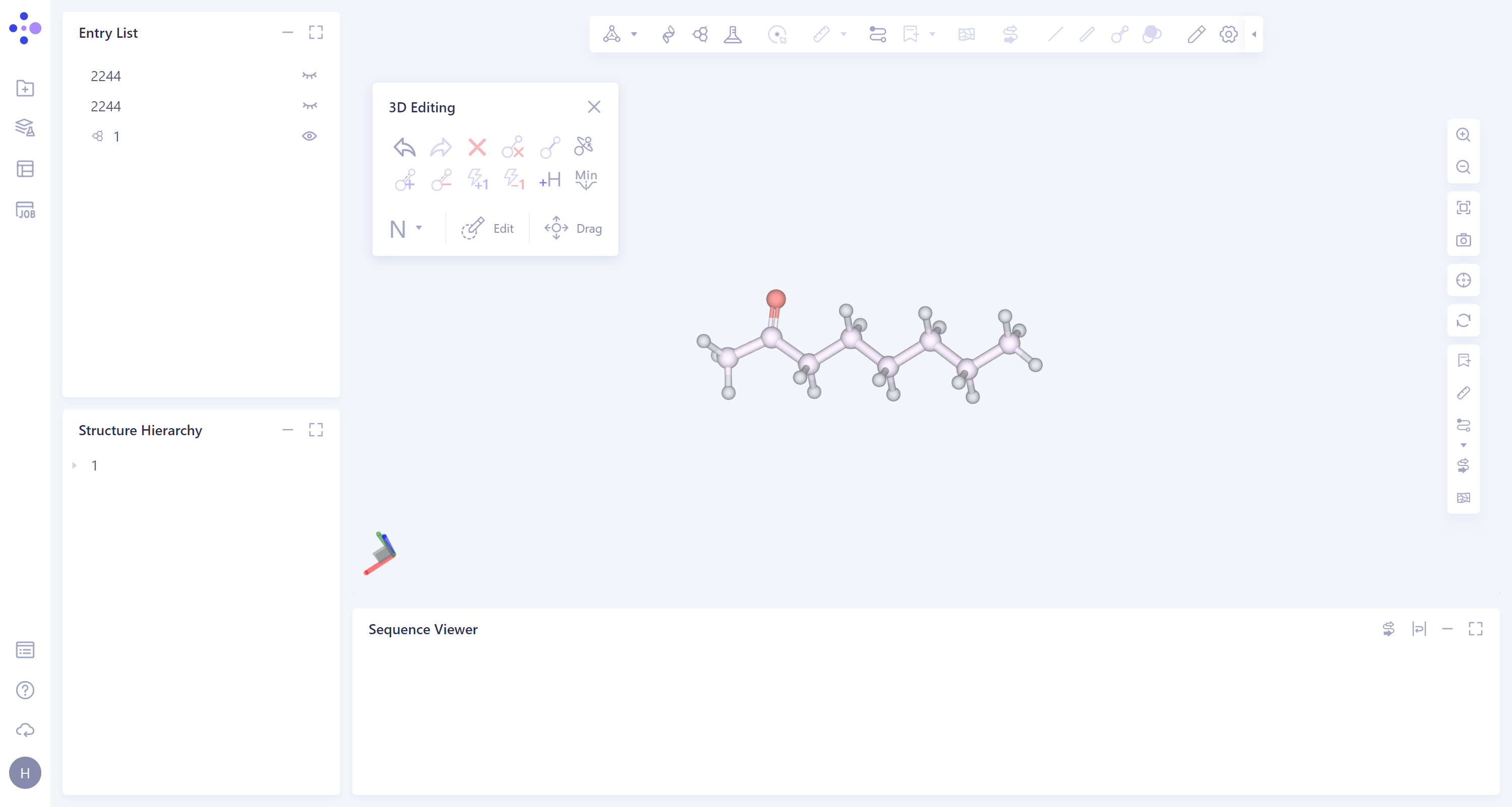
- Save as New Entry: Save the current molecule as a new entry. The saved molecule is displayed in 3D form in the 3D Workspce window. The display interface is shown in the right figure.
 |  |
4.3 Drawing toolbar
| Icon | Meaning | Operation | Display | Remarks |
 | Bonds (single/double/triple) | Single bond: click the icon → hover over the blank space or atom on the drawing board → drag the mouse to a certain position to stop; Double bond: Click on the icon → Click on the single bond to turn the single bond into a double bond; Triple bond: Click the icon → Click on the double bond to turn the double bond into triple bond. |    | |
 | Hydrocarbon chain | Click the icon → Hover over a blank space or atom on the drawing board → Drag the mouse to a certain position to stop |  | |
 | Fisher projection (facing away from paper) | Click the icon → Hover over a blank space or atom on the drawing board → Drag the mouse to a certain position to stop |  | |
 | Fisher projection (towards the paper) | - Click the icon → Hover over a blank space or atom on the drawing board → Drag the mouse to a certain position to stop |  | |
 | Protonation | Click on the icon → Hover over the atom → Click |  | |
 | Deprotonation | - Click on the icon → Hover over the atom → Click |  | |
 | Atomic type | Click on the icon → Hover over a blank space or atom on the drawing board → Click |  | Click the icon in the lower right corner to expand the periodic table of elements for selection. 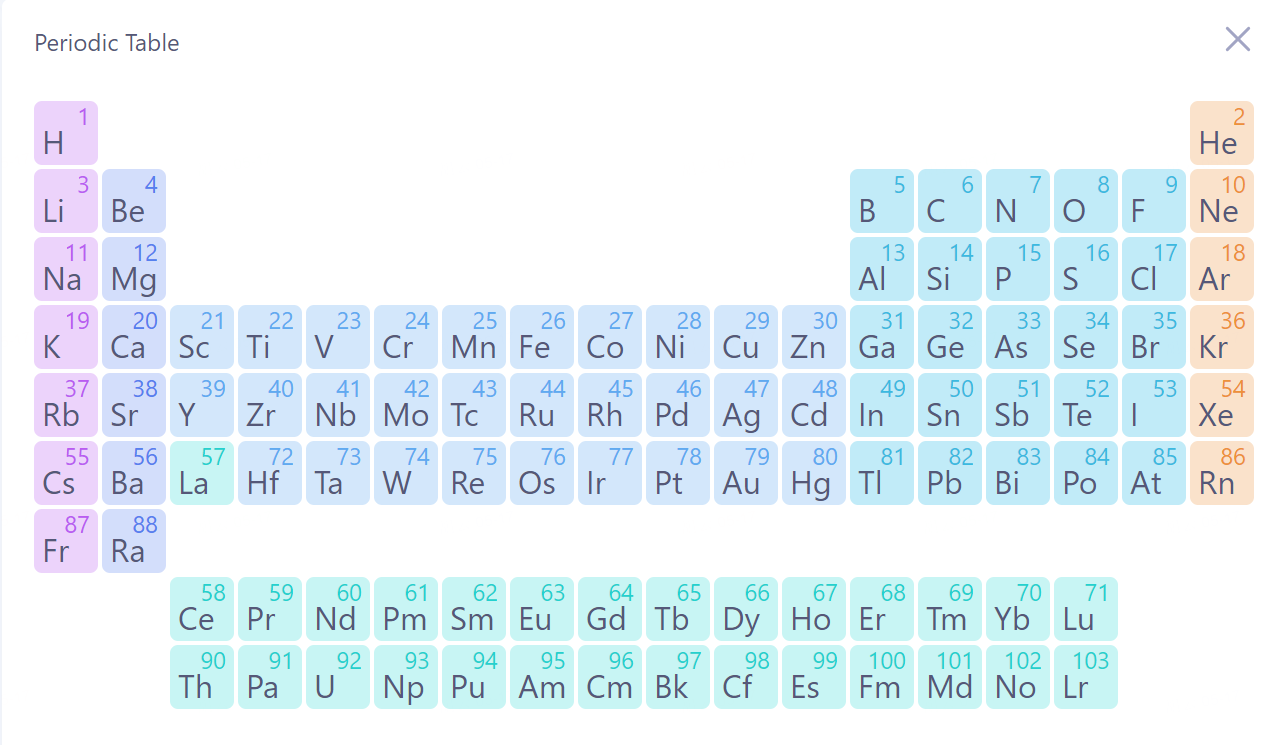 |
 | Cyclohexane | Click on the icon → Hover over a blank space or atom on the drawing board → Click |  | |
 | Cyclopentane | Click on the icon → Hover over a blank space or atom on the drawing board → Click |  | |
 | Benzene ring | Click on the icon → Hover over a blank space or atom on the drawing board → Click |  | |
 | Pyrrole | Click on the icon → Hover over a blank space or atom on the drawing board → Click |  | |
 | Cyclopropane | Click on the icon → Hover over a blank space or atom on the drawing board → Click |  | |
 | Normalization | Click on the icon → Hover over a blank space or atom on the drawing board → Click | Front:  Back:  |