VD Gen
1. Introduction
The discovery and design of novel compounds with high affinity to target proteins is one of the core tasks of structuIntroductionre-based drug design (SBDD). Different from the traditional methods based on Virtual Screening, molecular de novo design (de novo Molecule Design) does not require the preparation of a huge virtual compound library in advance, but directly generates the molecular structures to be evaluated according to the requirements.
The VD Gen module in the Hermite ® platform provides protein pocket-based molecular de novo design capabilities. Based on the Virtual Dynamics artificial intelligence algorithm independently developed by Deep Potential Technology, VD Gen can directly generate a new molecular 3D structure in the protein active pocket designated by the user, and evaluate the affinity between the molecule and the protein.
2. How to use
2.1 Entrance
- The left general menu bar Menu → Function → Molecule Recommendation → VD Gen.
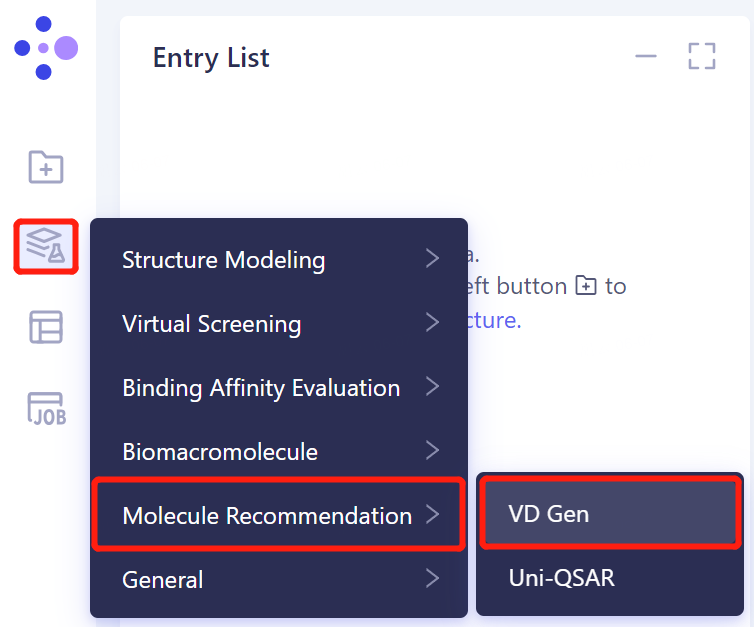
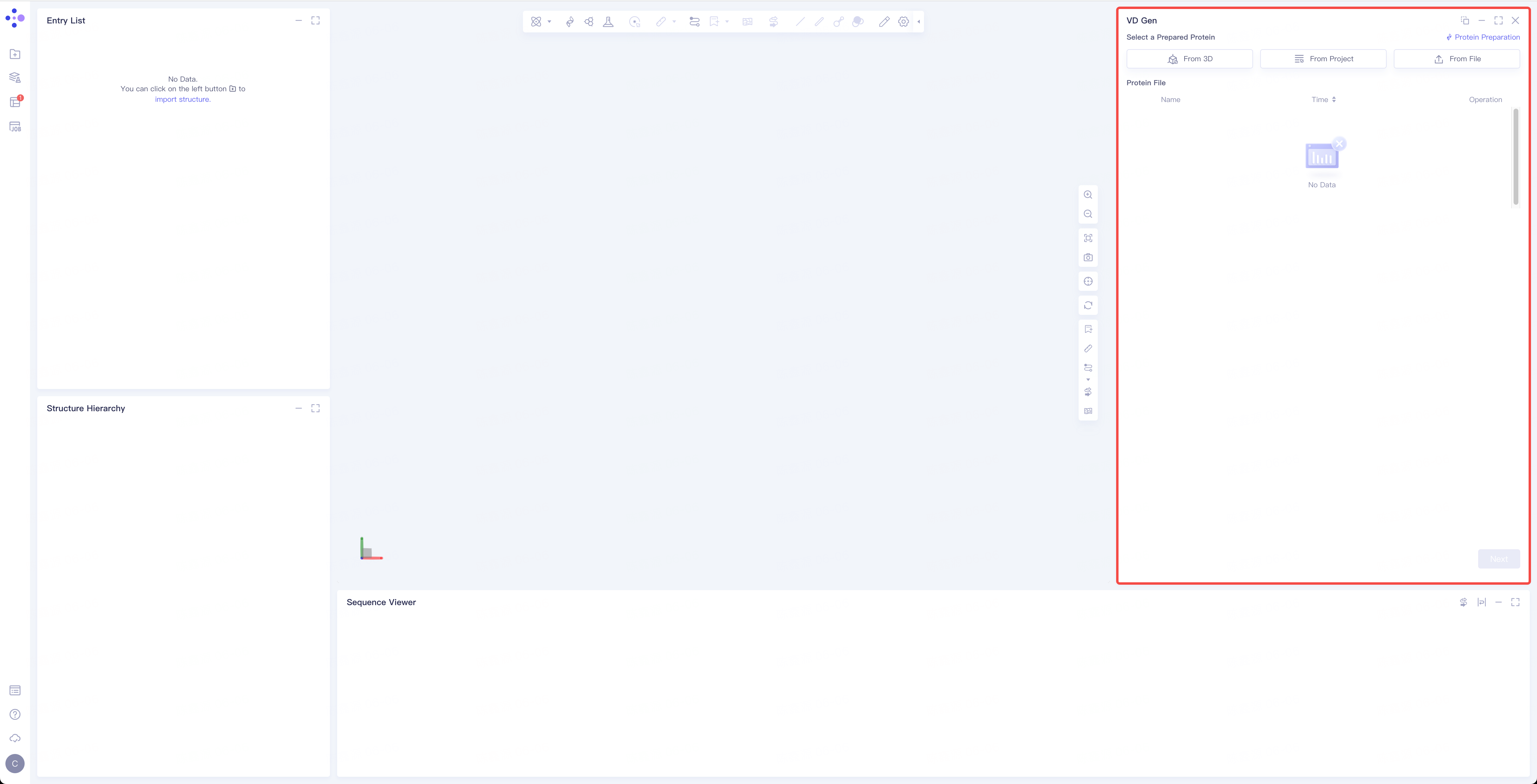
- The operation box of VD Gen (shown in the red box) appears on the right side, and the overall interface is as follows:
2.2 Operation
2.2.1 Protein structure input
- There are three ways to import protein structure:
1)Select from 3D Works pace: Click the Select from 3D Workspace box → Select Structure box pops up → Select the required protein structure/3D in the Structure Hierarchy box on the left side of the interface In Workspace window, select protein structure → the selected protein name is displayed in the Select Structure box, and click OK.

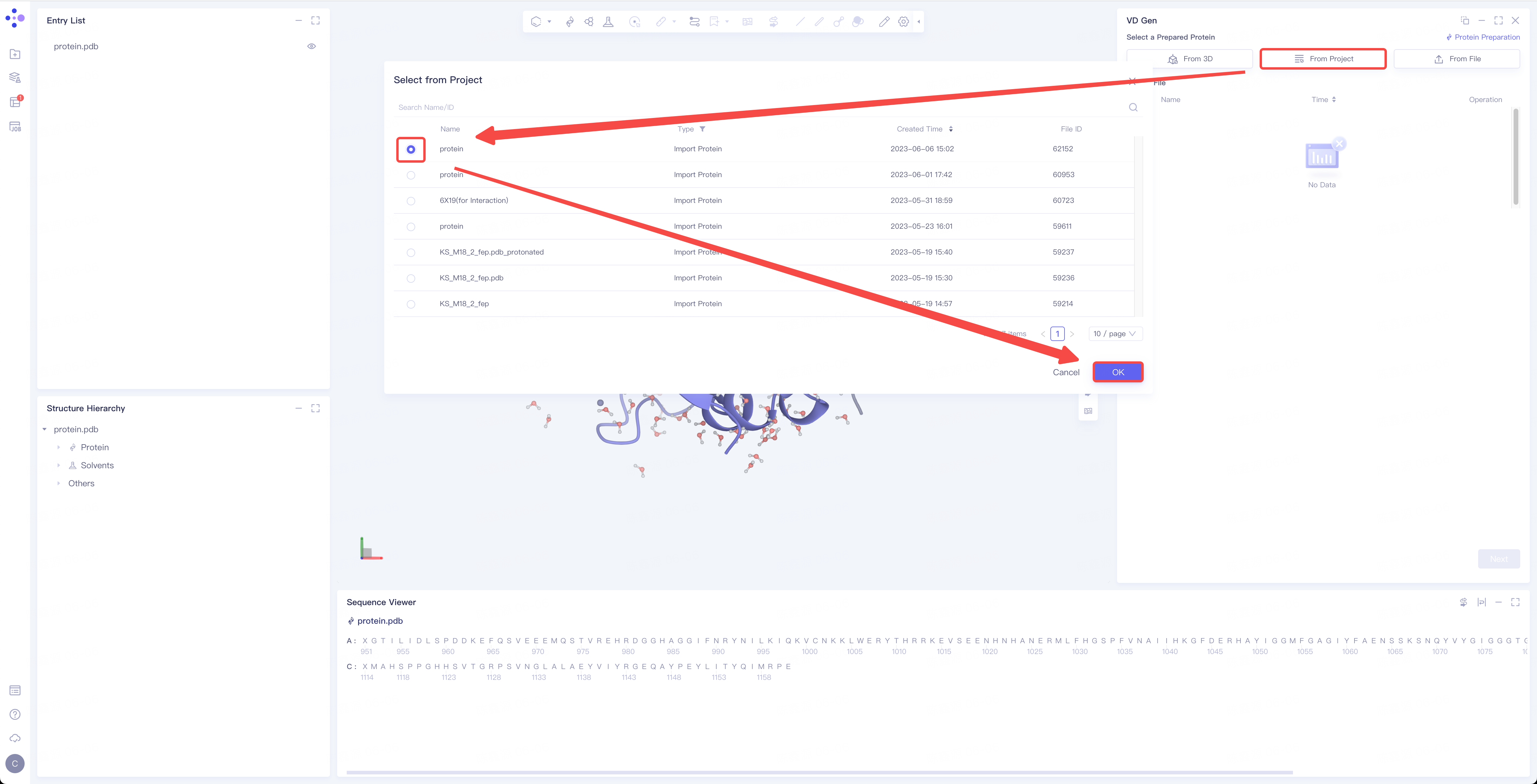
2) Select from Project: click the Select from Project box → the Select from Project box pops up in the middle of the interface → select the required protein structure → click OK.
3) Select File: Select the required protein structure (.pdb format) from the local folder and upload it.

2.2.2 Reference Ligand File Input
1. Import Ligand
1)From 3D Workspace: Select the ligand from the graphical assembly. 3D Workspace only supports the selection of Residue level, which can be selected in Hierarchy (linkage 3D).
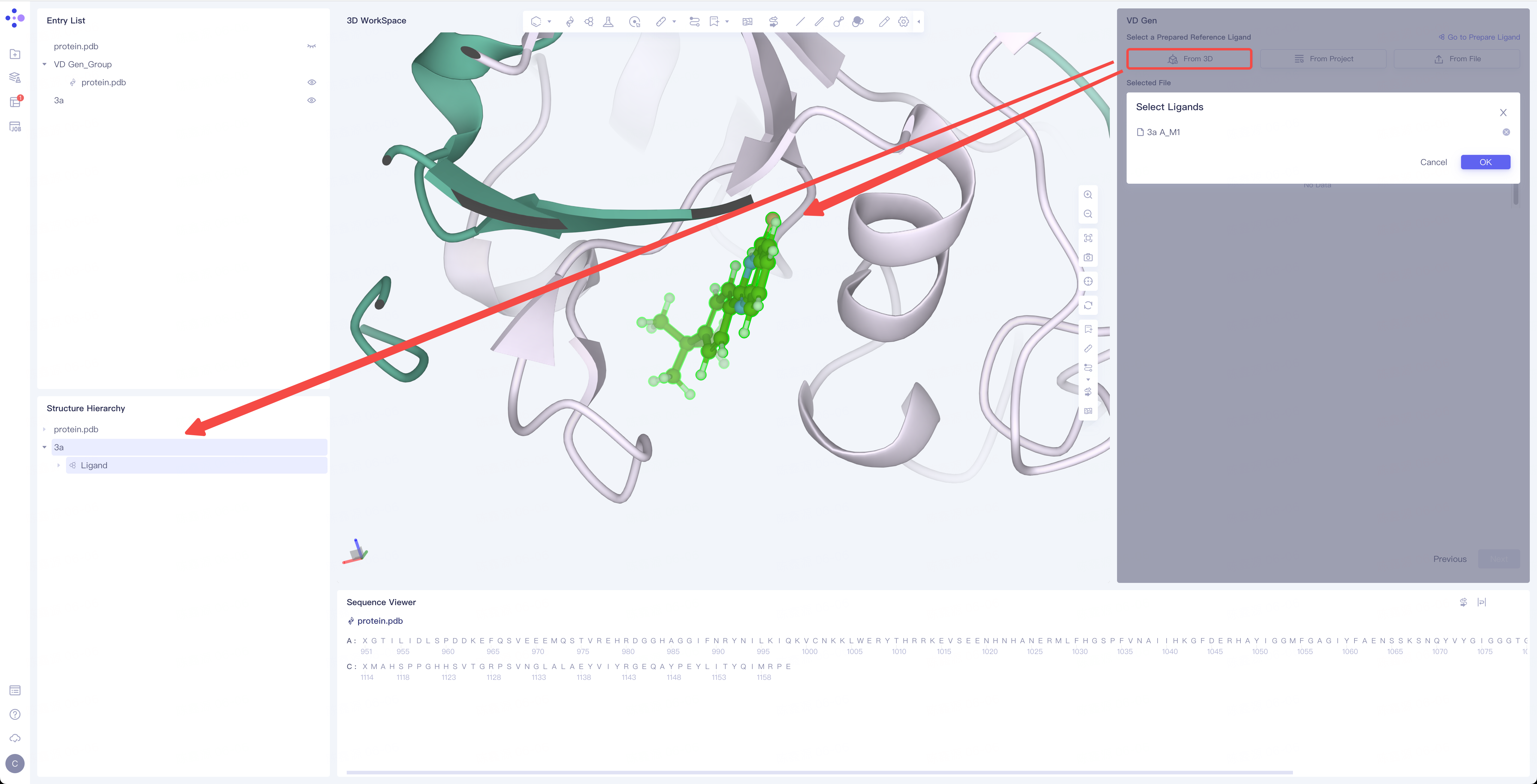
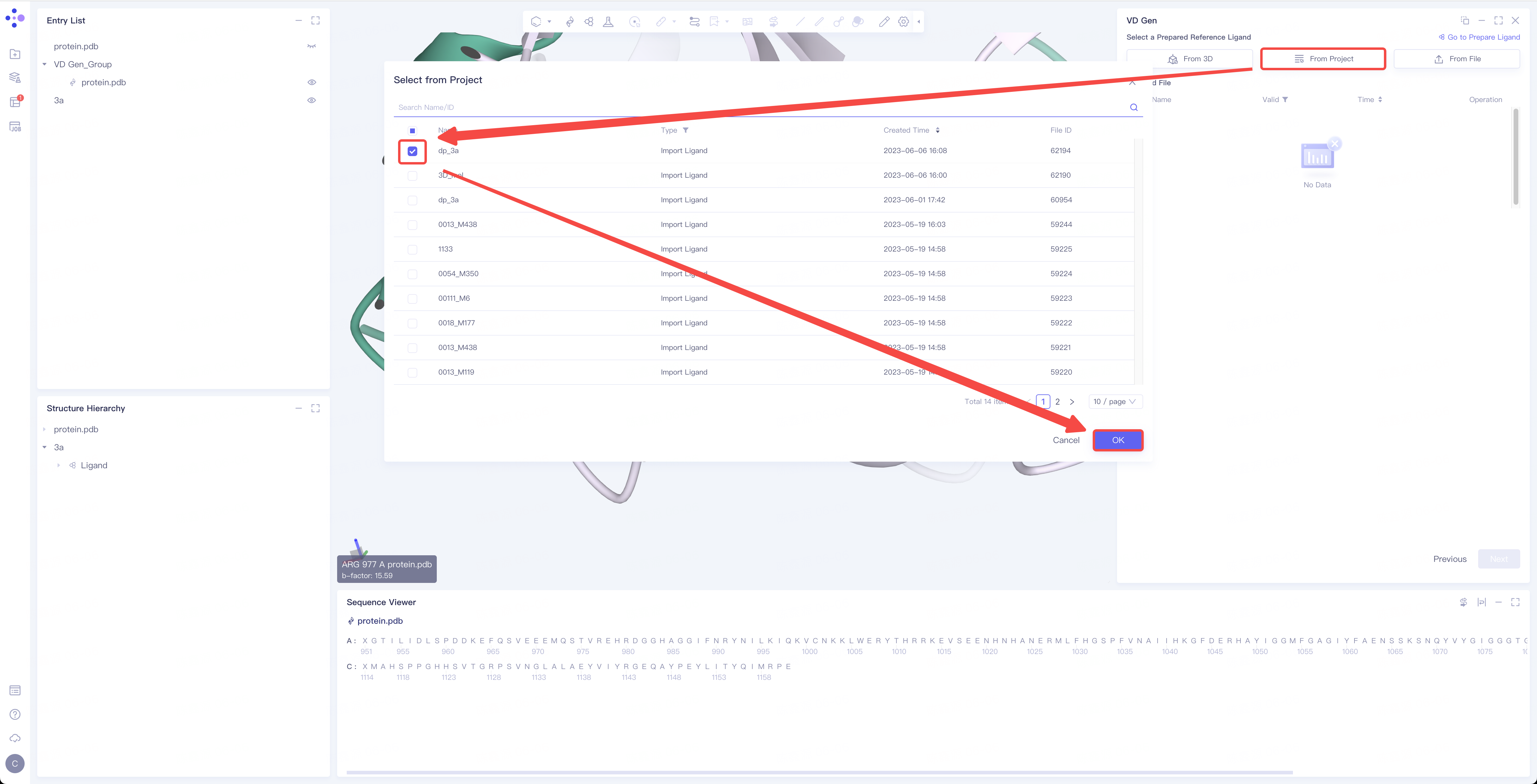
2)From Project: select the ligand from the historical project. In the pop-up Select from Project operation interface, you can search for files by file name and ID through Search Name/ID, and select the ligand file by adjusting the 'Type'.
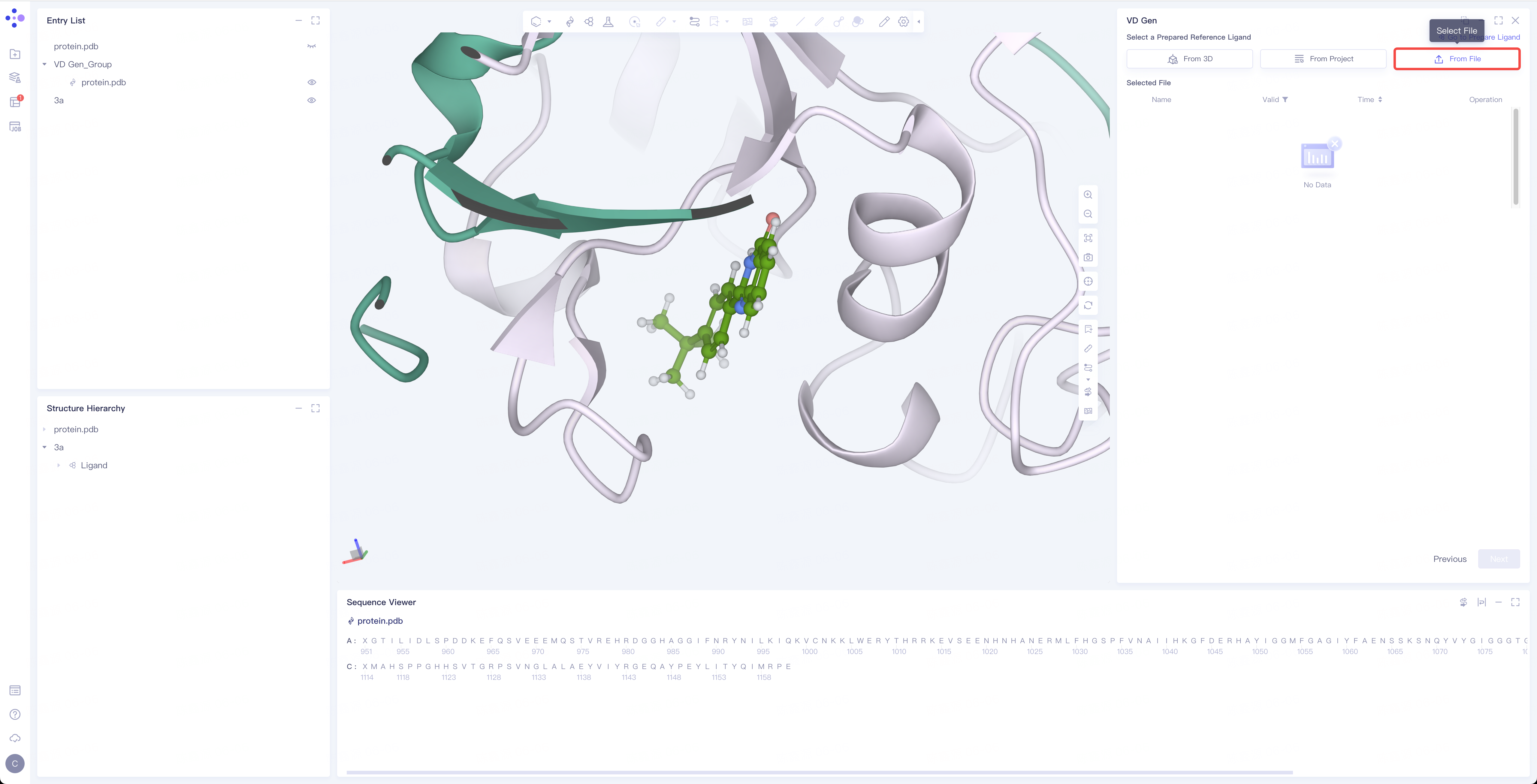
3)From File: Upload the local ligand file, which supports the.sdf/.mol format.
2. Force field inspection
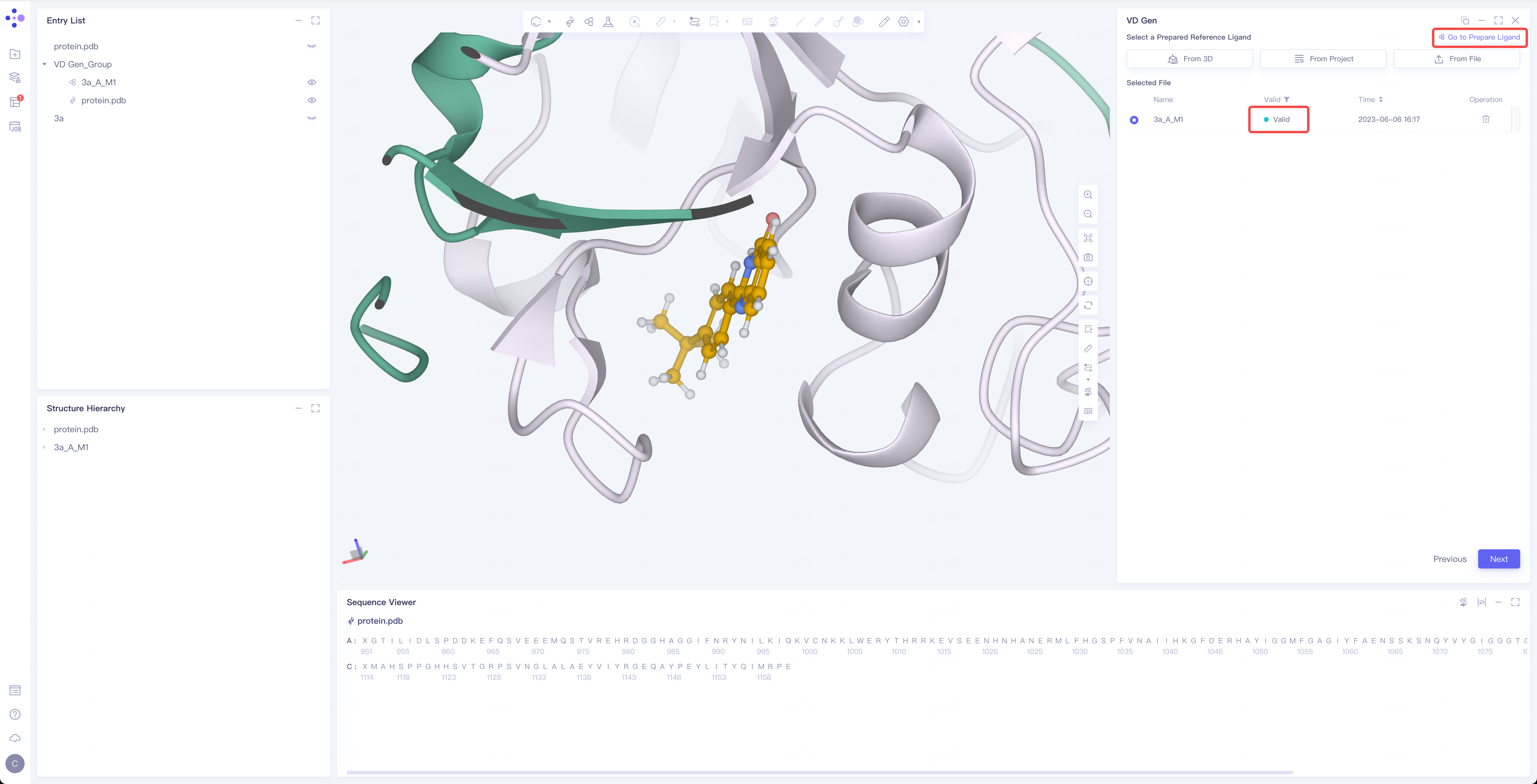
- The force field of the selected ligand will be checked. If the force field check of the ligand is not passed (here is Valid, that is, the force field check is passed), Ligand Preparation is required (see the red box on the upper right of the figure for the shortcut). After the check is passed, click Next.
3. Molecular generation or optimization
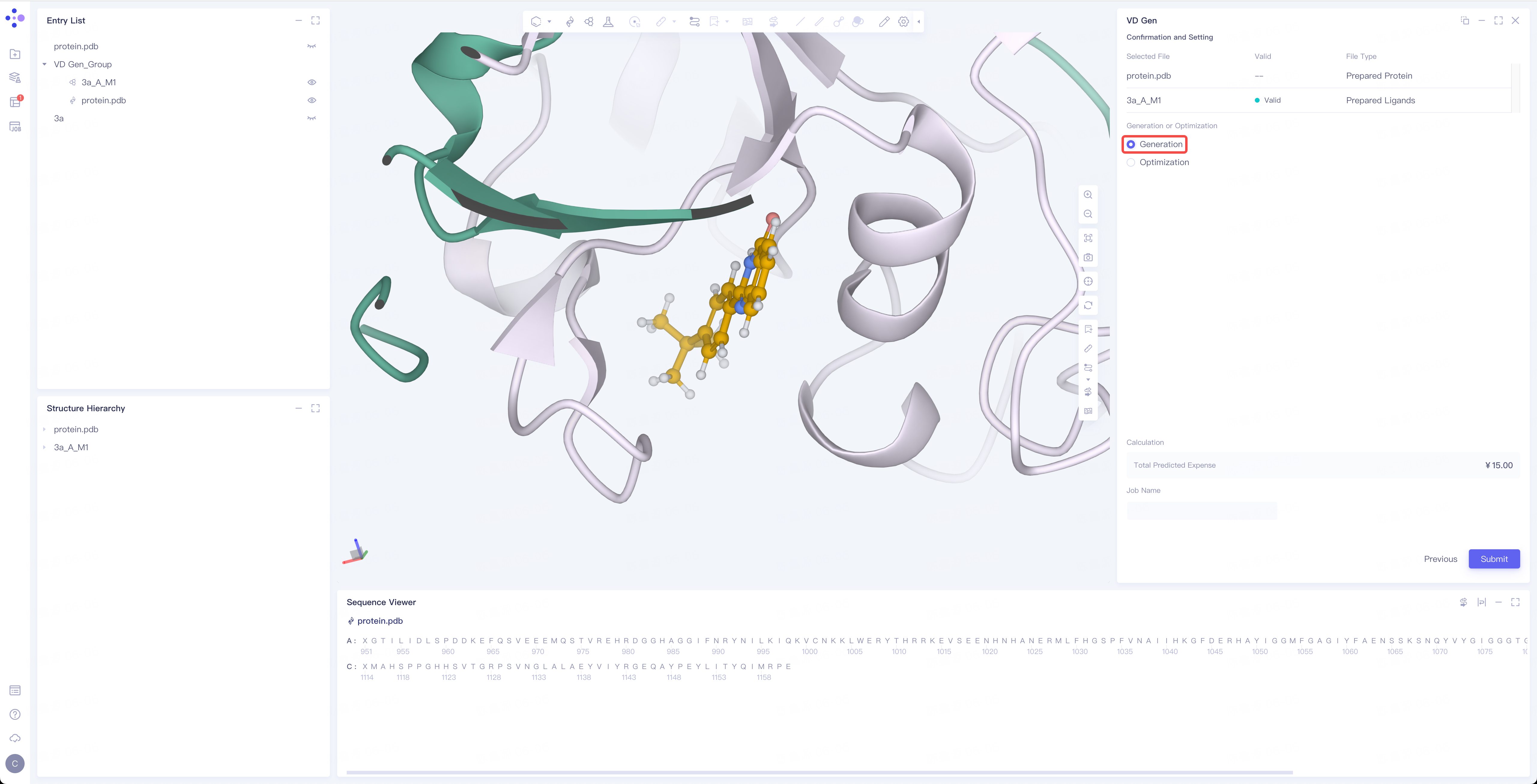
1)Generation. If Generation is selected, completely new molecules will be generated based on the original molecules.
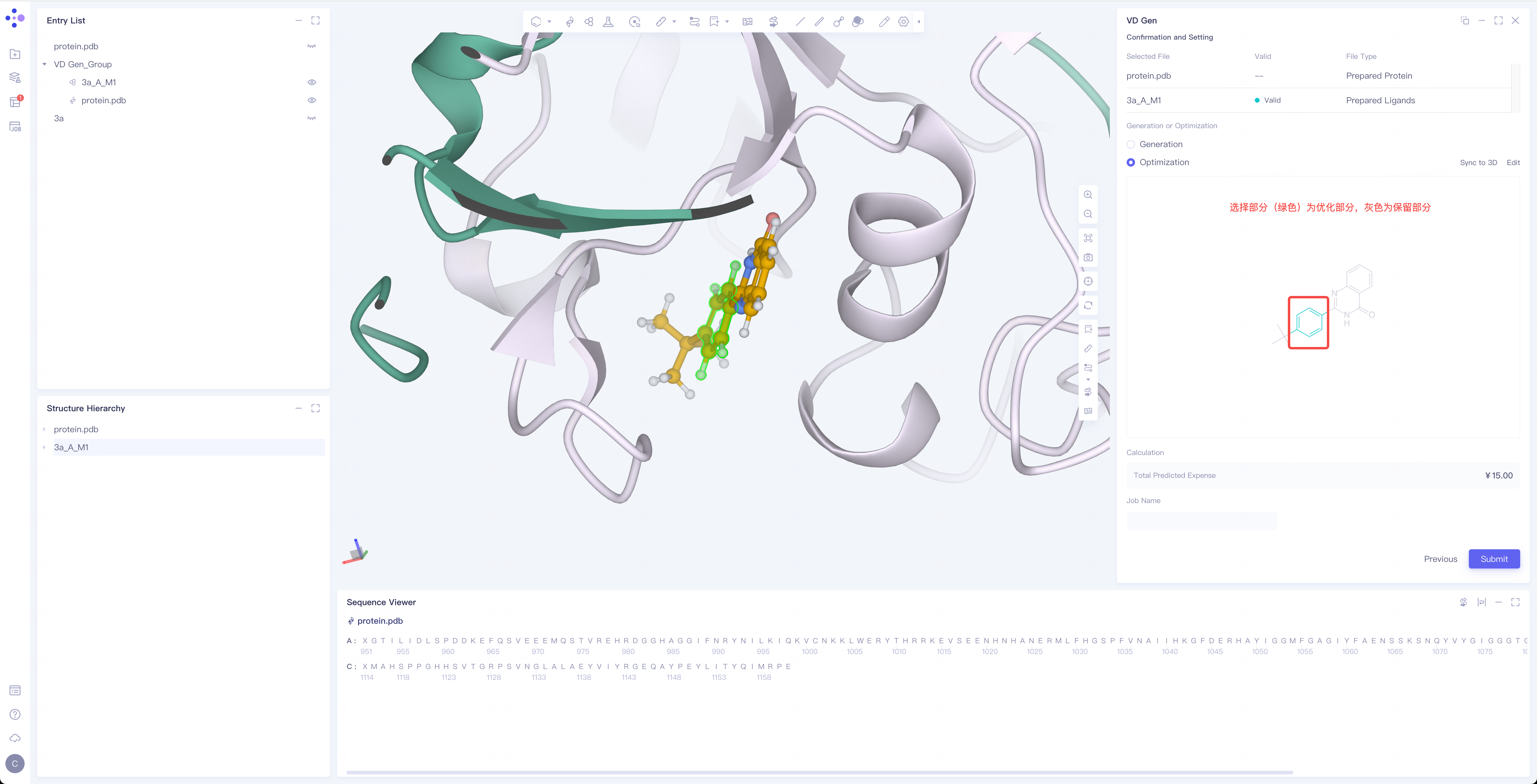
2)Optimization. If Optimization is selected, the green part will be optimized according to the user’s selection.
- When a fragment in a molecule is selected by a box or the key of a molecule is clicked, the selected part is green.
-
Name the task at 'Job Name'.
-
Click 'Submit' to submits the task.
3. Analysis of results
3.1 Entrance
-
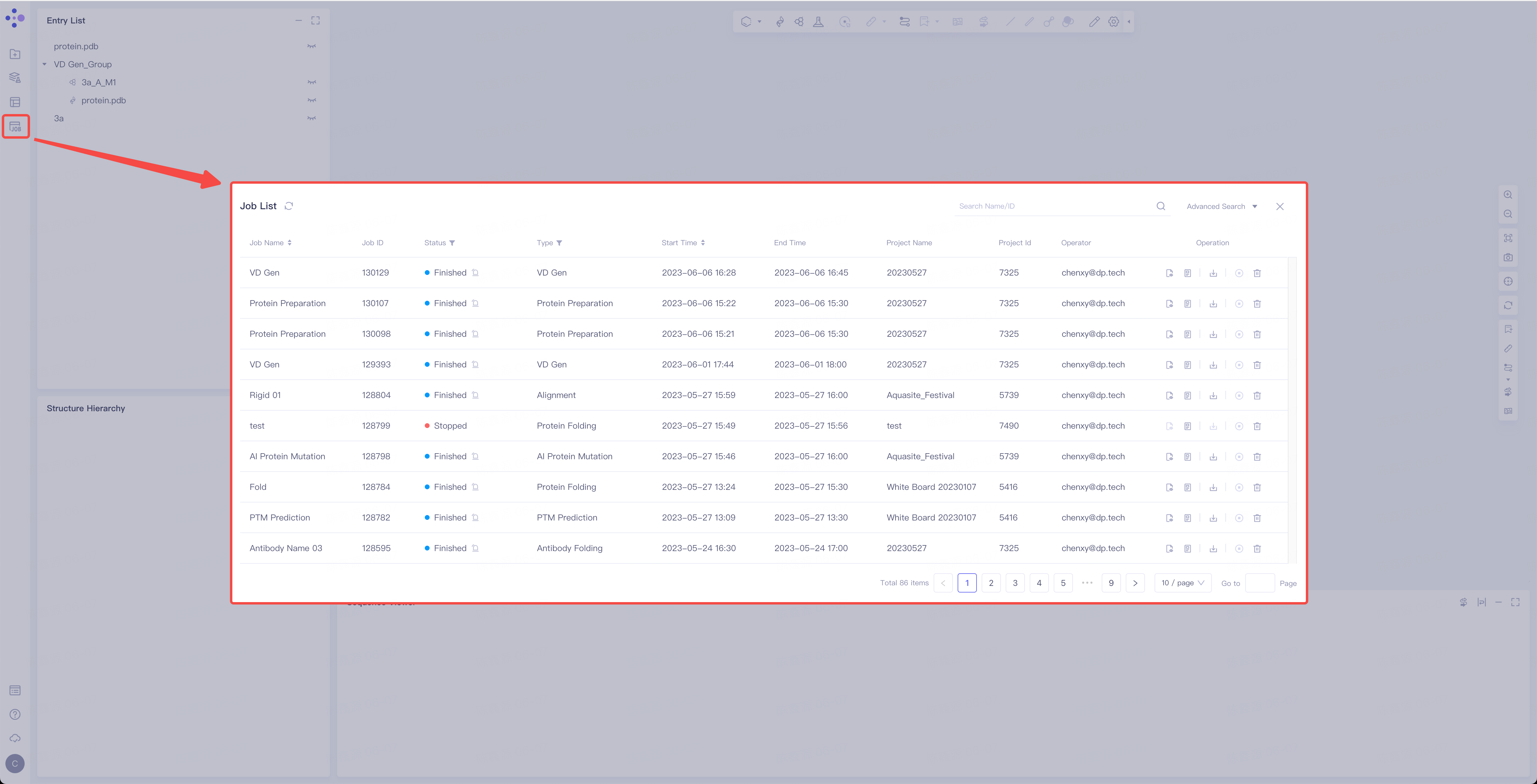
General menu bar on the left: Menu Job → Find the required task.
- The task can be found by searching for the Job Name, or by filtering the Job Type.
3.2 Results presentation
3.2.1 Presentation of results
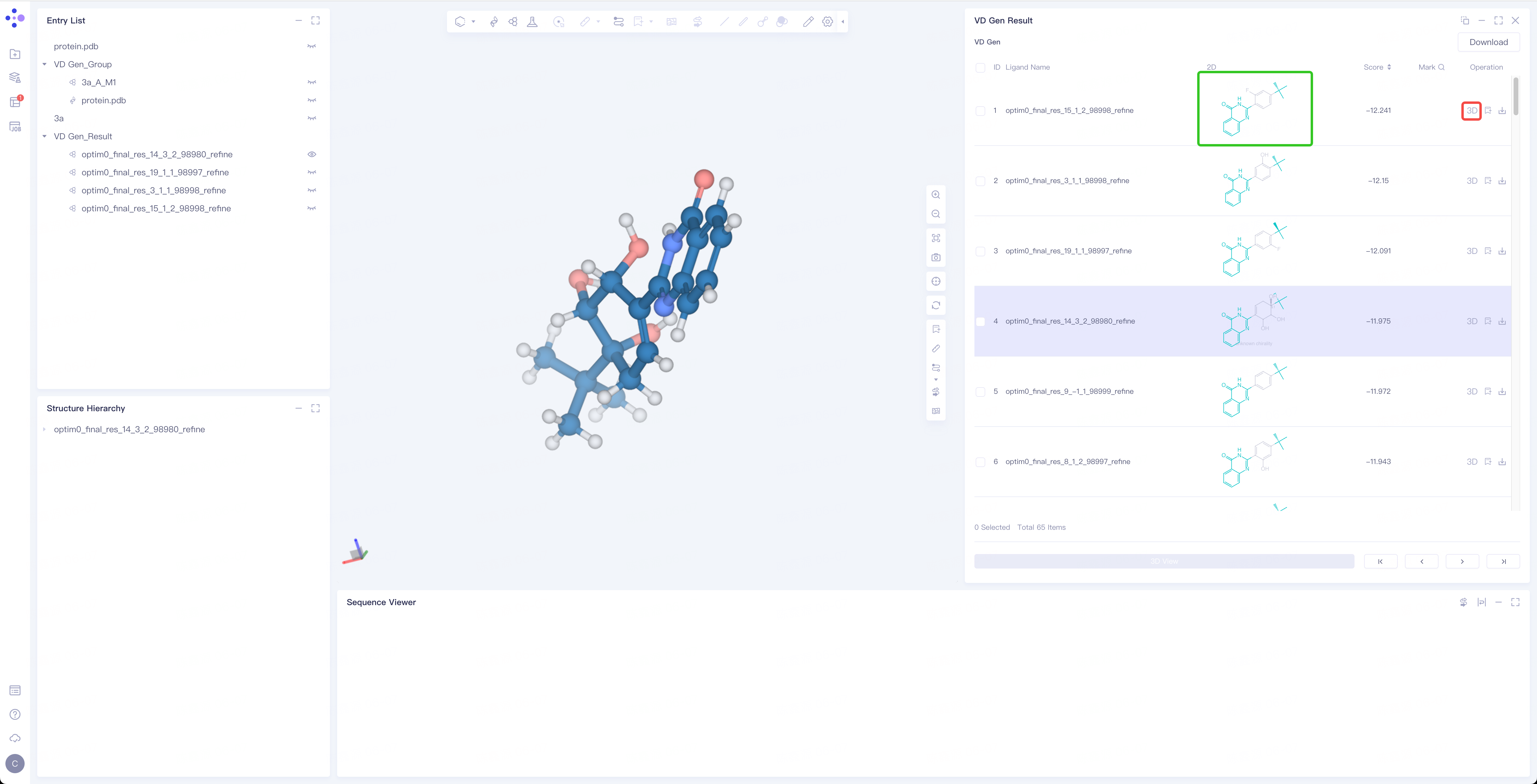
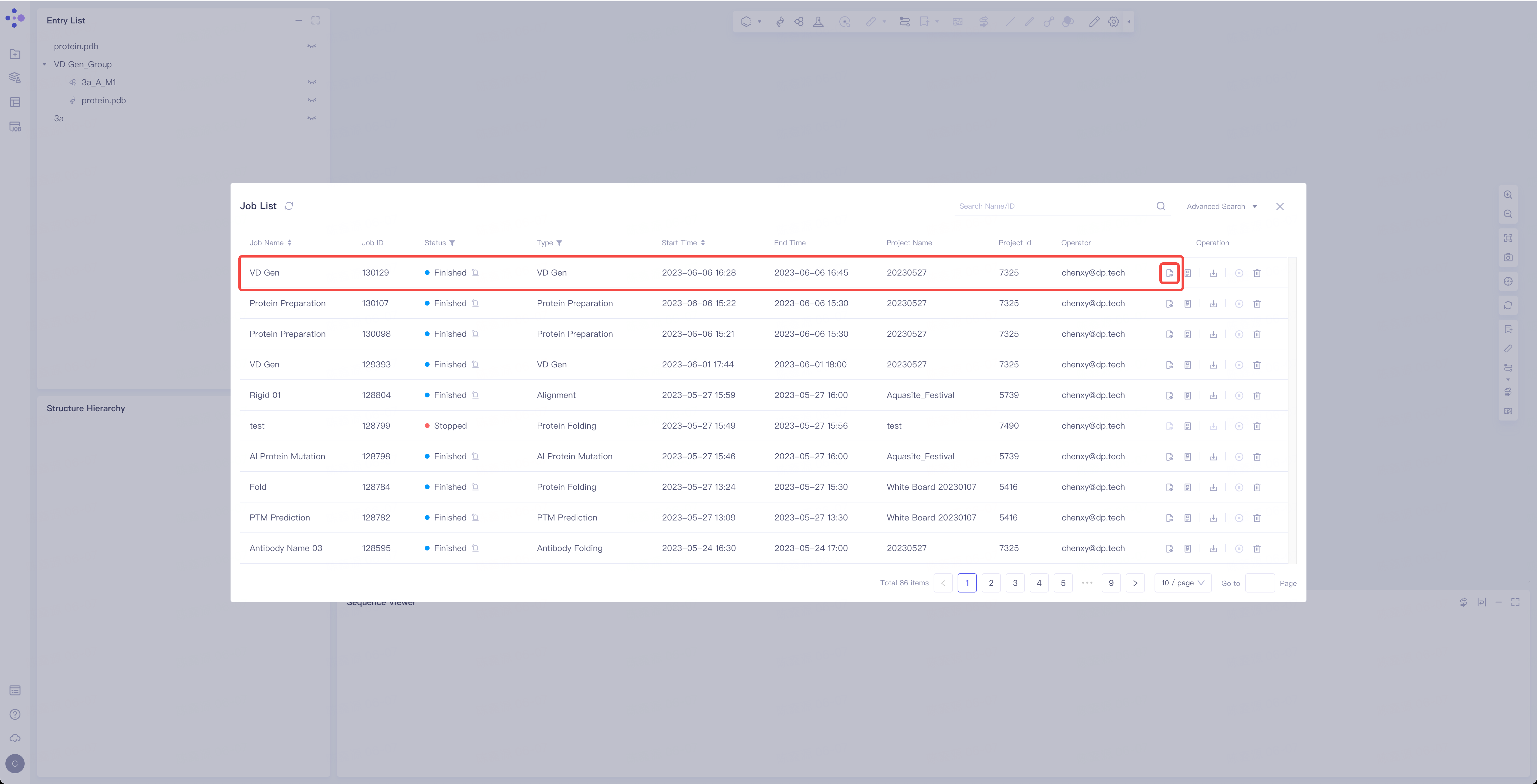
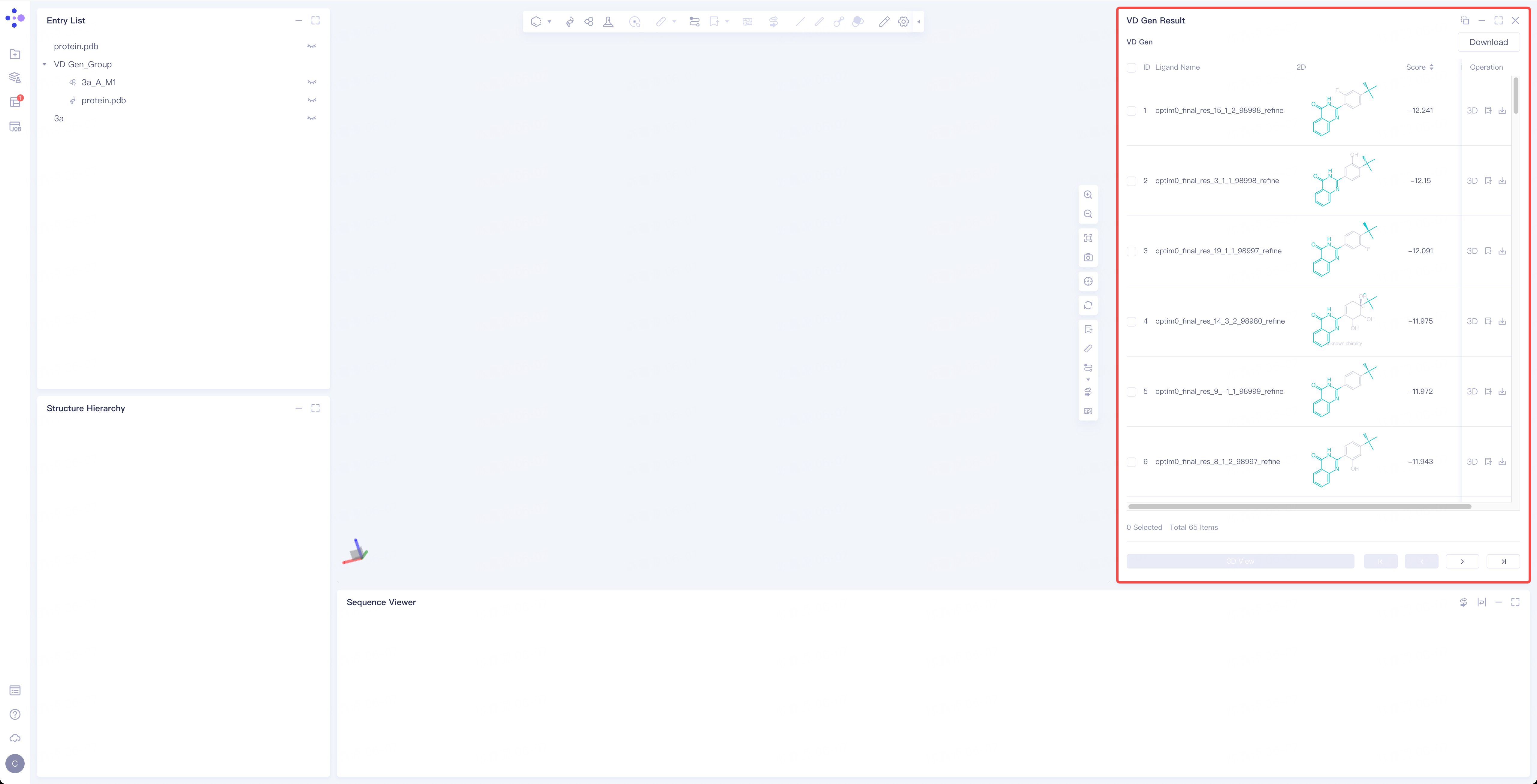
- Select the task to be viewed and click Show in the Operation column to view the result of the task. The interface is shown in the figure below.
 |  |
3.2.2 Explanation of results
-
The molecular portion marked with green is the unoptimized portion.
-
'Score' showed the affinity of molecules and protoproteins after generation/optimization.
-
Click '3D' (red box) in the Operation column to display the results of the corresponding molecules in 3D Workspace, and support switching molecules with ↑ ↓ keys on the keyboard.