Protein Preparation
1. Foreword
Complete and rational protein structure files are the starting point for protein property analysis and other CADD calculations (such as activity check point prediction, Docking , etc.).
The Hermite platform's Protein Preparation module provides protein structure processing capabilities, including: structure selection, completion of missing residues and side chains, determination of protonation status of polar residues, optimization of hydrogen bonding networks, and more.
2. Usage
2.1 Entrance
Left General Menu Bar Menu → Functions → General → Protein Preparation

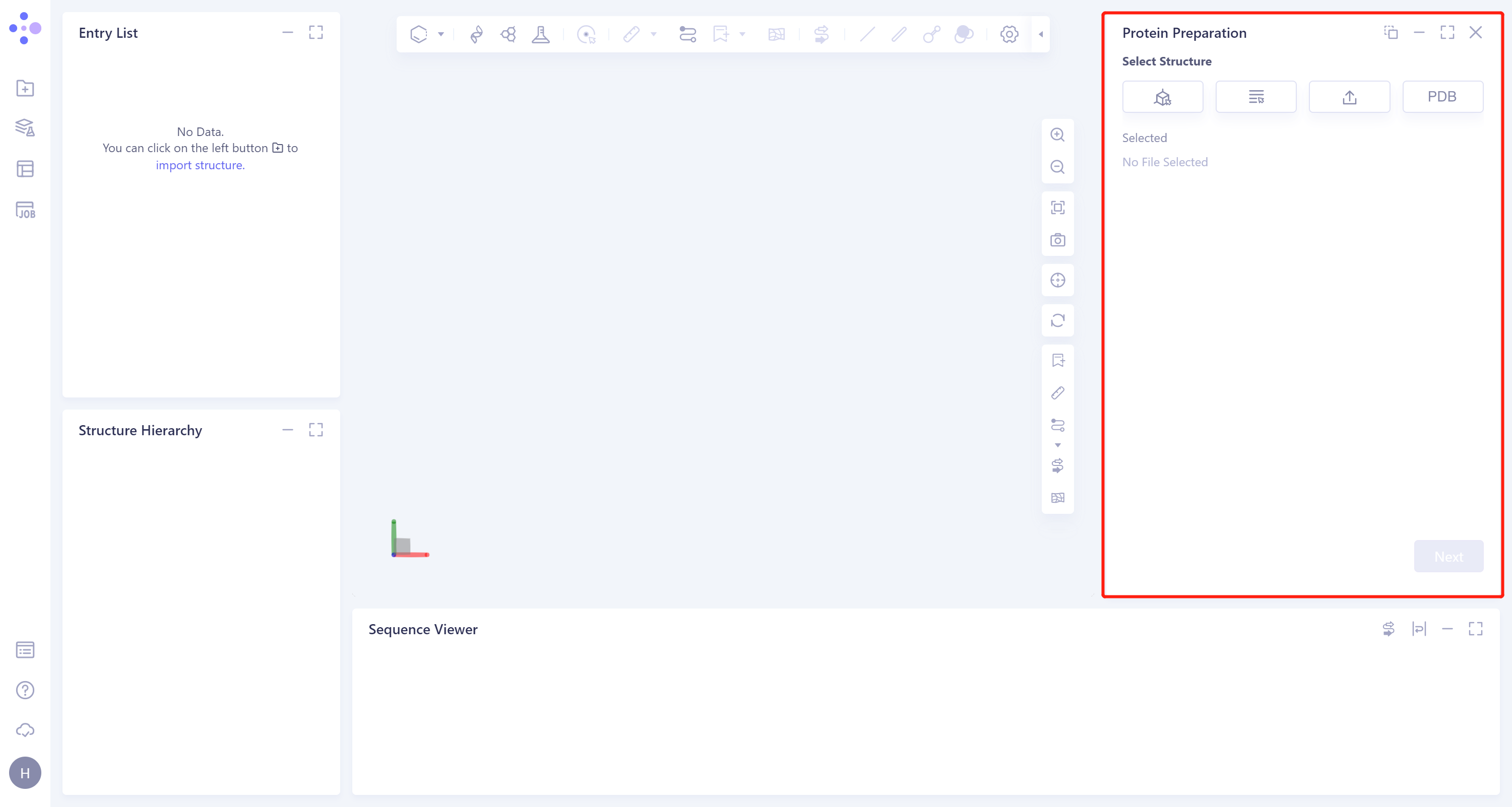
The operation box of Protein Preparation appears on the right (shown in the red box), and the overall interface is as follows:
2.2 Operation
- There are 4 ways to introduce proteins:
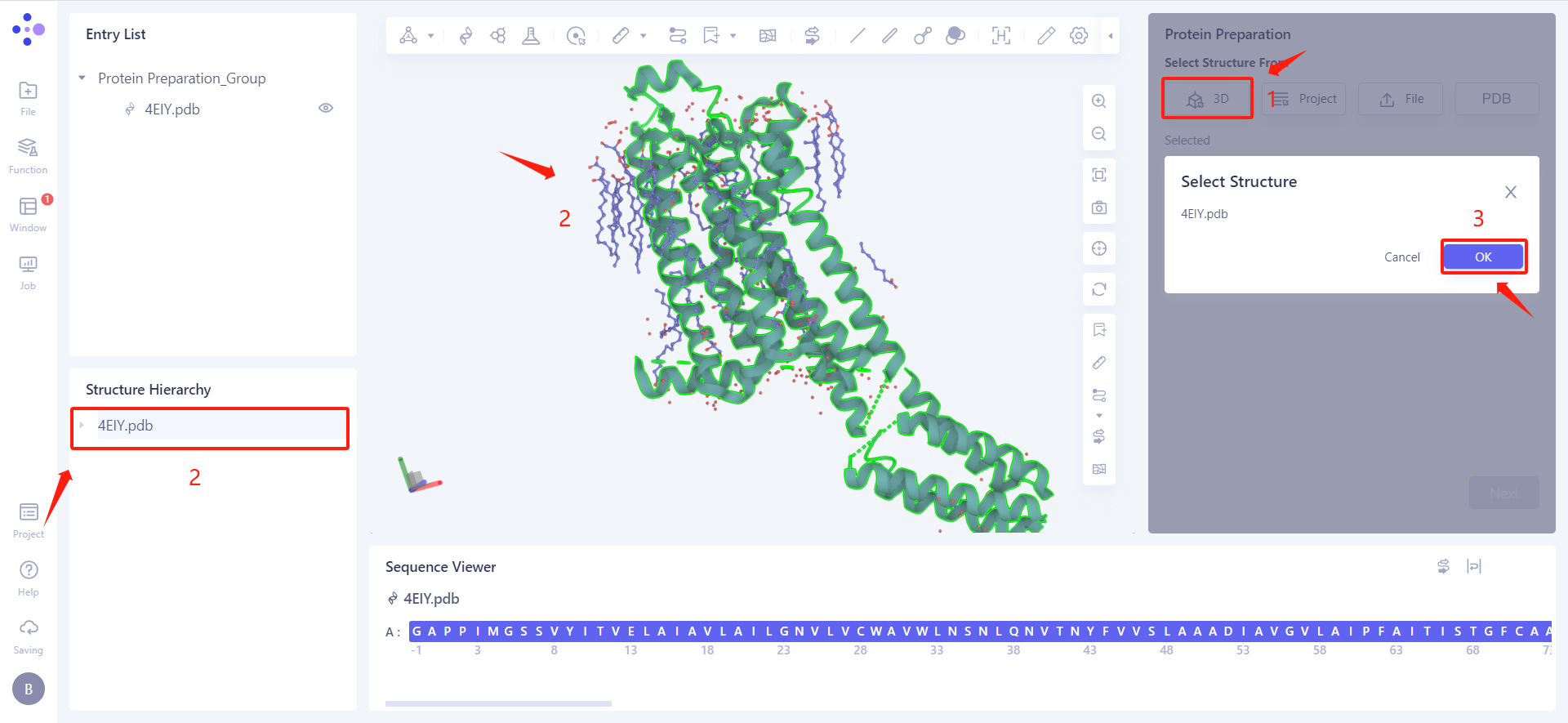
1)Select from 3D Workspace: Select proteins from graphical components.
Only protein molecular-level selection is supported in 3D Workspace; selection can be made in Hierarchy (Linkage 3D).
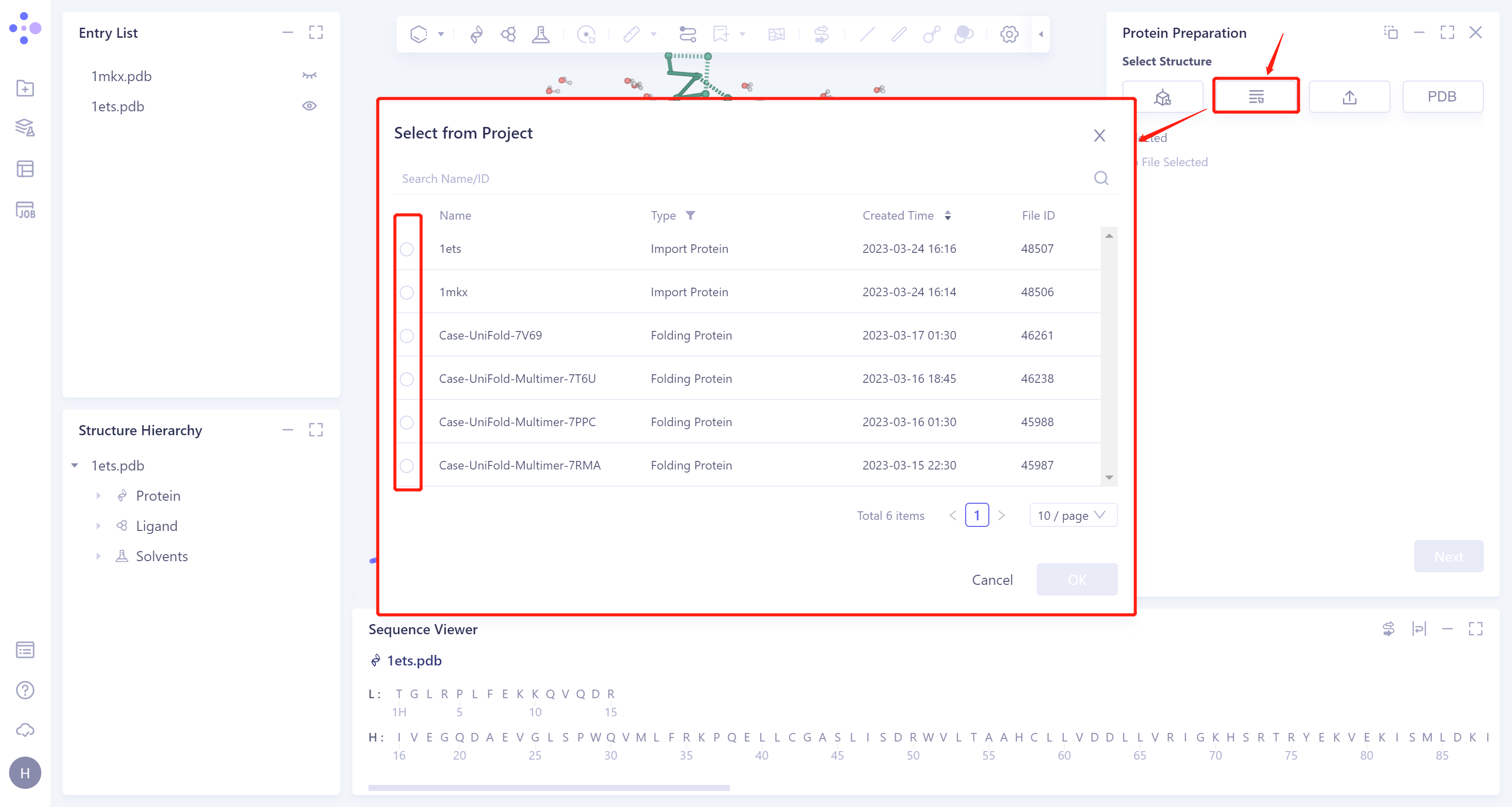
2) Select from Project: Select proteins from historical projects.
In the pop-up Select from Project operation interface, you can search for files by file name and ID through Search Name/ID, and support qualified type (Type) selection of protein files.
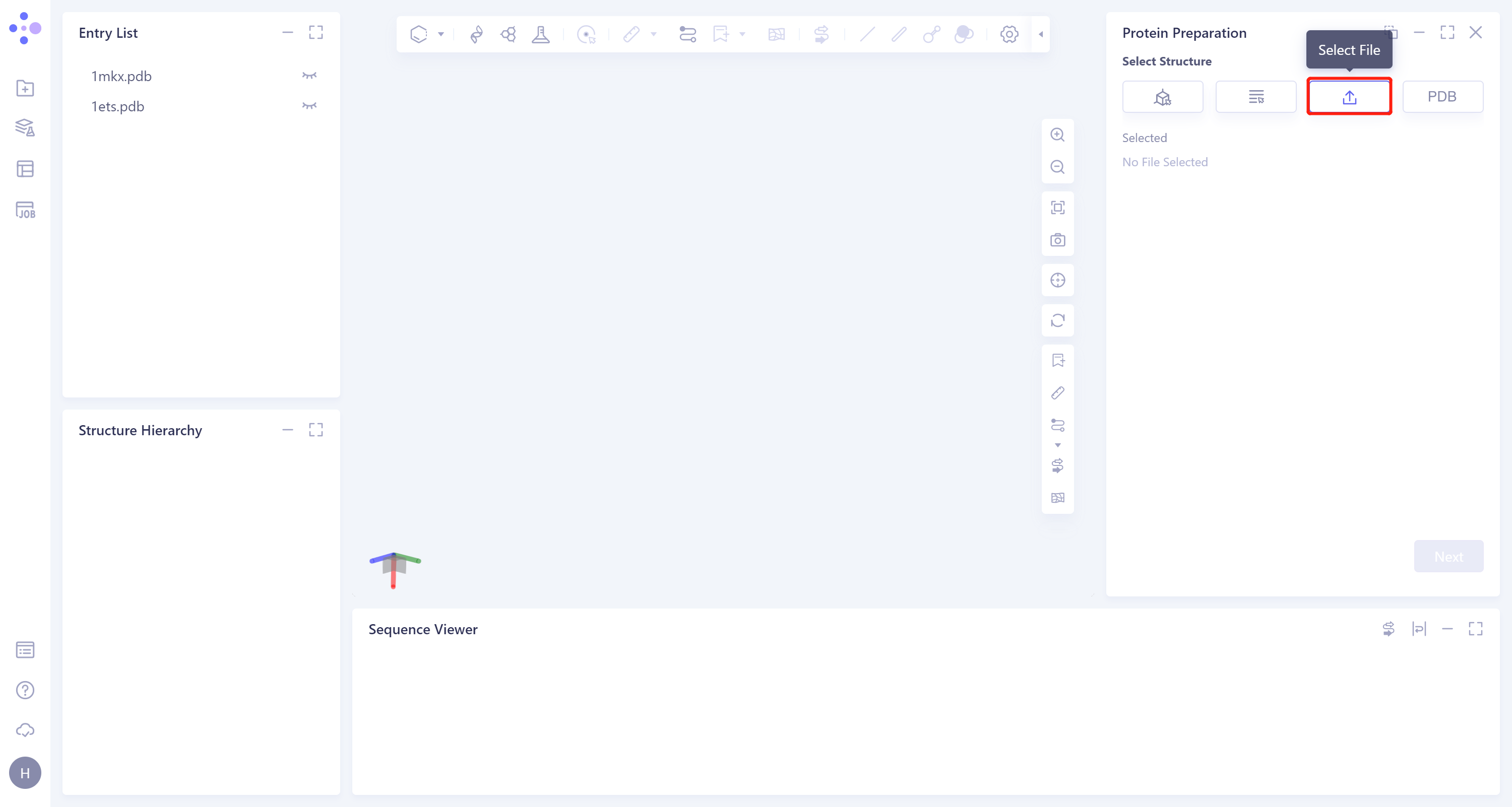
3) Select File: Upload local protein file, support .pdb format.
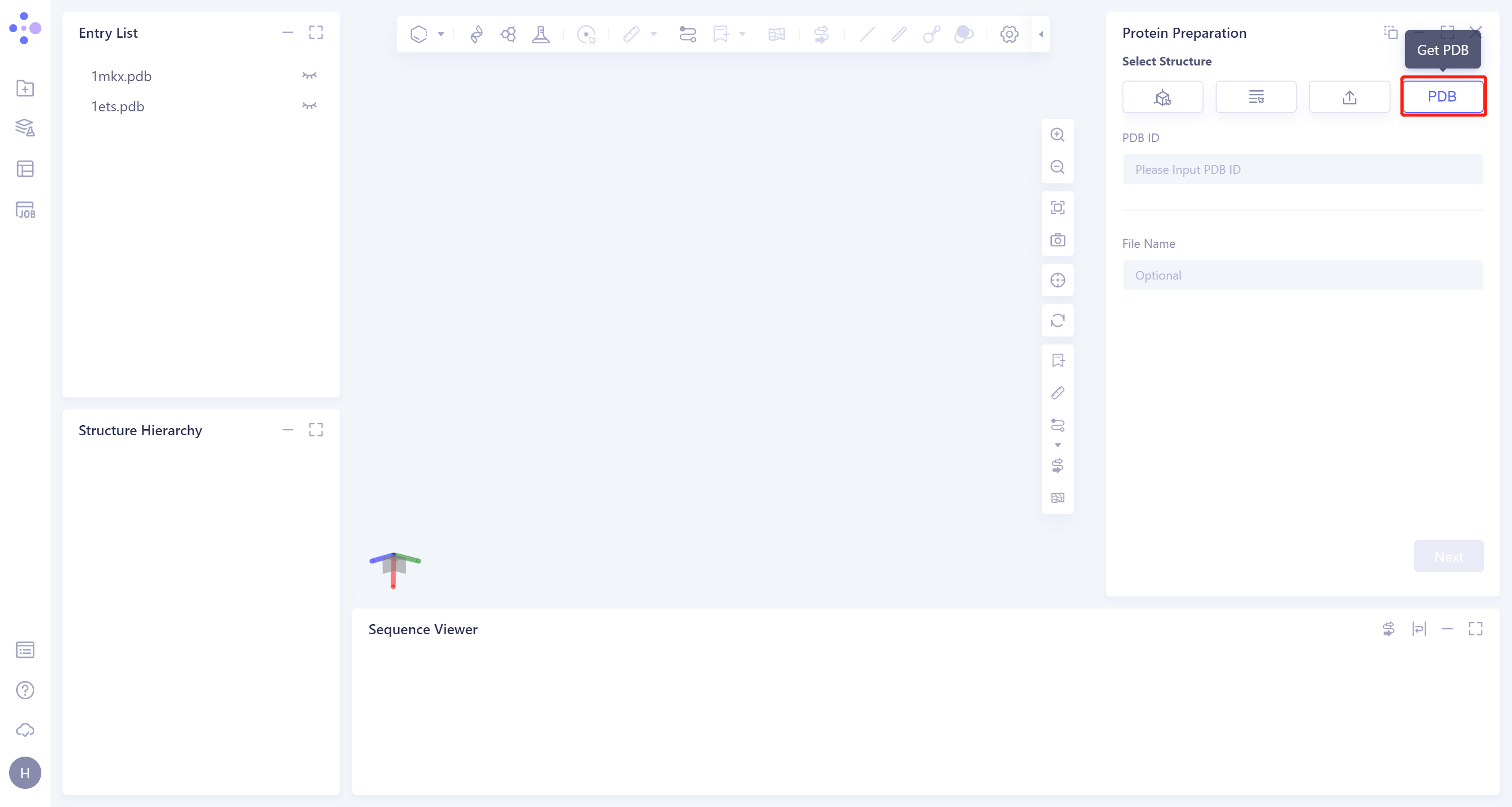
4) Get PDB: Index with PDB number and upload protein file.
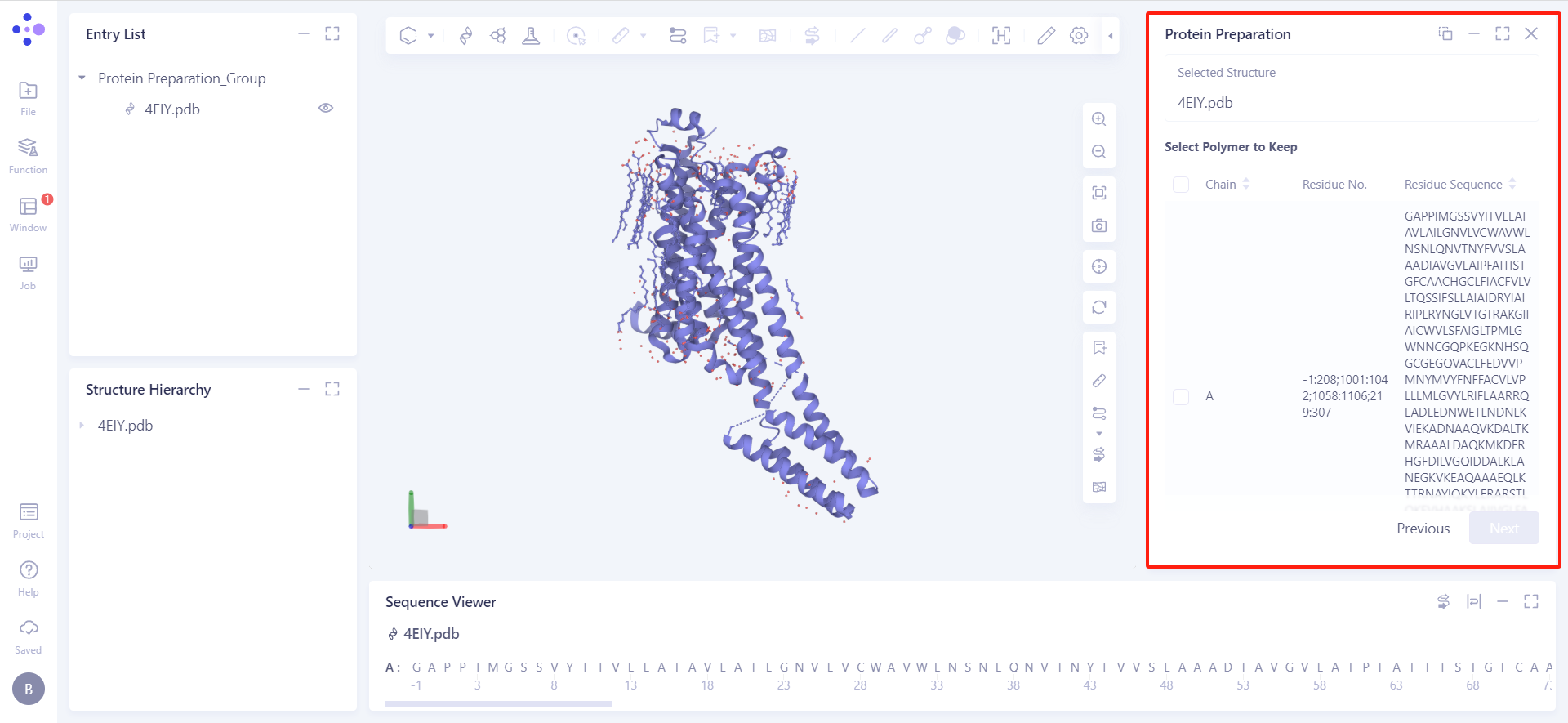
- Select Polymer to Keep: Select the chain to keep.
- Confirm Alternative Position: Select the variable amino acid residue position and skip by default.
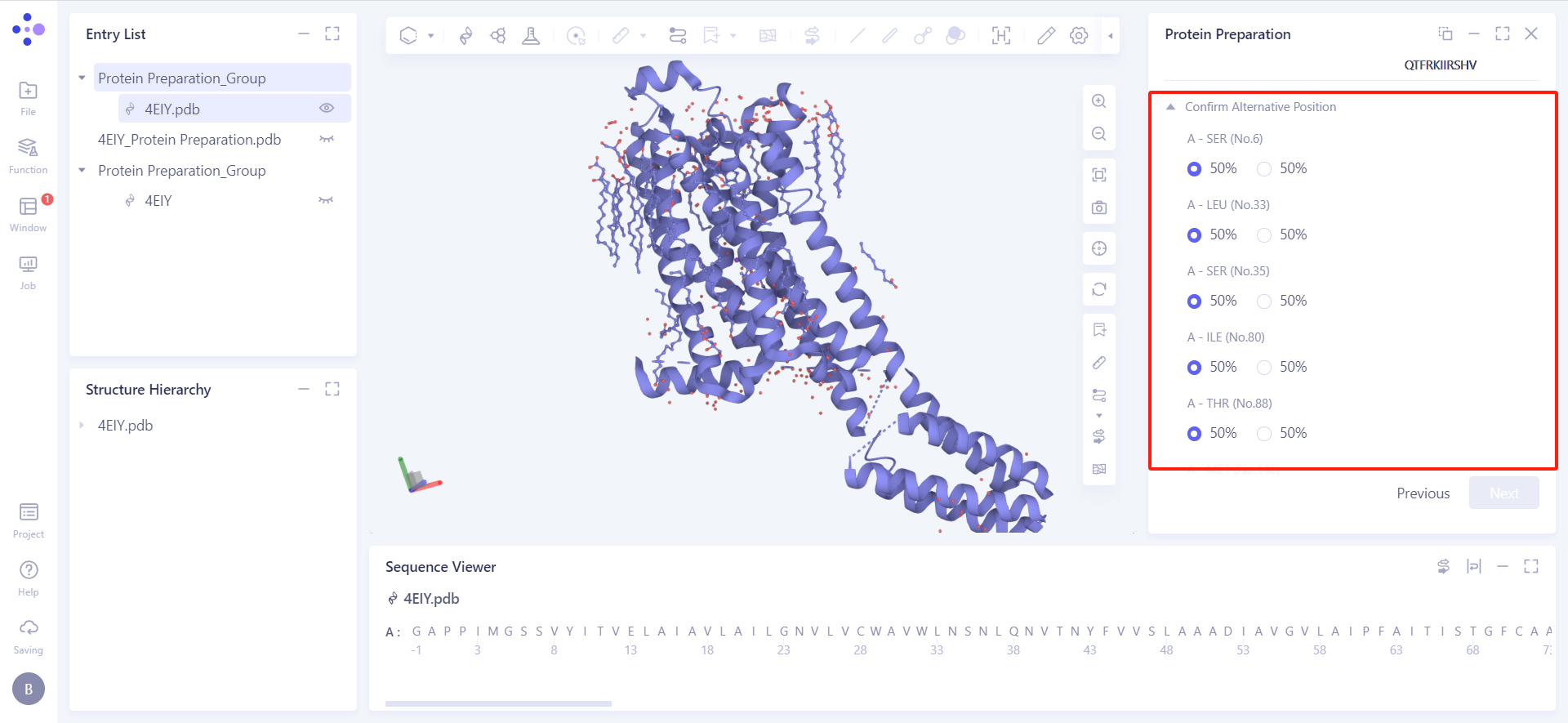
-
Select Water (s) to Keep: Select the water molecules to keep.
-
Keep Water (s) around Hetatms: Choose to keep water molecules around non-protein molecules, the distance range can be changed.
-
Keep All Water (s): Keep all water molecules.
-
Delete All Water (s): Delete all water molecules.
-
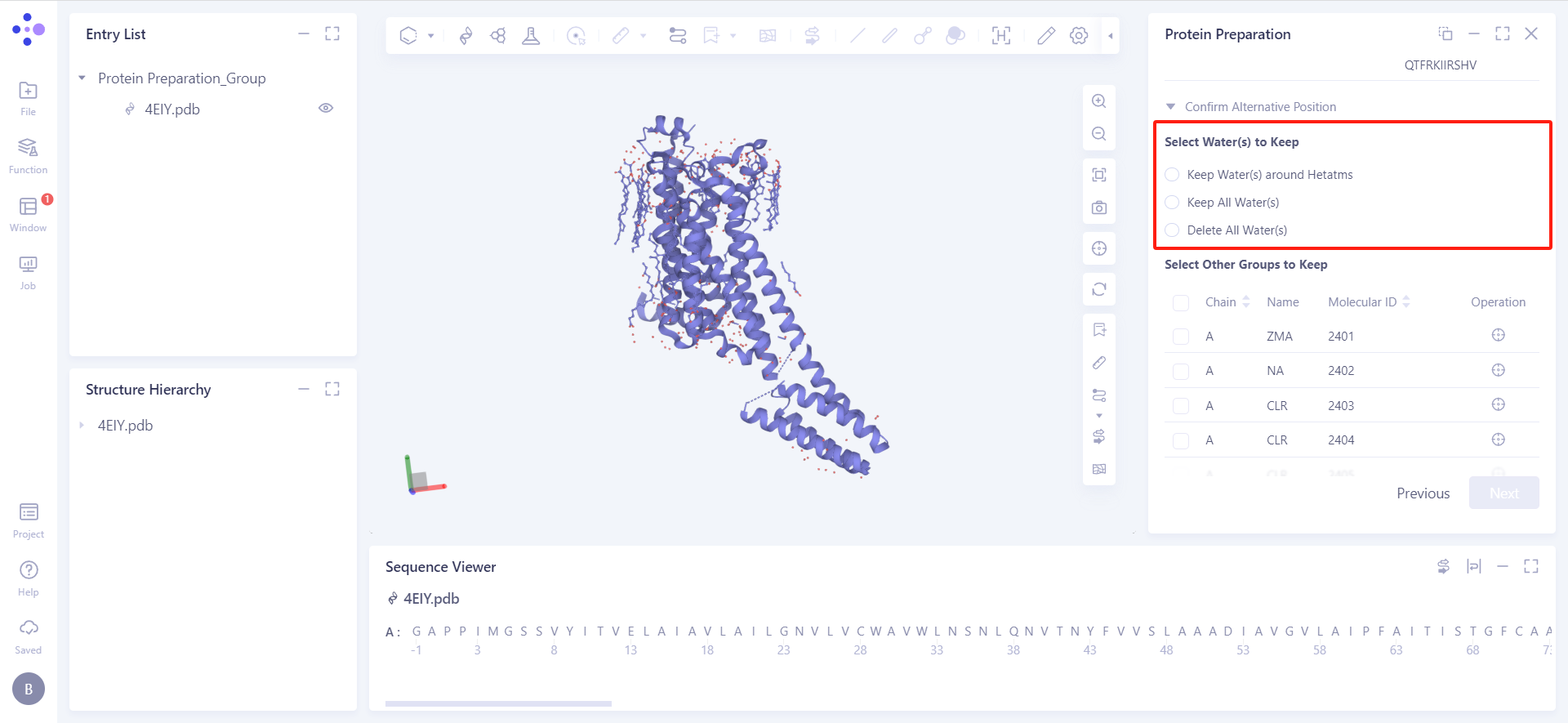
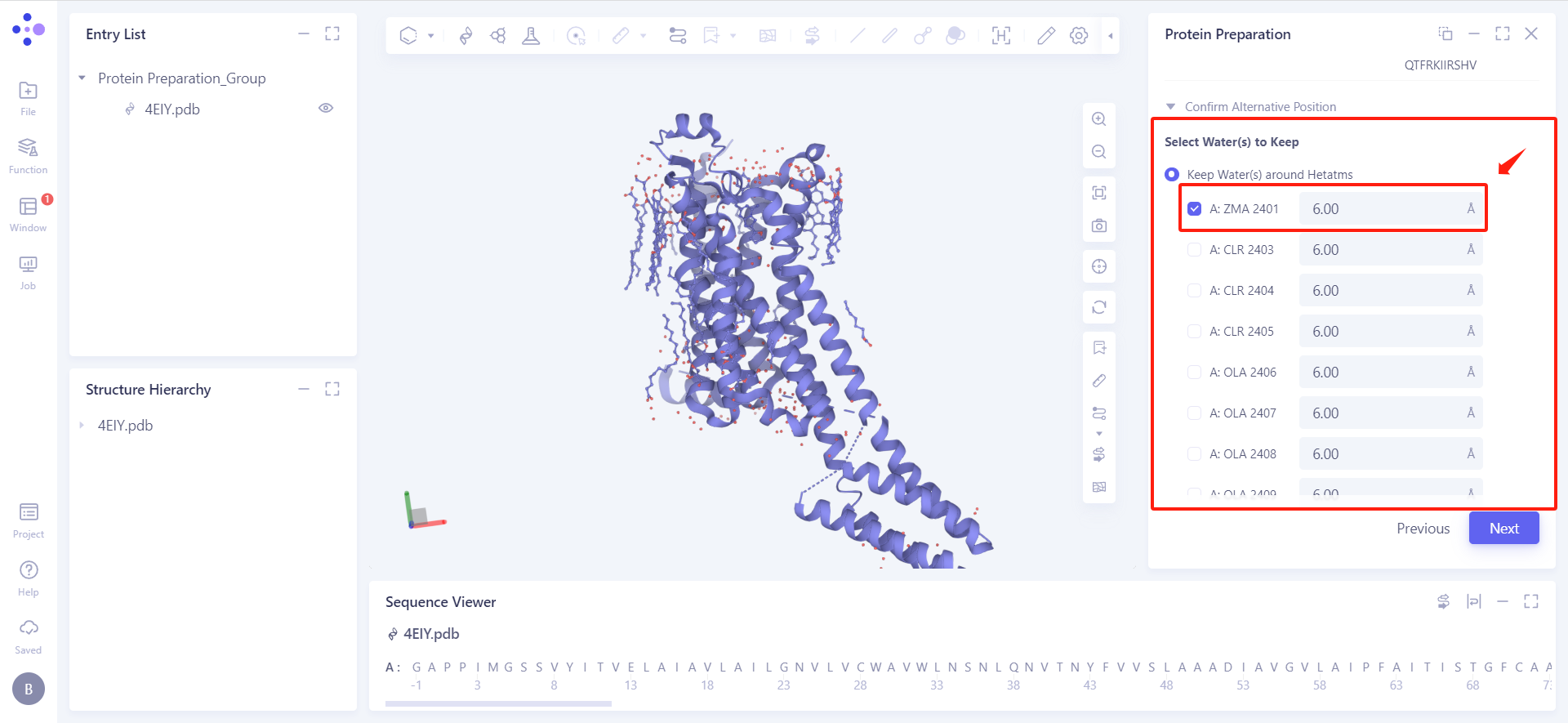
-
Select Other Groups to Keep: Select other components to keep.
- Click the corresponding button under the Operation column to Focus on the corresponding molecule on the 3D workspace.
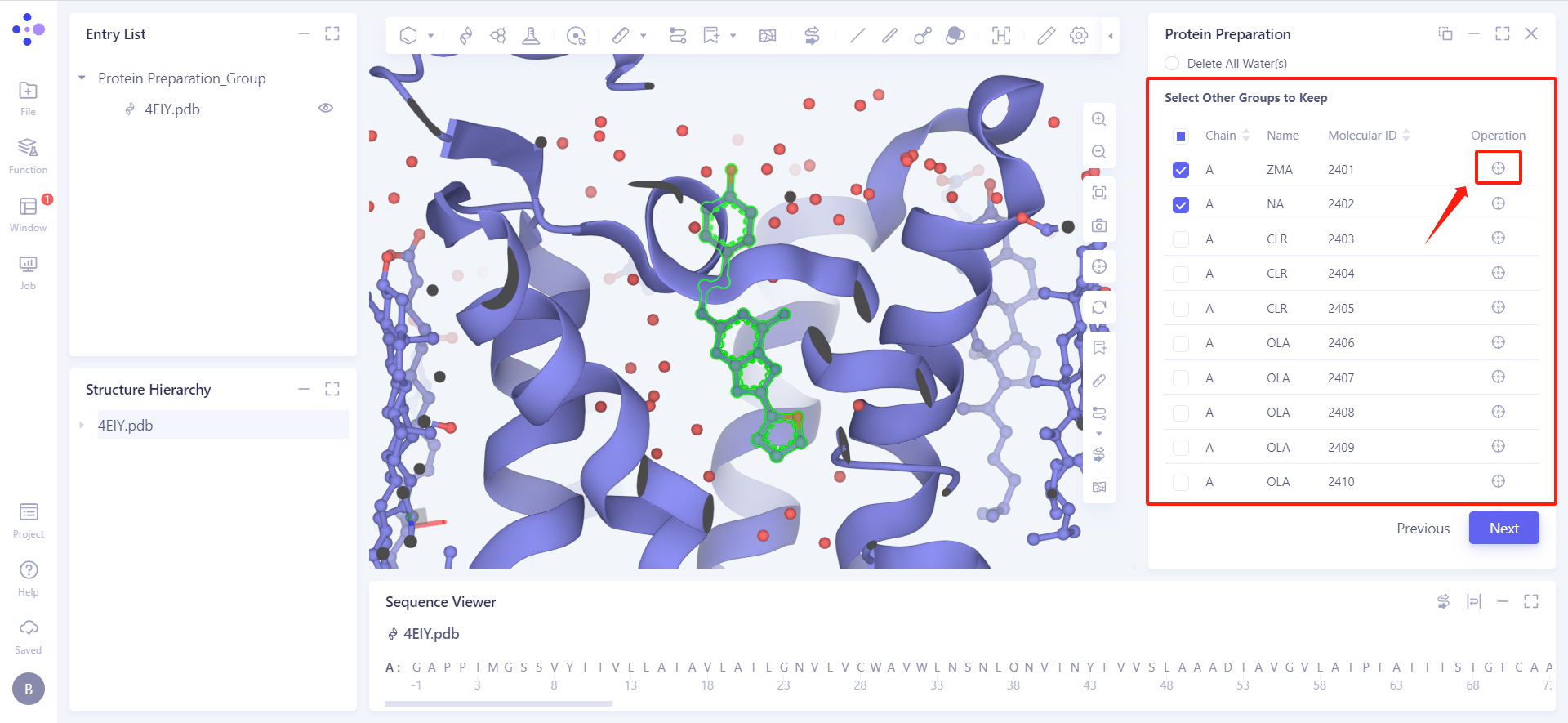
-
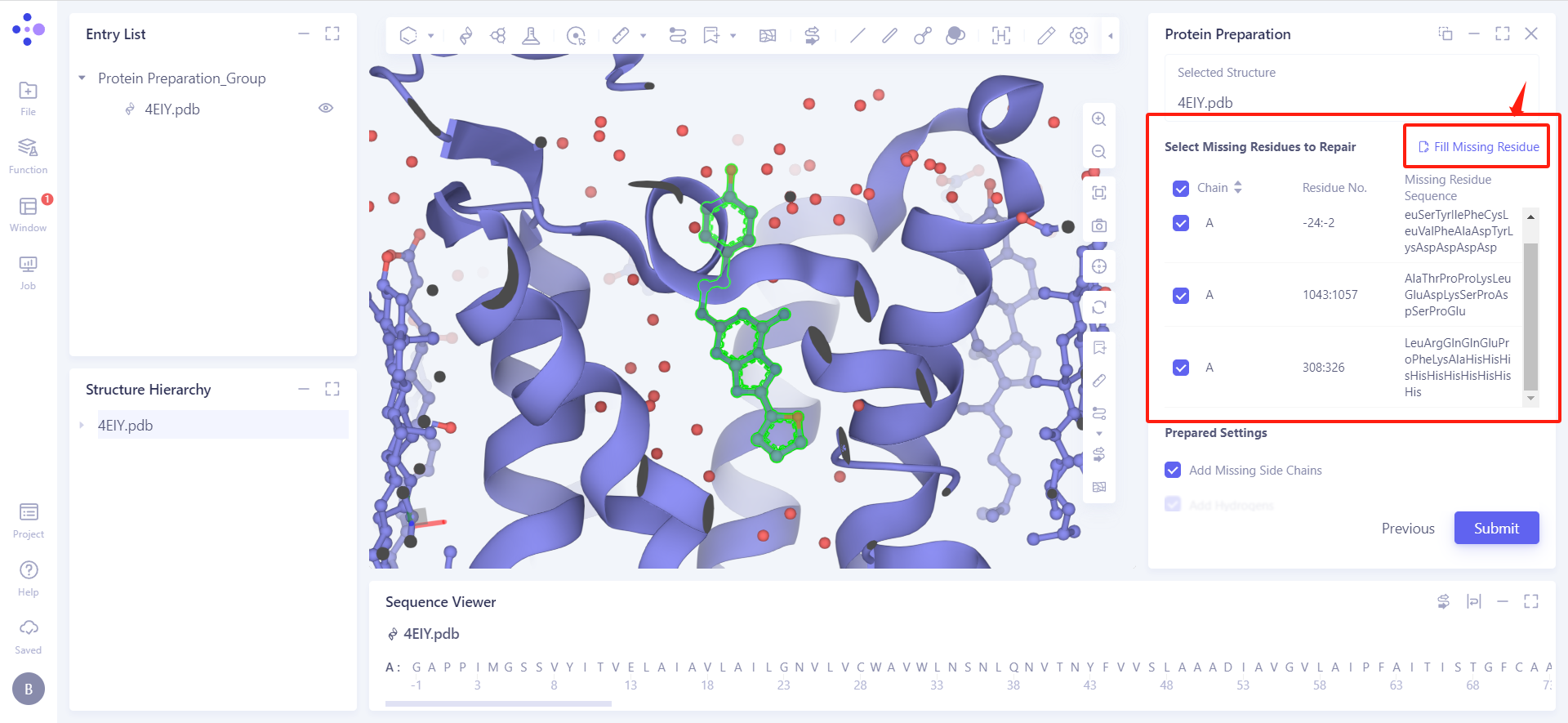
Select Missing Residues to Repair:
-
It can be repaired according to the sequence related data in the .pdb file;
-
If you click "Fill Missing Residue", you can choose to upload a .fasta file to repair the missing information.
-
-
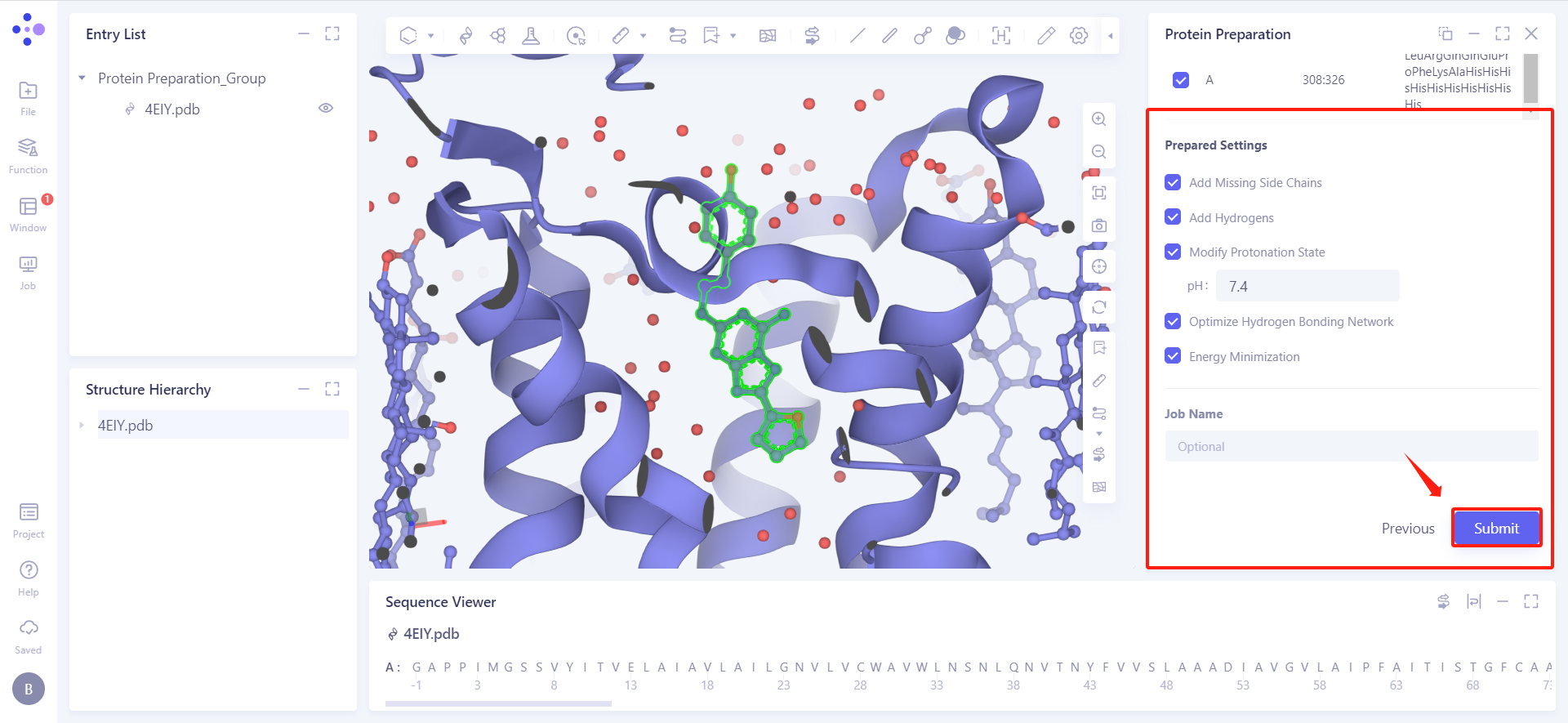
Prepared Settings
-
Add Missing Side Chains: add missing side chains;
-
Add Hydrogens: Hydrogenation;
-
Modify Protonation State: Adjust the pH of the protein environment to make the protein reach the protonation state at this pH;
-
Optimize Hydrogen Bonding Network: Optimize Hydrogen Bonding Network;
-
Energy Minimization: Energy minimization.
-
-
Job Name: Name the task.
-
Submit: Submit the task.
3. Result analysis
3.1 Entrance
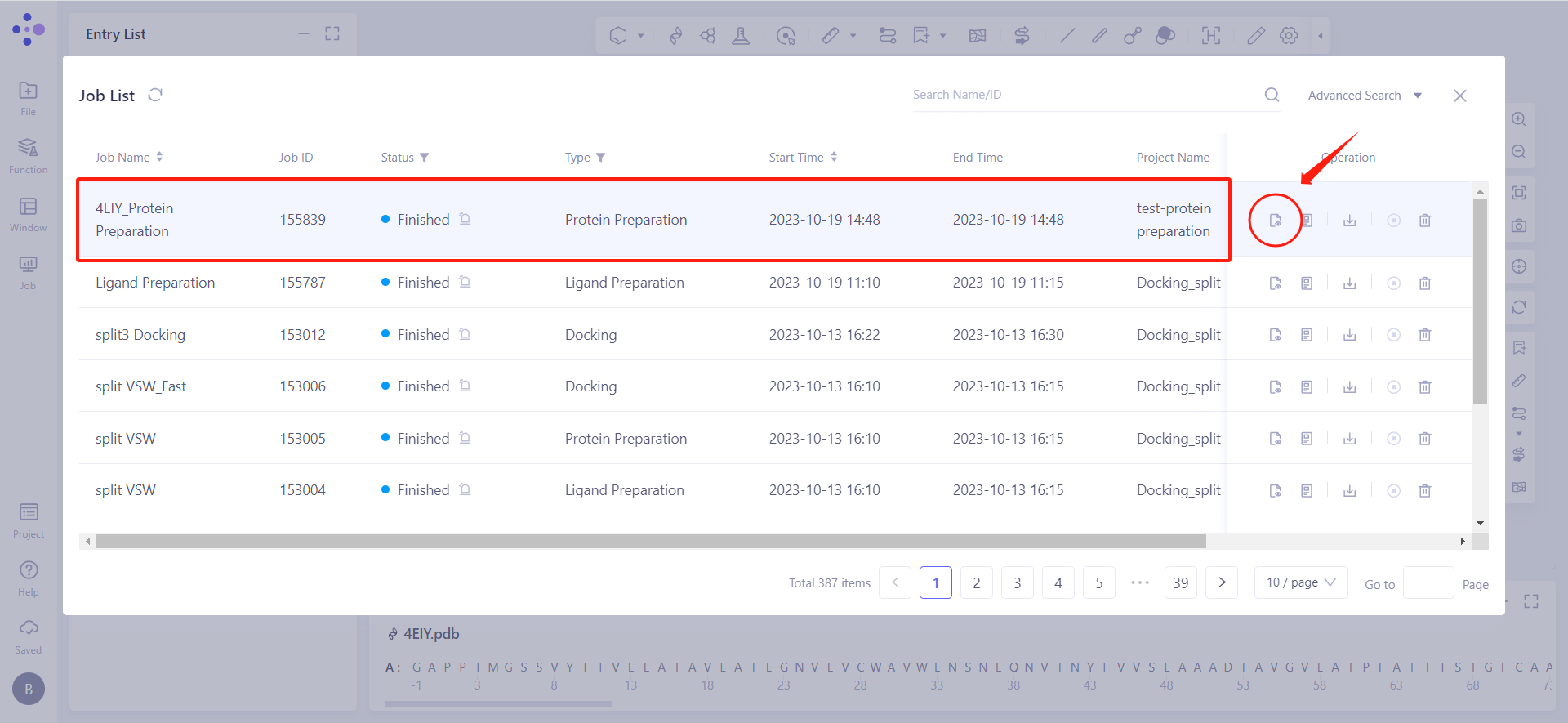
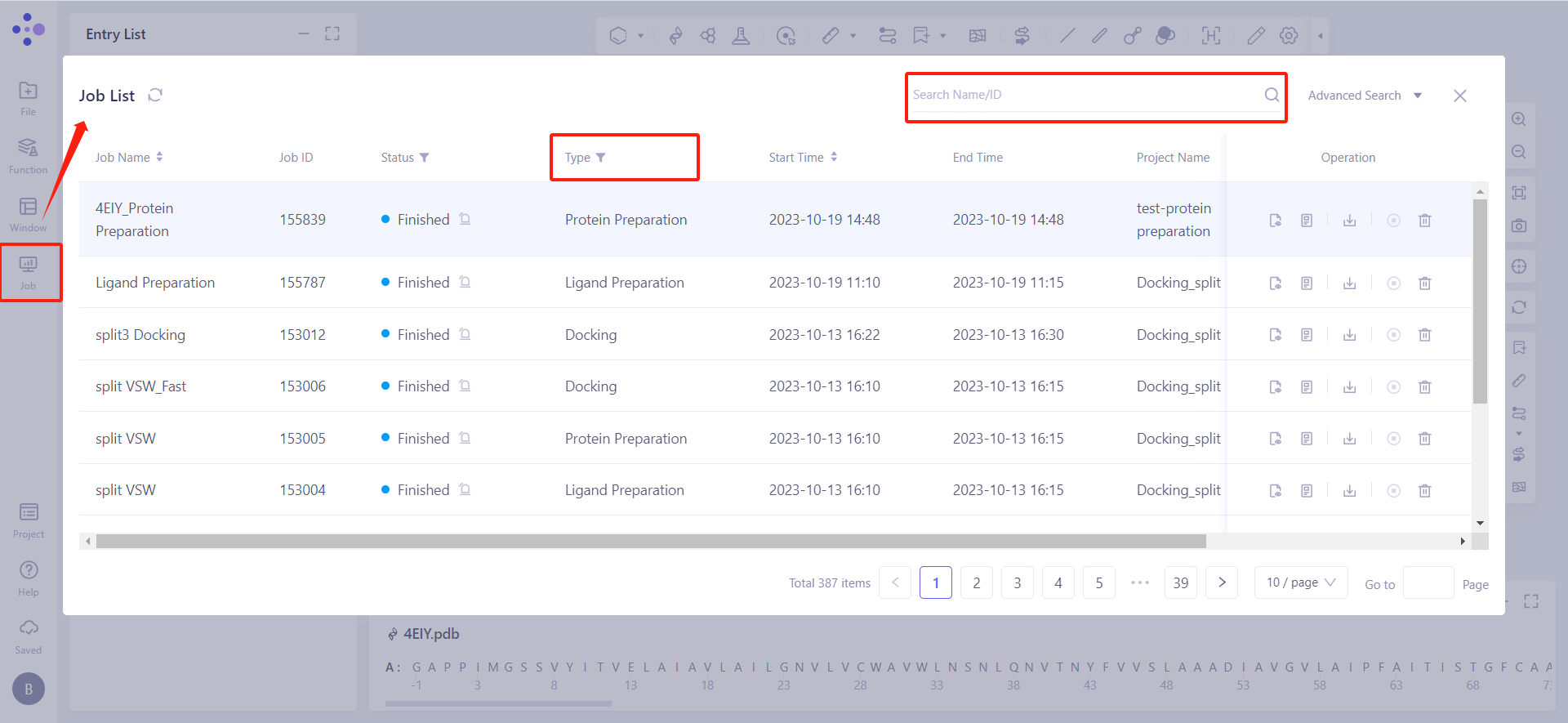
Left general menu bar Job → Find the Protein Preparation Job.
The task can be found by searching for Job Name, or by filtering by Job Type.
3.2 Presentation of results
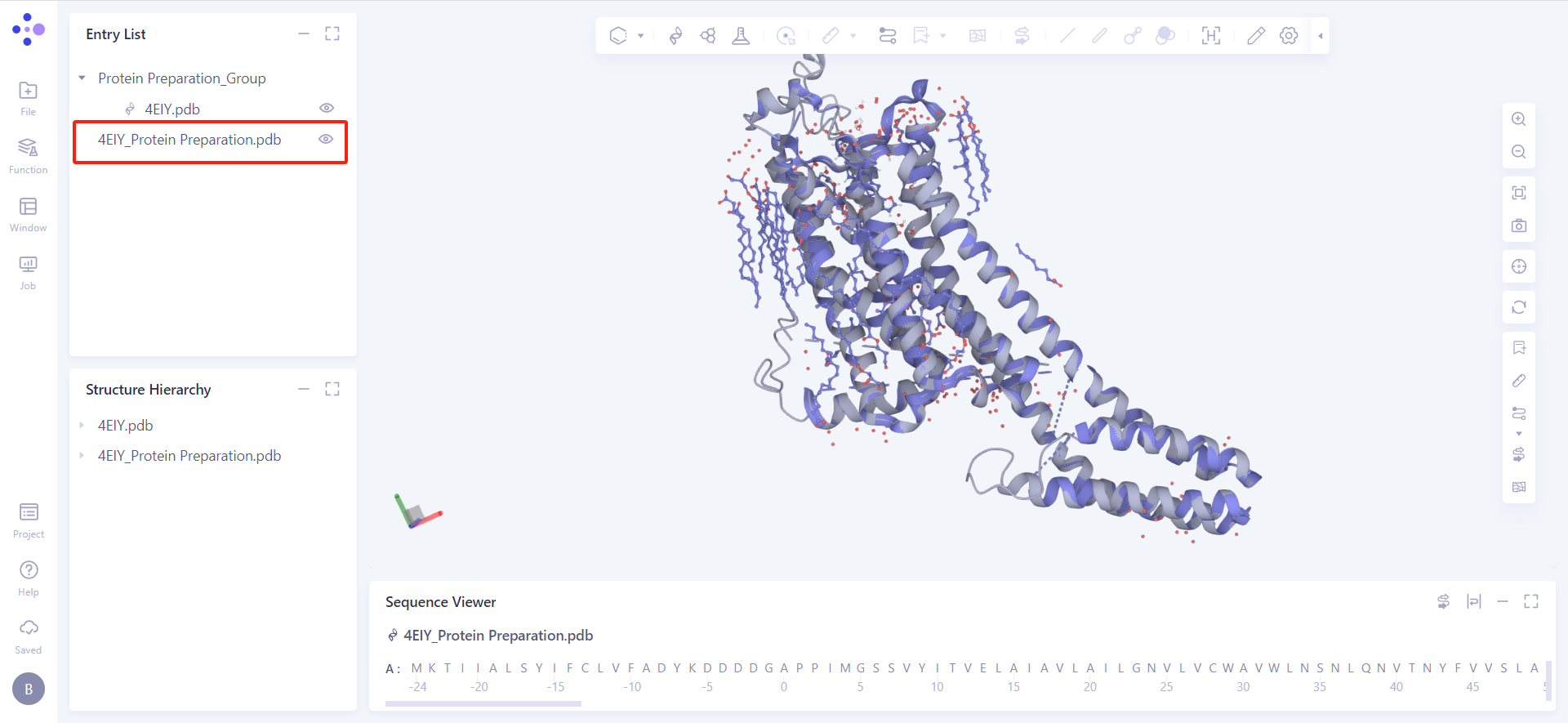
Select the task you want to view, and click Show in the Operation column to display the result of the task. The interface is shown in the figure.
The processed protein is displayed in the 3D Workspace area.